
Export selections and save reusable assets
Available in infinite documents, vertical documents, and paged notes. Select an area with the lasso, then choose whether to share an image or reuse the content in your notes.
Capture an area and insert it into the canvas
- Circle the area with the lasso and choose Screenshot.
- Check the preview edges to make sure text, lines, and nearby objects are complete.
- Choose the add-to-canvas action to keep the image in your note, or Share to send it elsewhere.
- The inserted image can be moved, resized, or cropped. The original handwriting and objects remain.
A screenshot flattens visible content into an image. Its handwriting can no longer be edited stroke by stroke. To retain the original object structure, copy the content or export the native document.
Capture a note as an image
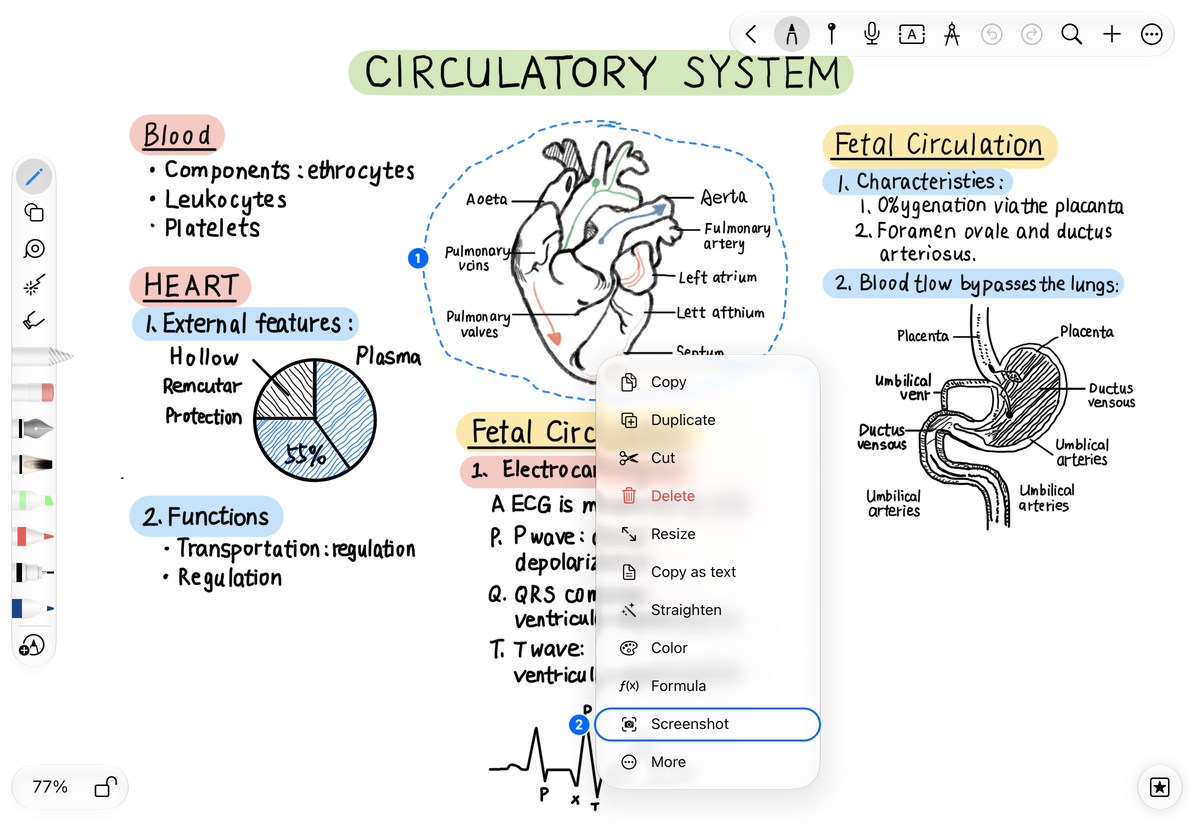
Export the selected area
- Keep the selection active and choose More → Export.
- Choose an available format in Export Options: PNG, JPEG, or PDF.
- If Include Background Color is available, choose whether to retain it. A background is useful for direct reading. For transparency, choose PNG and check the preview.
- If Include Content on Attachments appears, choose whether to include content overlaid within the object’s area.
- Tap Export and choose a save location or receiving app in the system share sheet.
JPEG does not support transparency. PDFs and images are not native, editable Prodrafts documents. Area exports capture a region; lasso filters select objects and do not guarantee that other visible content within that region is excluded. Check the preview.
Save an asset or create a combined artboard
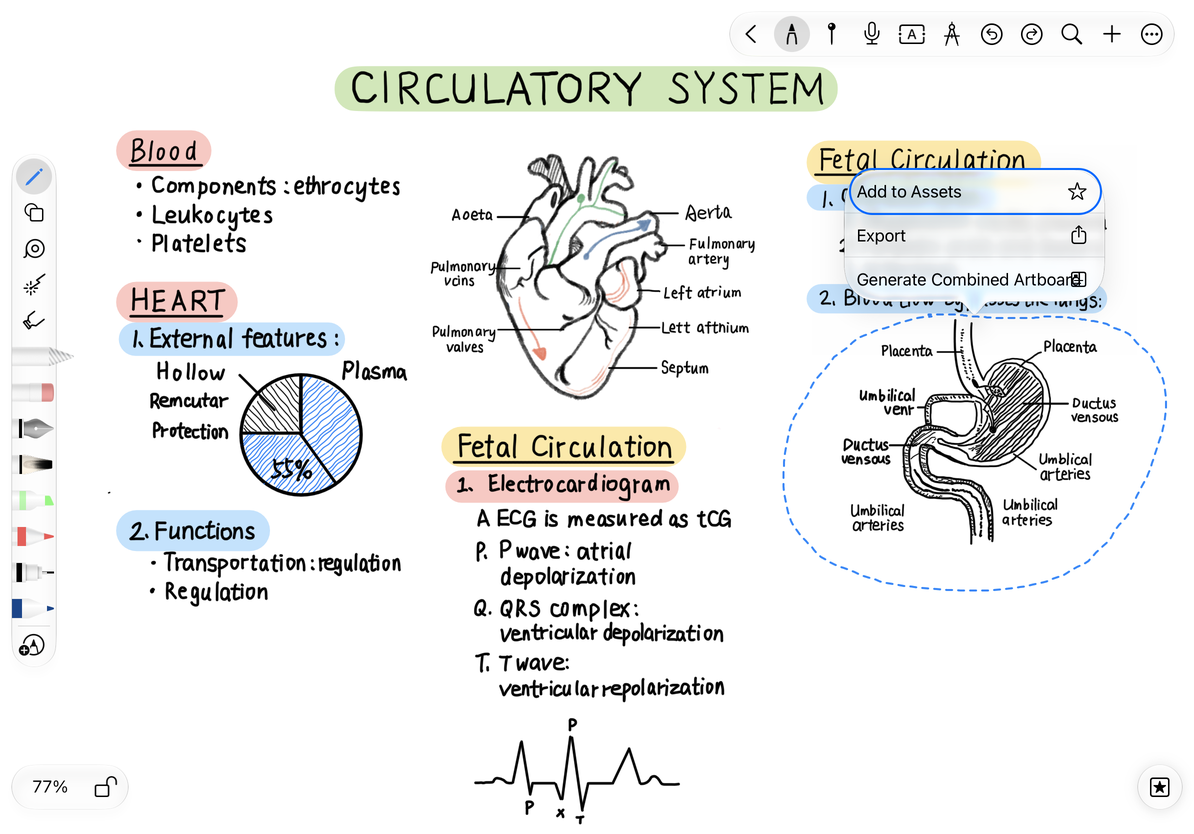
To insert the content again later, choose More → Add to Assets from the selection menu. You can then find it in the asset library. Deleting the original objects from a note and managing the asset library are separate actions.
To organize the selected content as one canvas area, choose More → Generate Combined Artboard. The new artboard surrounds the selected content without flattening it into an image. See the Artboard guide for moving and exporting artboards.
Save or reuse a selection
Can I capture a PDF area with no handwriting?
Yes. Paged notes can capture the original page area even when it contains no editable handwriting.
Content is missing at the edges of the export
Select a slightly larger area and check the preview again. Changing pen thickness does not fix the export boundary.
Related guides: Use the lasso · Save assets · Native document export