
Insert photos, videos, and GIFs
Photos and videos can be added as independent objects to Infinite documents, Vertical documents, and Paged notes on iPhone, iPad, and Mac. For Text documents, see Body media.
Insert from Photos
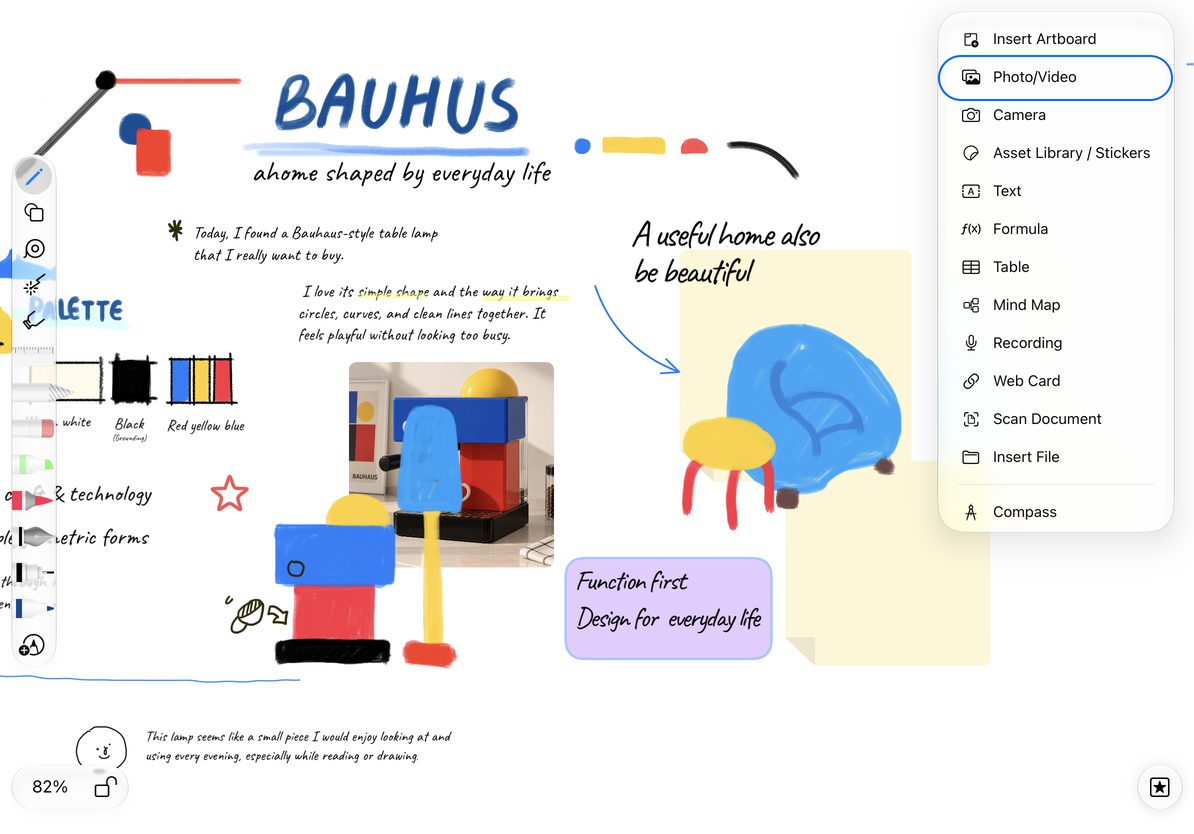
- Open the note and go to where you want the media. In a Paged note, open the target page.
- Tap the top add button and choose Photo/Video.
- Select up to 20 items in the system photo picker, then confirm.
- Wait for them to load, then adjust their positions and sizes. Each image becomes a separate object.
Canceling the picker returns to the note. To remove an inserted object, select and delete it. Use canvas Undo if you make a mistake.
Insert from Photos
Play videos and GIFs
Tap a video's play button, then use the system controls to play, pause, or seek. Close the player to continue editing. GIFs either play automatically or show a play button, depending on your preference. Tap that button to start the animation. If the object is too small to show a play button, zoom in first.
To change GIF playback, open More Settings → Preferences → Default Media and toggle Pause or Play GIFs. When enabled, GIFs start paused and play when tapped. When disabled, they play automatically.
PDFs and images are static formats and cannot retain video playback or GIF animation. To share a document with its usable media, see Export a native document.
Set defaults for new images
Open More Settings → Preferences. Rounded corners in Default Media apply to newly added media. Infinite and Vertical documents also offer a corner style in the general options. These defaults do not replace editing existing objects individually.
Compress Added Images has separate settings for Infinite documents and Paged notes. Vertical documents use the Infinite document setting. Compression applies to images added afterward; it does not compress all existing attachments. Check the setting before inserting images whose fine details you want to preserve.
Common questions
An item is missing from the photo picker
Check that the system picker can access it. Photos stored in the cloud may need to finish loading.
A video will not play after export
Check that you exported a native document, not a PDF or image.
A new image already has rounded corners
Check the rounded corner default. For cropping or isolating a subject, see Edit images.
You can also use the camera or scan documents, or browse media in the attachment list.