
Add writing space beside pages
Page extensions work in Paged notes and imported PDFs on iPhone, iPad, and Mac. They add room for notes beside the original material while keeping the document's page structure. They do not turn it into an Infinite document.
Add space to the current page
- Go to the page and choose Page Extension in More or its thumbnail menu.
- Under Extension Position, choose Left, Right, or Left & Right. None hides side extensions.
- Open Extension Size, choose an available width, and check the preview.
- Open Background to set the extension's paper style, background color, line color, and spacing.
- Check the preview and tap Done to apply. Use the close button to leave the settings panel.
Add space to the current page
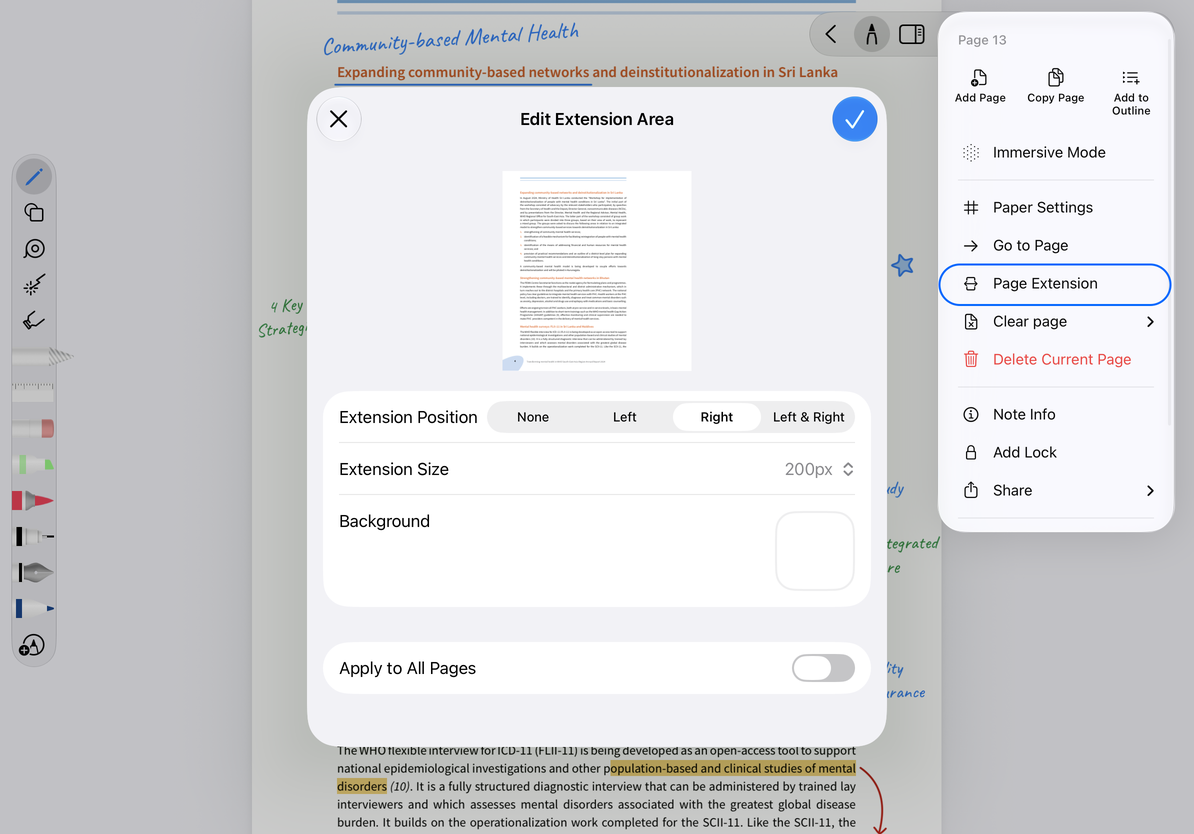
Apply to all pages
To use the same settings throughout the note, enable Apply to All Pages where offered, then apply. Leave it off to change only the current scope. Before applying broadly, inspect the first page and pages with different sizes; one preview may not represent every page well.
You can write in the extension with Pen Boxes or place page objects there. Reopen Page Extension to change its size. Before hiding or shrinking the extension, check any existing content inside it. Reducing the visible area is not a way to delete or move that content.
Export and troubleshoot
Before sharing, open the PDF or image export preview and confirm that the chosen export scope includes the extension and its contents. Check both sides, not just the center of the original page, before saving.
Why is the extension missing after rotating the page?
Rotated pages have limitations on displaying extensions. Restore the original orientation, then check the extension settings and content. Also inspect the actual PDF or image export area; an enabled extension setting alone does not guarantee that side notes are included.
The page looks small with both sides extended
The total width has increased. Adjust the zoom or use an extension on only one side.
I want a whole sheet after the reference material
I only want to erase one stroke in the extension
Use the eraser or a selection to remove that content. Do not hide the whole extension to erase one stroke.
Related guides: Reading settings · What clearing a page removes