
Enable iCloud and check sync status
Available for all four document types. Sign in to an available Apple Account, enable iCloud Drive, and allow Prodrafts to use iCloud. Devices accessing the same cloud library must use the same iCloud account.
iCloud keeps data in sync between devices. Document deletions may also sync, so it is not an independent backup that stays unchanged when you edit or delete something.
Enable iCloud and check the result
- Open Settings → iCloud & Backup from the Prodrafts library and review the current status.
- Turn on Use iCloud. If Enable iCloud Sync? appears, read the explanation and choose Enable Sync.
- Wait for account and iCloud Drive checks. The page may show preparation, then progress for document information or document files.
- Keep the network available and wait for completion. If an error appears, follow its guidance.
- Open a document you want to use on another device and check its contents and required attachments. Then open the same document on that device and compare the actual content.
Enable iCloud and check its status
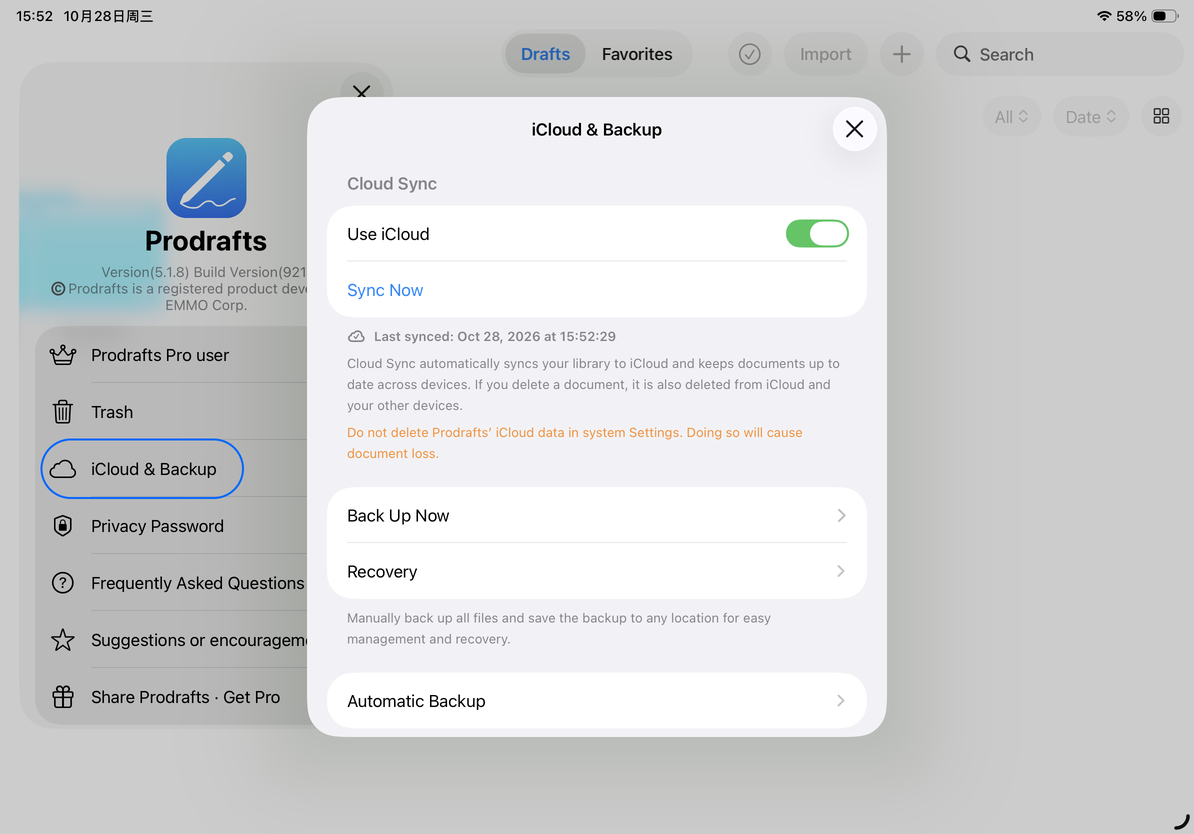
The initial notice also explains that deleting Prodrafts’ iCloud data in system Settings is not a sync troubleshooting step. Before signing out, switching accounts, or addressing storage shortages, create and verify an independent backup.
Sync manually and read the status
Choose Sync Now to request a refresh. The button is temporarily unavailable while syncing, changing the sync setting, or creating a backup from this page. Wait for the current operation to finish; repeated taps are unnecessary.
The last sync date describes the sync process. Library information, such as document names and folders, is updated separately from actual document content. A note appearing in the list does not guarantee that its text and every attachment have downloaded. Open important documents and check them before going offline or turning sync off.
If an error appears
- iCloud unavailable: Check account sign-in, iCloud Drive, and Prodrafts permissions. See Unavailable access and account changes.
- Insufficient storage: Address iCloud storage in system settings, then return and choose Sync Now. Do not delete Prodrafts’ cloud data as an ordinary retry step.
- Other errors: Keep the full message, check the network, and retry. For repeated failures, contact support with the affected device and an example document that has not updated.
Turning sync off requires choosing how to handle local data. See Turn off sync and keep local data.
This article is current as of October 12, 2026; menus may vary across devices and versions.