
Use system Writing Tools
Available in text documents. The Writing Tools interface requires iOS 18 or the corresponding capabilities on later systems. Actual availability also depends on the device, region, language, and system features. Apple provides it; installing Prodrafts or having Prodrafts Pro access does not guarantee it will appear.
Open Writing Tools from selected text
- Open a text document, leave preview mode, and activate the text.
- Select only the text you want to work on.
- Open the system text-editing menu and choose Writing Tools, if available.
- Choose an available action in the system panel. Review the result, then accept it, revise further, or cancel.
- Return to the document and check the selected text, nearby content, and formatting.
Available actions vary by device and language. Use the options actually shown and check the output yourself, especially numbers, names, and quotations.
System text corrections
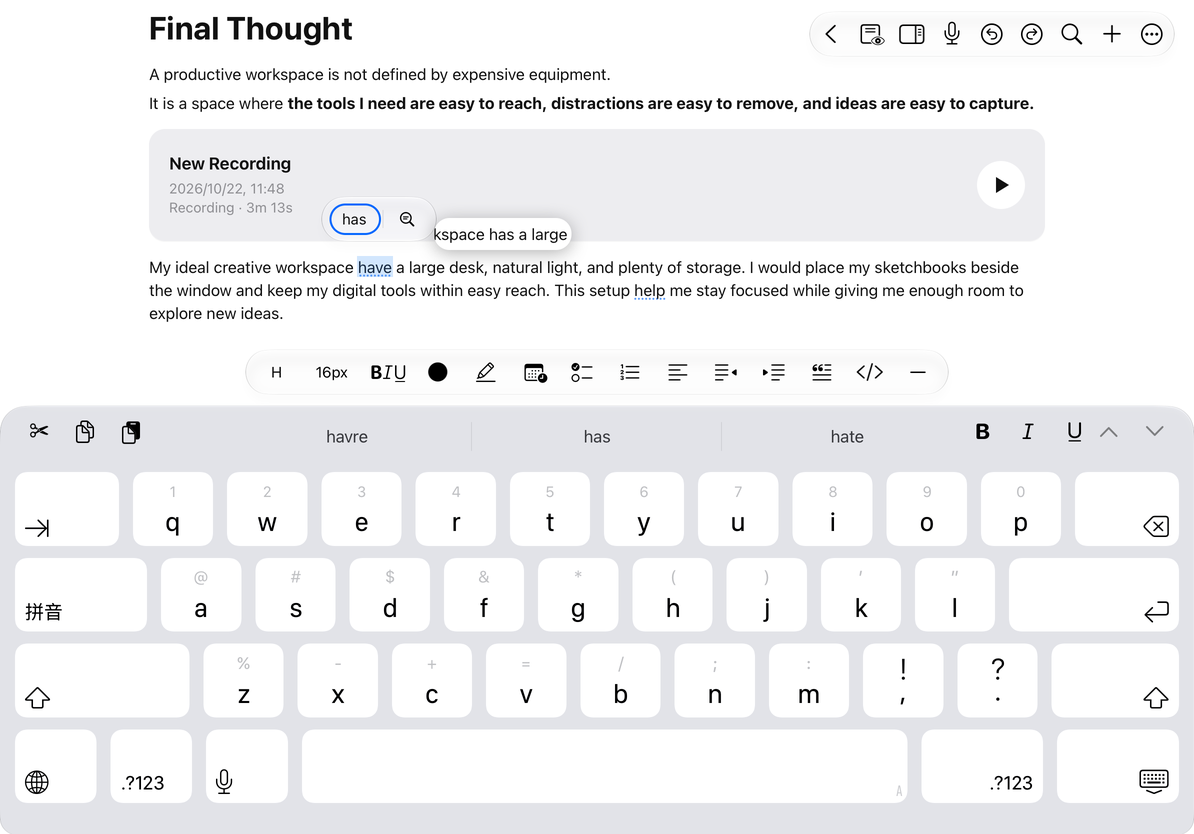
Finish, cancel, and save
Prodrafts waits for the system’s Writing Tools session to finish before saving the final text. Accept or cancel in the system panel before switching documents or leaving the editor, so you can confirm which text was retained.
To cancel, use the system panel’s cancel or restore action. If you already accepted an unsuitable result, check whether Undo is available in the text editor and review the restored content paragraph by paragraph. An unconfirmed preview in the system panel is not necessarily saved in the document.
Common questions
Writing Tools is missing from the menu
Check the device, system version, language, region, and system feature settings. Try selecting ordinary body text. Prodrafts’ normal formatting, find and replace, and Markdown insertion remain available without Writing Tools.
Is this the same as other smart features in Prodrafts?
This is a system text-selection feature. The system controls its entry point, availability, and panel. Other note types do not necessarily use the same flow.
Will it process the whole document?
Check both the current selection and the scope shown in the system panel. Select the intended text and review the scope before accepting a result.
Related guides: Text formatting, Find and replace, Undo edits.