
View and clear the image cache
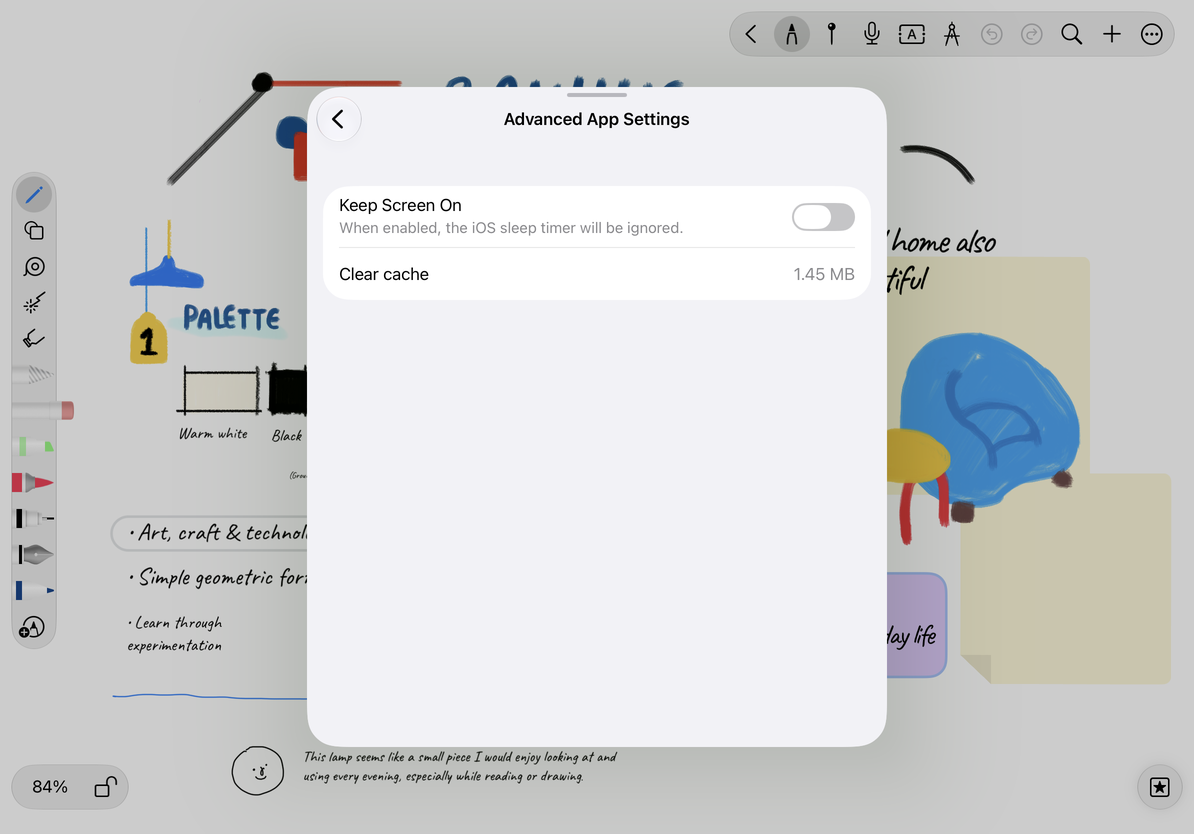
Image cache management applies to the whole app. Open More Settings → Advanced App Settings → Clear Cache. The shared image display cache used by all four document types may be affected.
Check and clear the cache
- Open a document’s More Settings, then Advanced App Settings.
- Find Clear Cache and check the size shown in MB or GB.
- Tap Clear Cache when you are ready. This starts clearing immediately; it does not just open an information screen.
- Wait for the success message. The displayed size will refresh.
- Open a sample document with images and let them reload. The cache may grow again as you continue browsing.
Check and clear the image cache
What is cleared?
This clears rebuildable image cache data. The displayed size is not the size of the entire library. It does not clear notes or delete original image attachments, videos, recordings, or iCloud data.
When you view images again, the app may read or regenerate cached data. The first display may take longer, and the cache size can grow soon after clearing. To free space occupied by large files permanently, first identify the relevant documents and actual attachments and make a backup. Repeatedly clearing the cache is not a reliable way to diagnose storage problems.
Common questions
If the size does not decrease much, check that the success message appeared, then leave the page and open it again. Viewing images can create more cache at the same time. The app’s total size in system storage settings may not decrease by the same amount.
If an image is temporarily missing afterward, wait for it to reload and check that the document and cloud content are accessible. Do not delete the original document to “fix the cache”. If the same image remains missing, keep the document and get help, including the affected page and when it happened.
Use Create a backup to preserve your full data. To stop cloud sync, see Turn off sync and keep local data; that action has a different scope from clearing the image cache.
This article is current as of October 12, 2026; menus may vary across devices and versions.