
Search PDF text, typed notes, and handwriting
Available in paged notes and imported PDFs on iPhone, iPad, and Mac. Searching the original text requires a PDF with a searchable text layer. Handwriting search requires handwriting recognition to be enabled and supported by the system. Scanned pages do not automatically contain searchable text.
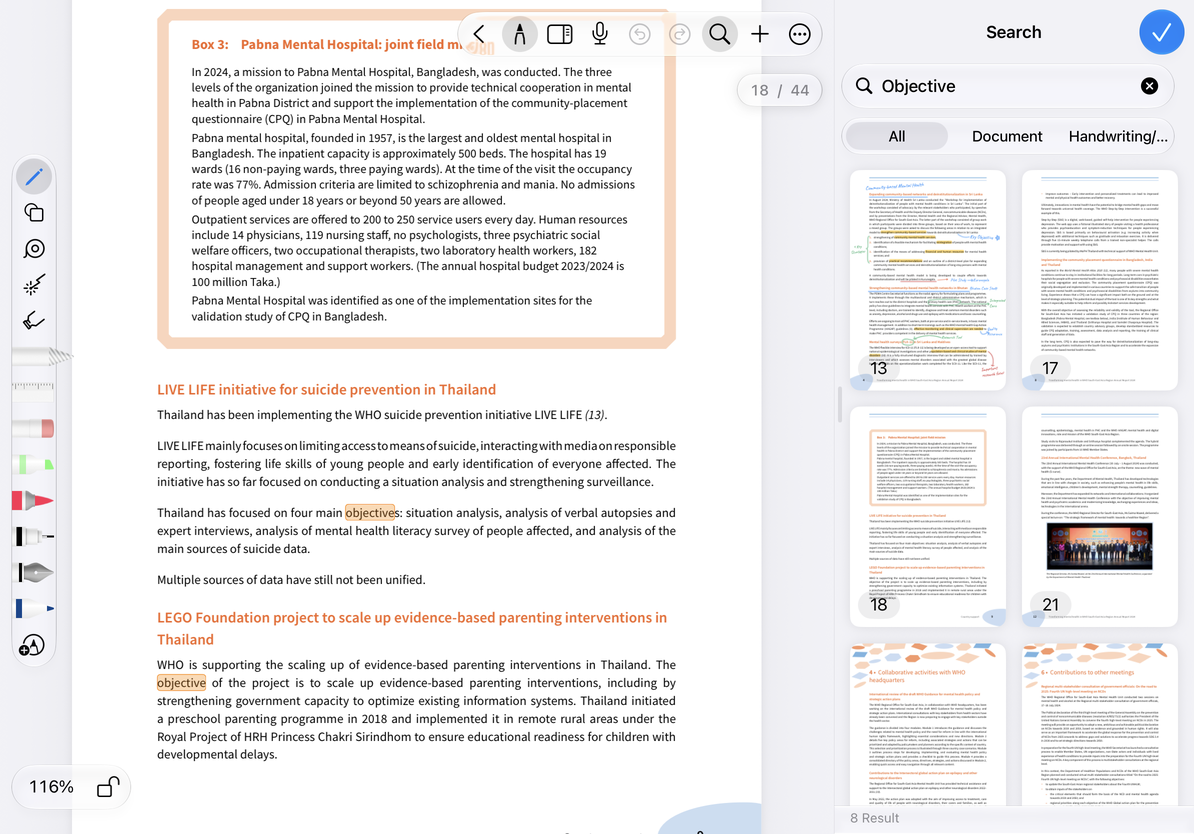
Enter a query and choose a scope
- Tap the search button at the top and enter a specific word, such as “momentum”.
- Choose All, Document, or Handwriting/Text near the search box.
- Check the result summaries and page previews, then tap a result to jump to it.
- Review the highlighted text in context. Change the query to keep searching, or clear it to remove the filter.
| Scope | What it searches |
|---|---|
| All | Searchable original content and added notes in the current document |
| Document | Text in the original PDF |
| Handwriting/Text | Your text objects and recognizable handwriting |
Enter a query and choose a scope
If you cannot find a result
Try selecting a sentence in the original PDF. If you can select its words, the PDF usually has a text layer. If the entire page is an image, searching does not automatically turn it into selectable text. Scanned image attachments and scanned pages work differently from scanning text into a text document.
Handwriting results depend on the language, legibility, recognition settings, and system support. Start with a clear, short word and check the search scope before adding more keywords. No search results does not mean your handwriting was not saved.
Common questions and next steps
I can find PDF text, but not my notes
Switch to Handwriting/Text and check the handwriting recognition settings.
I remember the file name, but not the contents
Return to the library to search by name. Library search and searching within a document are separate features.
Can I find and replace the original PDF text?
This search locates content; it does not provide find and replace for the original PDF.
To mark up text you find, see Annotate PDF text. Save frequently visited sections in the page outline or as bookmarks.