
Draw and customize tape
Available in infinite documents, vertical documents, and paged notes on iPhone, iPad, and Mac. Tape covers answers or key details so you can reveal them while studying. Users without Prodrafts Pro have a creation limit; follow the prompt when it is reached.
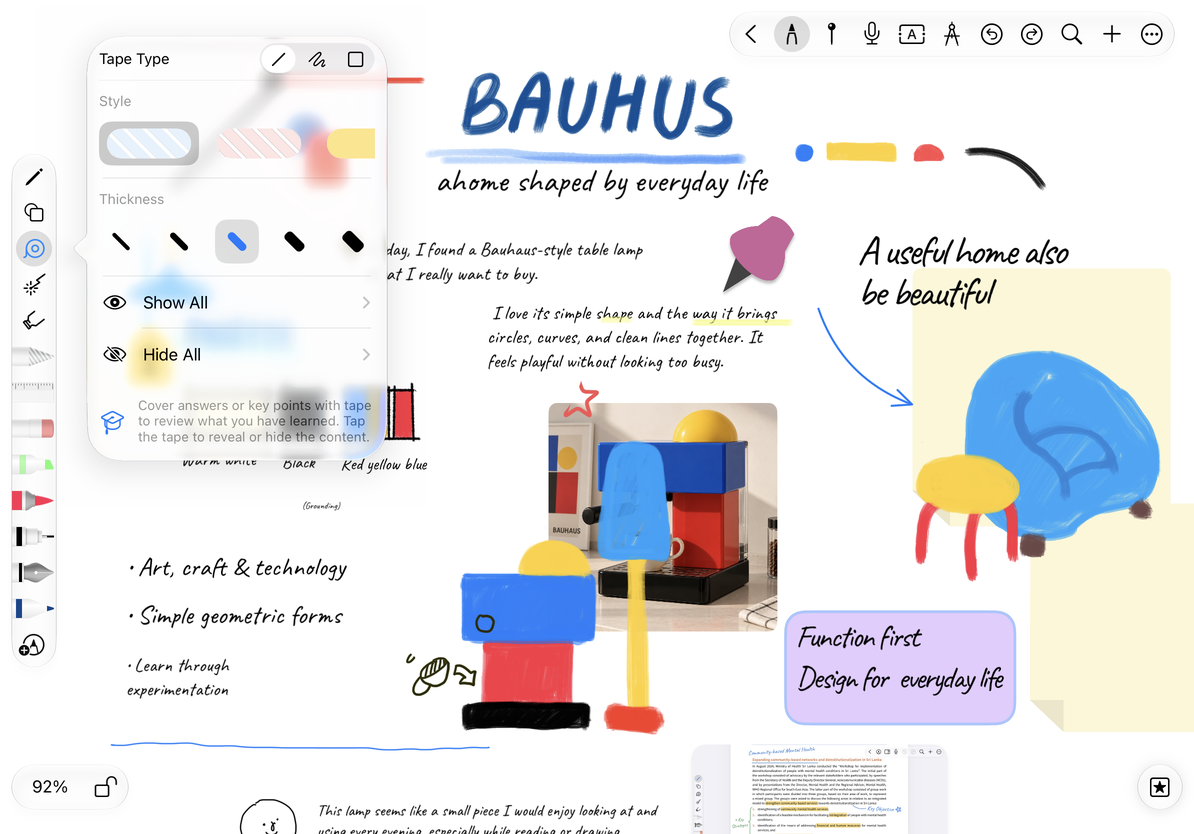
Choose a tape shape
- Select Tape in the pen box and open its settings.
- Choose Straight Tape, Freehand Tape, or Rectangular Tape at the top.
- Set the thickness for straight or freehand tape. Rectangular tape uses the width and height you drag, so it has no thickness setting.
- Choose a texture, then return to the canvas.
| Type | Useful for | How to draw it |
|---|---|---|
| Straight tape | A one-line definition or answer | Drag a strip over the answer |
| Freehand tape | Curved or irregular content | Draw continuously along the area to cover |
| Rectangular tape | A block of answers or an image caption | Drag a rectangle over the content |
Choose tape shape, thickness, and texture
Draw and adjust
Drag over the content and release to finish a piece of tape. Test on a short answer to check the thickness and coverage before covering more questions. Change the settings before drawing again if needed. Undo unwanted tape immediately, or delete that tape and redraw it.
Tape overlays the original text, handwriting, or image; the underlying content still exists. It is not a redaction tool for removing sensitive information from exports. Check the actual output before sharing.
Common questions
Why is there no thickness setting for rectangular tape?
Its size comes from the rectangle you draw. Switch to straight or freehand tape for a thickness setting.
I cannot add more tape
The document may have reached the free-use limit. Follow the displayed message; do not delete important attachments to test the limit.
I want to see an answer temporarily
Tap the tape to reveal it without deleting it. See Reveal, hide, and remove tape.
Related guides: Canvas background, Read paged notes.