
Adjust a canvas table’s style and size
Applies to canvas tables in infinite documents, vertical documents, and paged notes. First choose the scope: the whole table, whole rows or columns, or a contiguous range of cells.
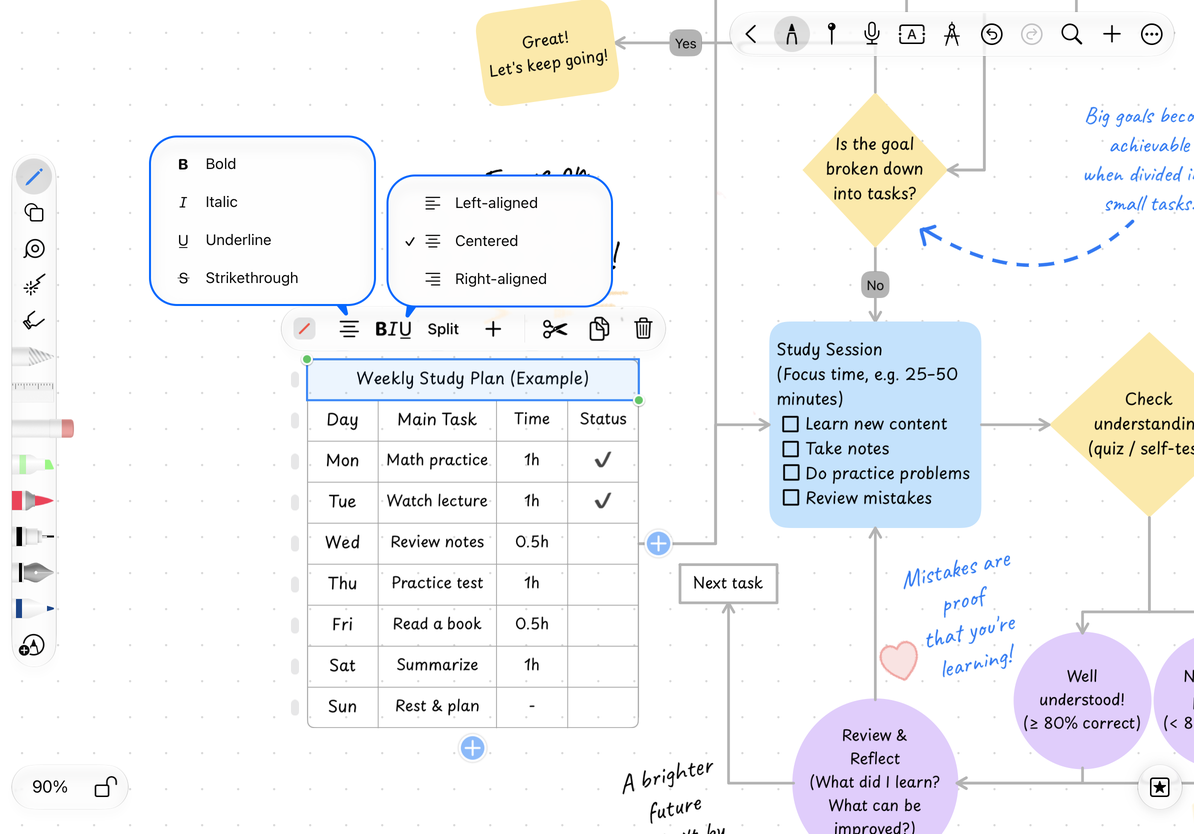
Format a header row
- Select the table, then the header row or intended cell range.
- Open the text-style menu and choose Bold, Italic, Underline, or Strikethrough. Tap a style again to remove it.
- Choose Left, Center, or Right alignment.
- Choose Fill Color to give the header a light background.
Text-editing tools apply to words within a cell. Row, column, and range menus apply formatting in bulk. To style the whole table, select the entire table rather than leaving a smaller range active.
Format the header
Set border and text colors
Set the border color in the table’s style or formatting panel. Use text formatting for the text color, checking the selection first. Fill changes the cell background; border color changes the grid lines; text color changes the letters.
Dark fills can reduce readability. A light background for sections and a little bold text for headings are usually easier to read than a different color in every cell. You can change formatting again or undo it.
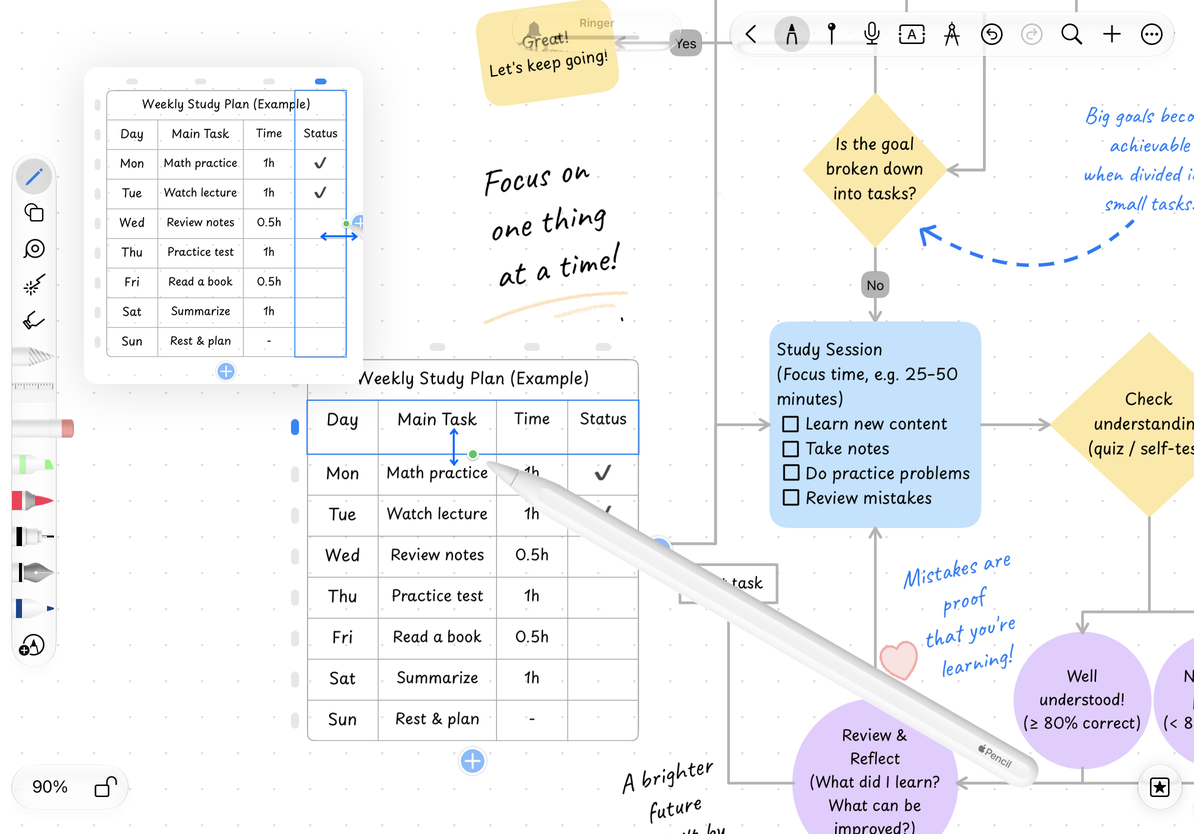
Adjust column widths and row heights
- Tap a column or row marker to highlight it.
- Drag its resize area horizontally for column width or vertically for row height.
- Release and check how long text wraps and whether the row is tall enough.
- Adjust again or undo if needed.
To move the whole table, finish internal editing and drag the table object. To resize it on the canvas, use its outer control points. This is different from changing one column’s width. Check the proportions of text and grid after resizing.
Adjust row height and column width
Reuse and export
Copy formatted rows or columns, or duplicate the whole table to create a similar list. Use object export or a lasso-area export to share it. Images and PDFs preserve the visible layout; share the native document if further editing is needed.
The table has no rotation control
Canvas tables do not support rotation. A lasso selection containing a table also cannot rotate as a group.
Text wraps onto too many lines
Widen the column, or reduce character spacing or font size and check the row height.
Related guides: Content and selection · Rows, columns, and merging · Export a selection