
Get started with Paged notes
Paged note organizes content on pages. You can start with a blank or template paper, or you can import a PDF, photo, or scan and add annotations.
Applies to: Paged note, including Notebook and PDF notes as mentioned in the website demo.
Create from paper
- Go to the target folder in the library.
- Tap + → Paged note.
- Once the new document opens, make sure the default paper is appropriate for the current exercise.
- Select a pen and start writing, or use the Add menu to add text and images.
The current default template will affect the background color and line grid of new notes. When you need to modify the size, shading or template, see Add Pages and Change Paper.
Start with existing information
Each of these sources creates a Paged note with pages you can reorder:
| Source | Purpose | Differences to note |
|---|---|---|
| PDF file | Read a handout, book or document | Only documents that contain selectable text can directly select the original text |
| Album photos | Organize multiple pictures into pages | The page background is an image |
| Scan paper documents | Turn paper documents into pages | Scanning pages is different from using Scan Text in a Text document |
| Paper template | Start with your own note content | Shading and size can be set according to the template |
For the steps to import files, see Import PDF and other files. For the photo album and scan option, see Create Notes from Photos and Scans.
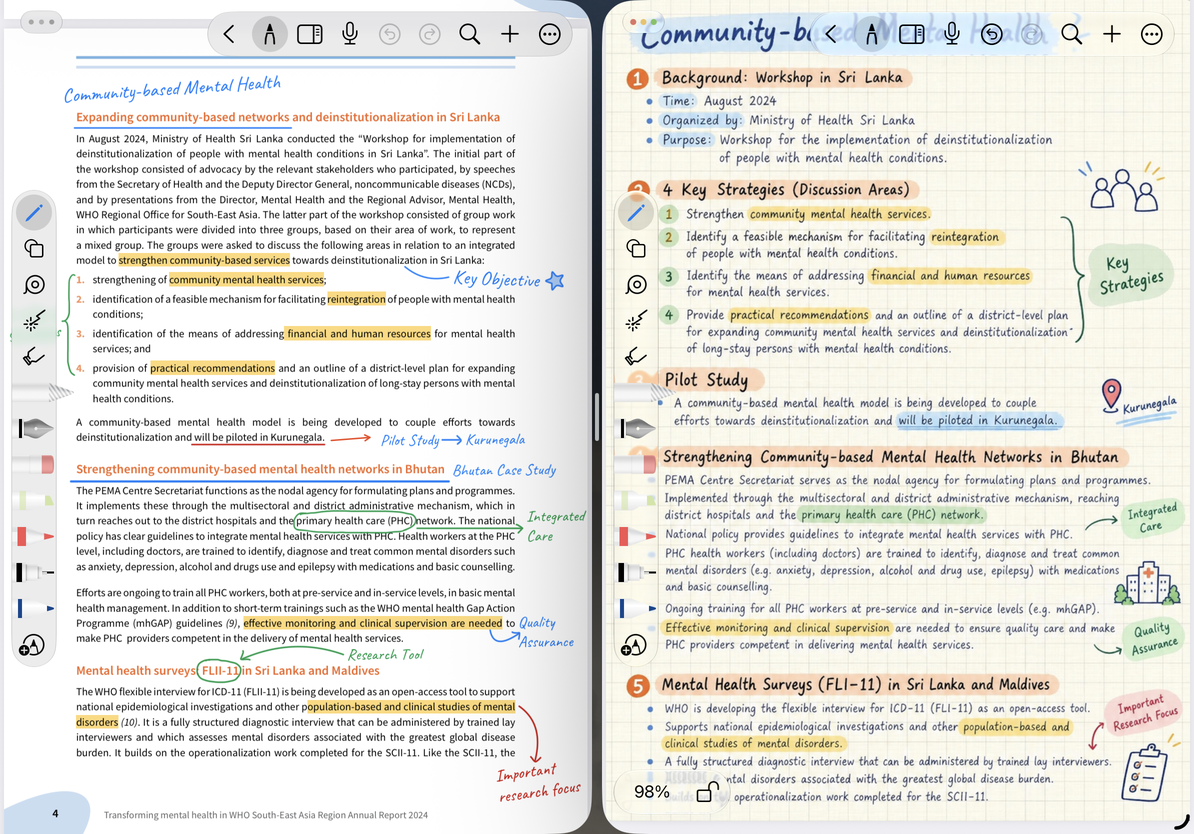
Recognize the two layers of content on the page
The paper or imported PDF forms the page background. Handwriting, text boxes, images, tables, and other items you add form the note content above it. Highlighting text and drawing a line with a highlighter are two different operations; modifying the original PDF text is not the same as editing the text box you inserted.
When clearing or replacing templates, first read the scope of impact in the operation instructions. Especially for pages that have already been written, don't confuse “Replace Background,” “Clear Handwriting,” “Clear All,” and “Delete Page”.
Page turning and positioning
- Scroll the page in the current reading direction.
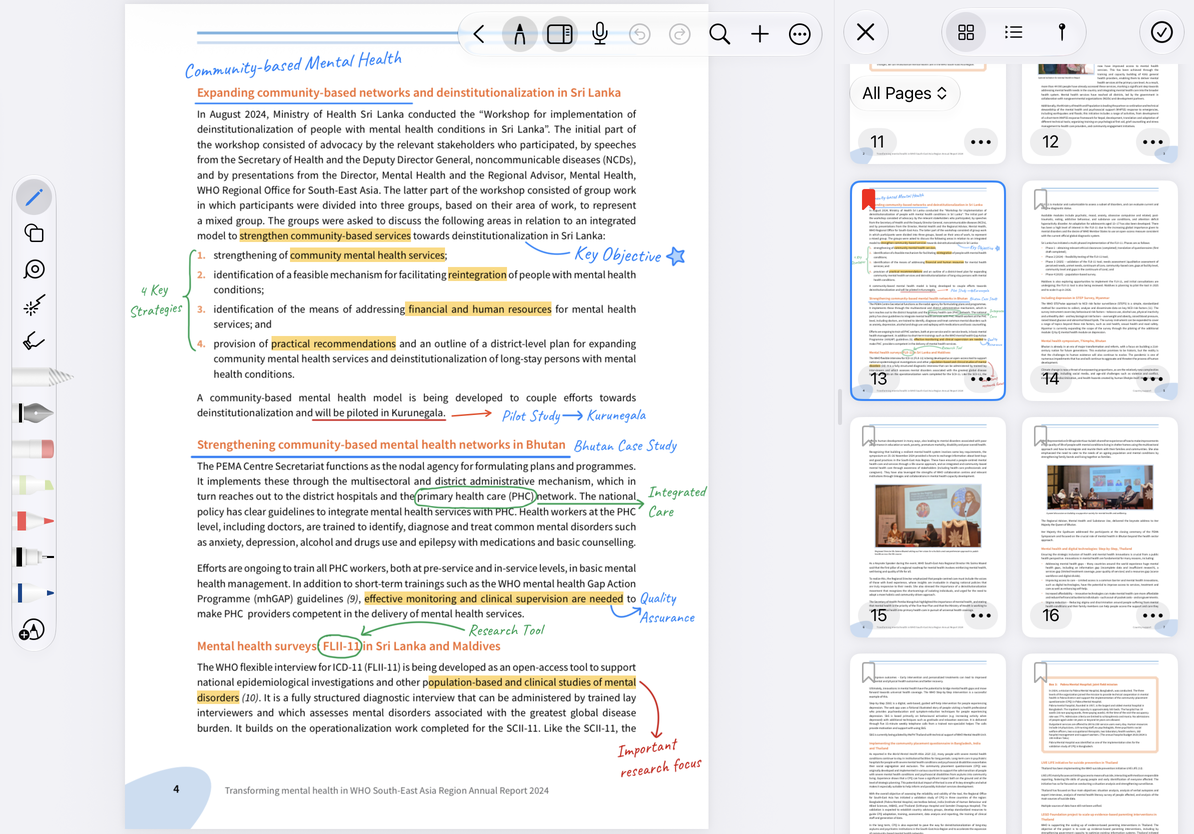
- When there are many pages, open the thumbnail to find the target page.
- When you need to go to a specific page number, use the page number bar to enter the target page.
- You can add bookmarks to pages you return to frequently, and you can use outlines to structure your materials.
For single and double pages, scrolling direction, zoom and eye protection display, see Reading Settings and Page Navigation respectively.
Expand a note
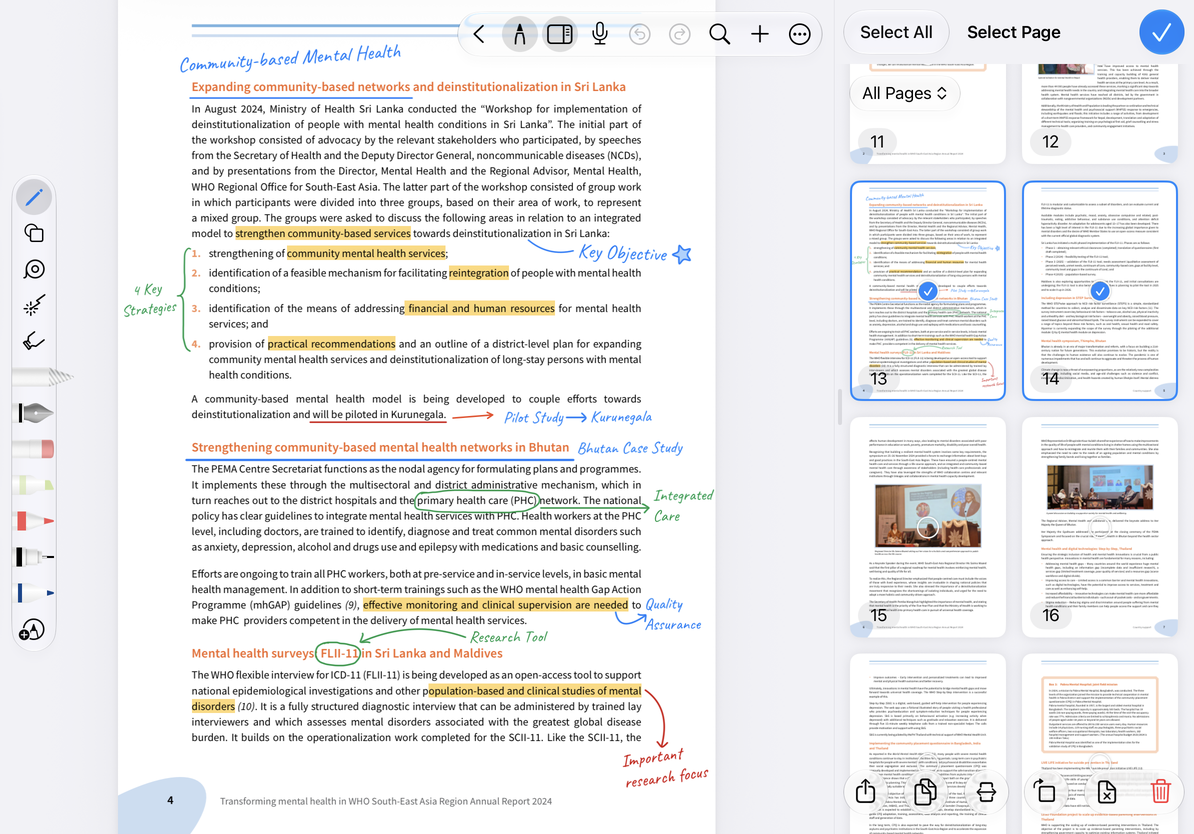
Add a new page from the page management option, select the insertion location, and then determine the paper source. When you need to adjust the order, display all pages in thumbnails, exit the selection state, confirm that the notes are not locked, and then drag the pages to sort; multi-select is used for operations such as batch copying, exporting, or deleting. Copy and paste pages to reuse layouts. Don't confuse copying an entire document with copying a page.
Browse page thumbnails
Select multiple pages
Frequently Asked Questions
Why can’t I select text in an imported scanned PDF?
It may only contain pictures. You can still write or draw highlighter on it, but you can't expect the same original text selection results as with PDFs with selectable text. Don't equate showing a page clearly with having a searchable text layer.
I want to write more next to the handout
View left and right extended areas of the page. When you need to share according to the original paper, check whether the export includes the extended area.