
Use headings and the automatic outline
Available in text documents on iPhone, iPad, and Mac. Headings define the document’s hierarchy and its outline entries. Making text bold or larger does not turn it into a heading.
Apply body or heading styles
- Open a text document, leave preview mode, and place the cursor in the intended paragraph.
- Open the H menu in the formatting toolbar.
- Choose Body or heading level 1, 2, 3, or 4.
- Enter or edit the heading. The toolbar reflects the current paragraph’s style.
For example, use Heading 1 for “Project Plan”, Heading 2 for “This Week”, and body text for the details. To remove a heading, place the cursor in it and choose Body. That paragraph is removed from the heading outline.
You can also choose a heading from the slash menu on a new line. Using only font sizes and blank lines to imitate a hierarchy does not create a useful outline.
Use headings and the outline
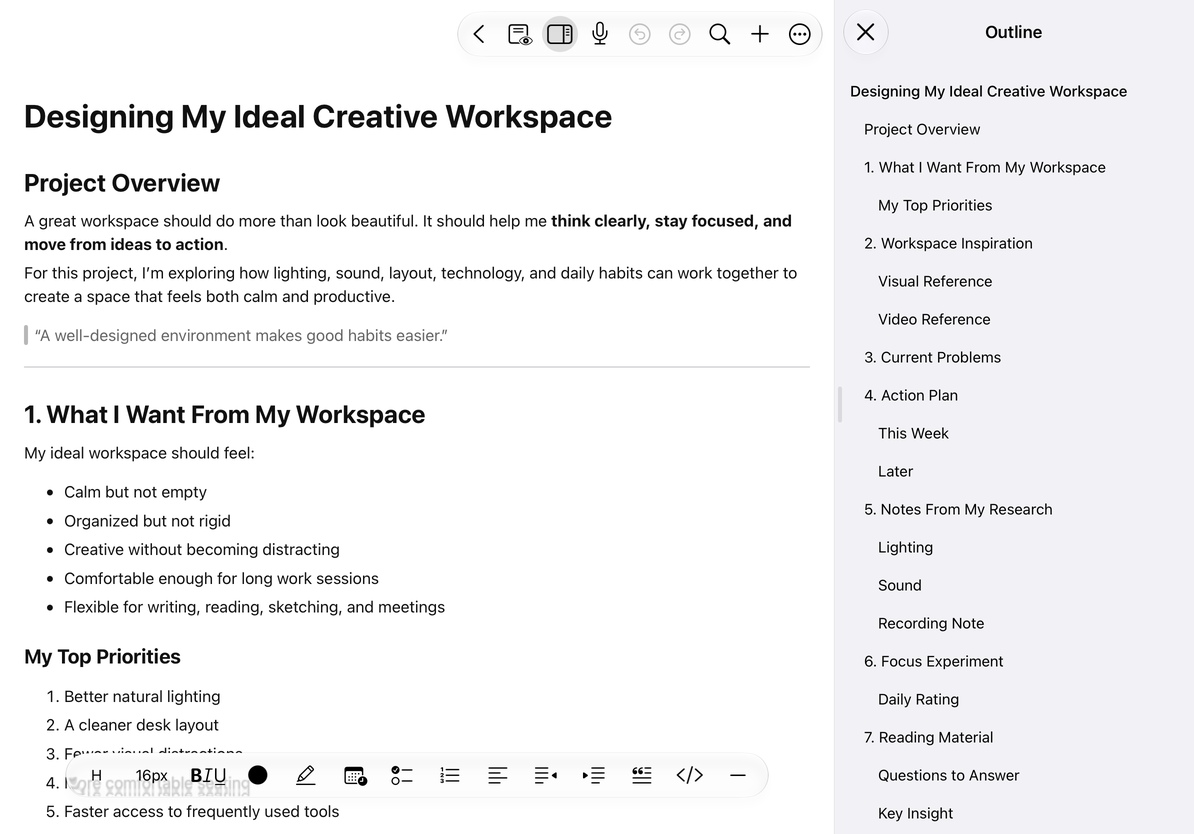
Navigate with the outline
Tap the outline button at the top to open the sidebar. Browse the heading hierarchy and select an entry to jump to it. Changes to heading text or levels update the outline automatically; no manual page numbers are needed.
Close the sidebar for more editing space. The outline also works in preview mode while reading a long document.
Common questions
The outline is empty
Check that you applied heading styles rather than only bold or a large font size.
A heading appears in the wrong place
The outline follows the text order and heading levels. Edit the relevant heading in the document.
I need a fifth heading level
The menu offers levels 1–4. Put finer details in body text or lists.
Is this a PDF outline?
PDFs use a page outline with target pages.
Related guides: Text formatting, Lists and content blocks.