
Customize the toolbar
Available in infinite documents, vertical documents, paged notes, and text documents. Each type saves its own shortcut-toolbar layout. These settings affect the top toolbar, not the order of pens, erasers, or other tools in the pen box.
Add and arrange common actions
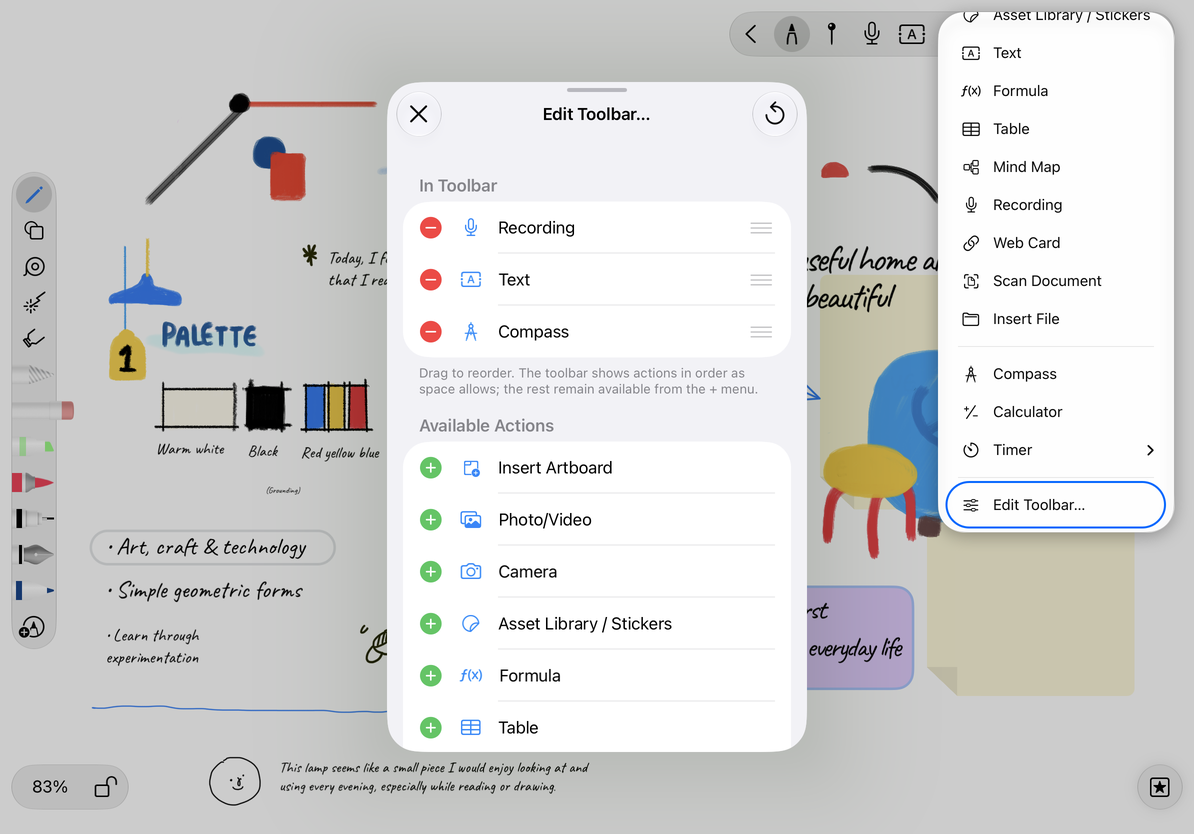
- Open the document type you want to configure, tap + at the top, and choose Edit Toolbar.
- Review In Toolbar and Available Actions. The first group is already shown at the top; the second contains actions you can add.
- Tap Add beside an action, such as Calculator, images, or another insertion tool supported by this document type.
- Drag the reorder handles in the first group to put frequently used actions first.
- Remove actions you do not want at the top. This does not delete note content, and the action remains available in its relevant menu.
- Close the panel and check the toolbar. Try a newly added action to confirm its position and purpose.
Add and arrange toolbar actions
Window width and document type
The toolbar shows as many items as fit, in your chosen order. The rest remain under +. Rotating the device or narrowing the window may move some shortcuts into the menu; that does not necessarily mean the configuration was lost. Put your most-used actions first.
Infinite and vertical documents share many tools but save their layouts separately. Paged notes may offer Insert Page, while text documents have their own actions. Configure each document type separately if you want to change its layout.
Restore defaults or check unavailable actions
Choose Reset Toolbar in the configuration panel to restore the default actions and order for the current document type. You can then add your most-used actions again.
If an action is unavailable or cannot be added, check whether the device and document type support it. Camera-dependent actions, for example, may be unavailable on Mac. Customizing the toolbar changes where an action appears, not its device, document-type, or Prodrafts Pro requirements.
For pen box visibility or placement, see App appearance and keeping the screen awake and the pen box guide. For the side on which list panels appear, see Panel position and presentation.
This article is current as of October 12, 2026; menus may vary across devices and versions.