
Switch between recent documents
Recent Files lets you switch among notes you are working with—for example, a handout and your own study notes. It switches whole documents, not pages or pin locations within the current note.
Applies to: All four document types. Sidebar gestures depend on window width. Leave immersive mode before using these controls.
Open Recent Files
With a keyboard, press ⌘0 to show or hide Recent Files.
On wider layouts that support the gesture, swipe inward from the editor's left edge. Narrow layouts may not offer the same gesture. If you cannot open the panel, return to the library and choose another document.
Open Recent Files
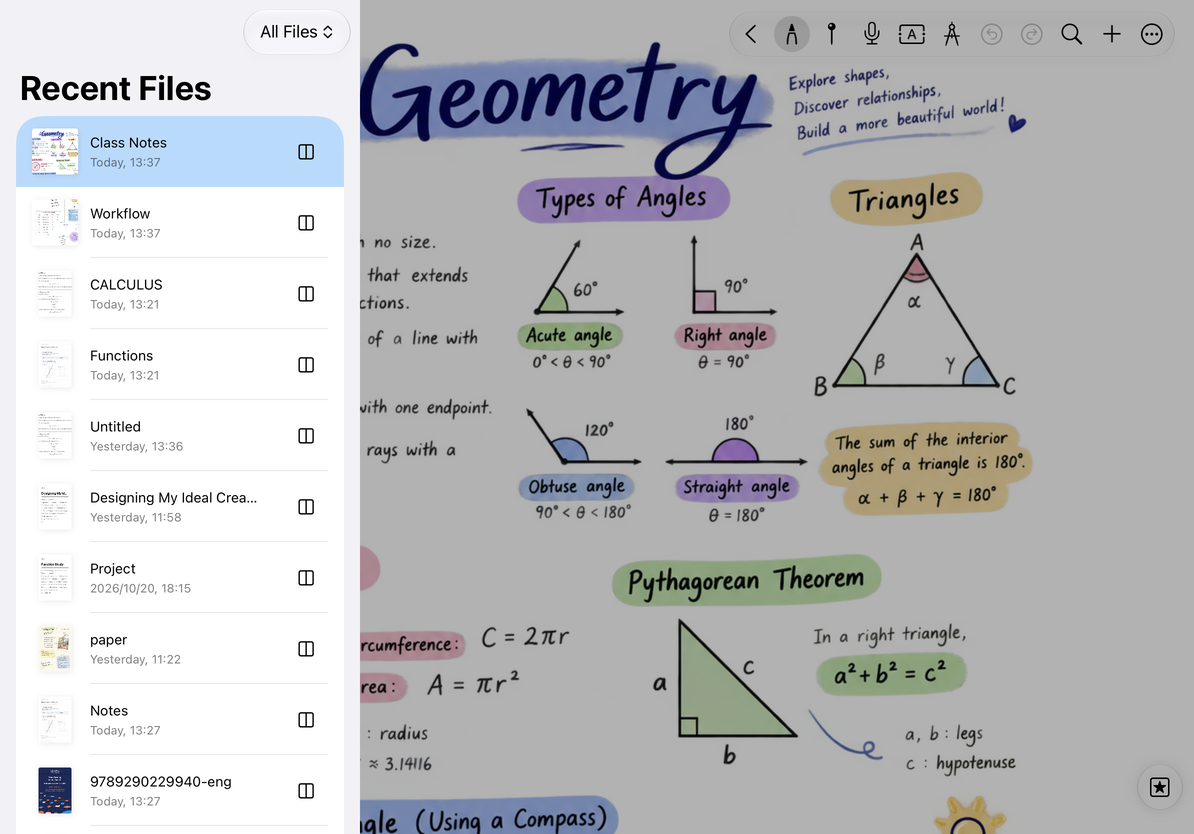
Choose another document
- Open Recent Files.
- Find the document and tap it.
- Wait for the current content to save and the switch to finish.
- Check the new document's name and type before editing.
The list prioritizes recently opened documents. This order is not necessarily the same as the library's modification-date order.
If the target needs downloading or unlocking, follow the prompts. Switching documents does not mean syncing to another device has finished.
Filter by type
Choose All Files or a document type at the top. For example, filter to Paged notes when reading PDFs, or Text documents when returning to meeting notes.
Switch back to All Files if you cannot find something. Recent Files is not a folder tree; organize documents in the library.
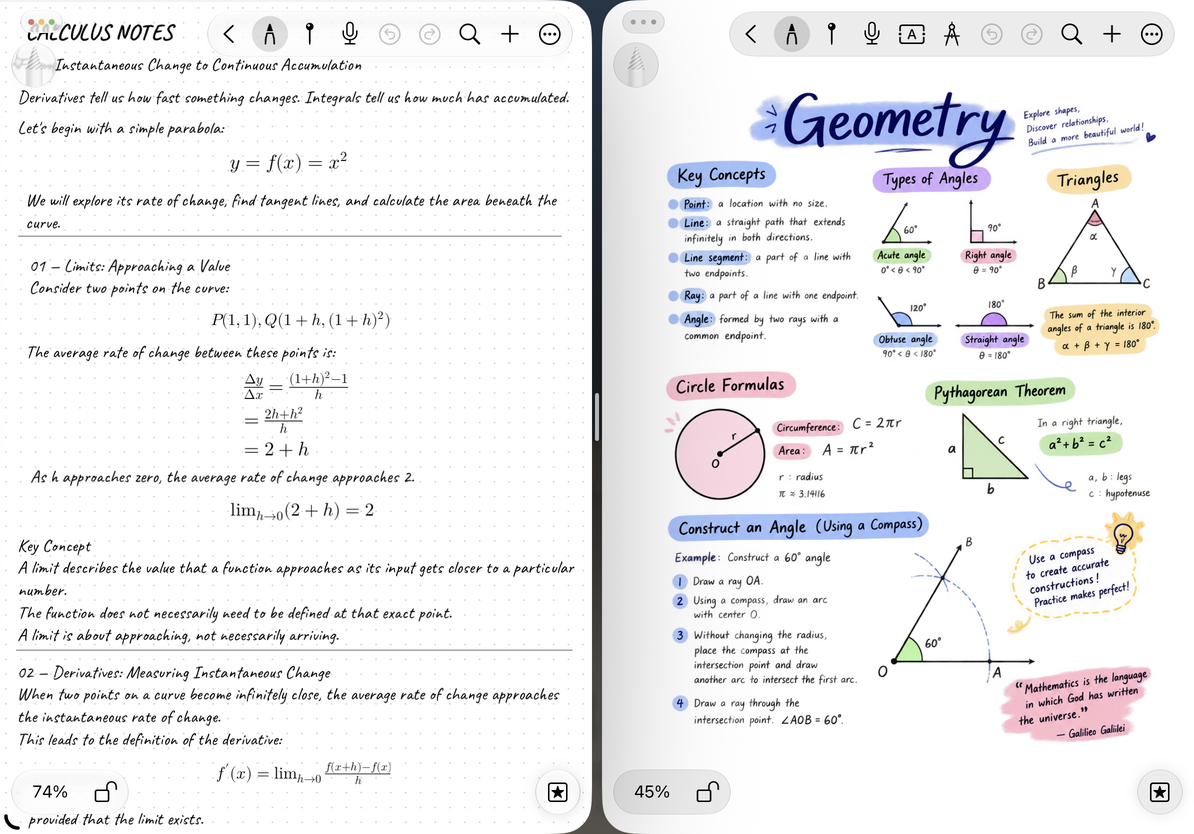
Open in a new window
When available, use the new-window control beside an item to open it separately while keeping your place in the current document. Arrange the windows with system window or split-screen controls. Support depends on your device and system; see Multiple windows and Split View.
Open in a new window
Common questions
⌘0 does not show the panel
Make sure Prodrafts has keyboard focus, leave immersive mode, and try again. Without a keyboard, return to the library to switch documents.
A document type is missing from the list
Check the type filter. Documents in Trash are not shown as normally openable items.
Will switching lose what I am typing?
Prodrafts saves the current document before switching. Resolve any save error or loading message first; do not repeatedly switch to bypass it. For the difference between saving and syncing, see iCloud status.