
Add pins and return to saved locations
Pins are available in Infinite documents, Vertical documents, and Paged notes on iPhone, iPad, and Mac. They mark locations such as chapters on a long canvas, questions to revisit, or key points within a page. They are separate from full-page bookmarks and Text document heading outlines.
Add a location marker
- Go to the location you want to save and adjust the view for comfortable reading.
- Touch and hold the target position and choose Pin.
- Open the pin list and name the new marker—for example, “Chapter 2 examples.”
- Choose a color and icon, then tap Done.
In Paged notes, a pin marks a canvas position on a page. To mark the whole page, use a page bookmark.
Add a location marker
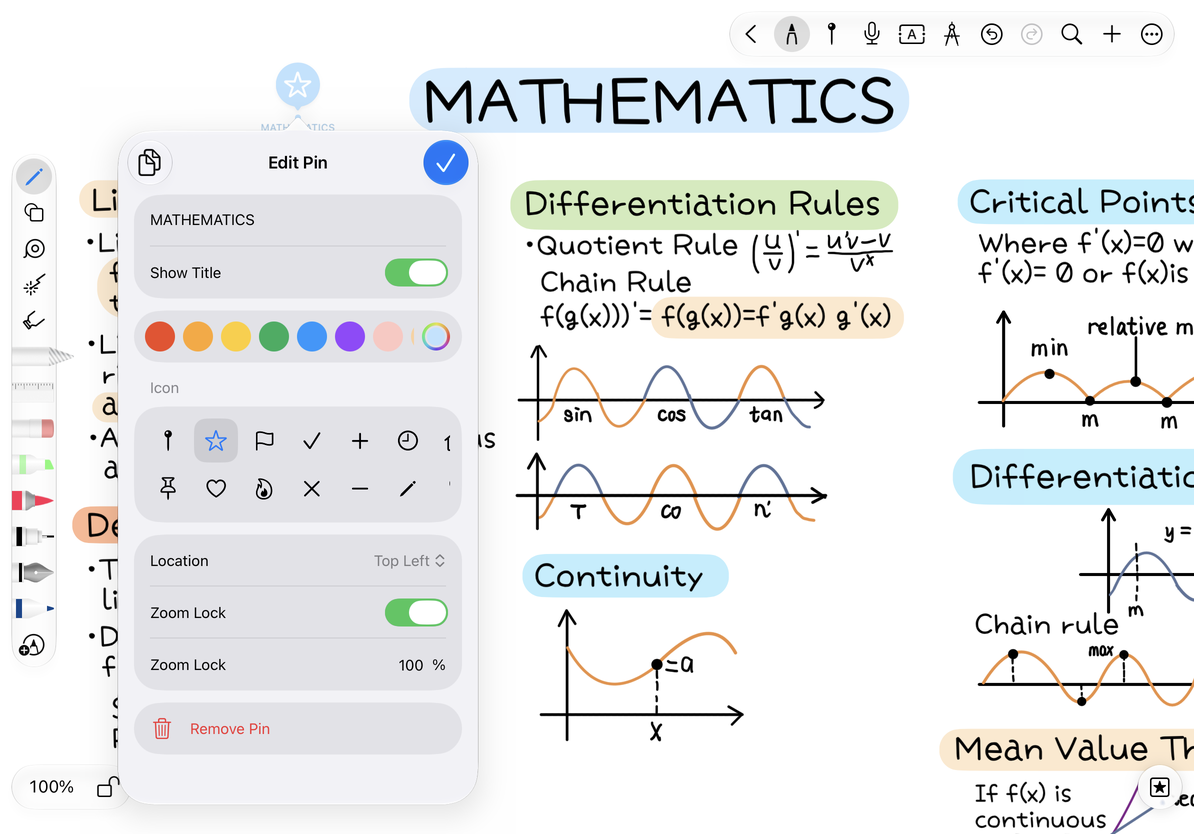
Return from the pin list
Open the pin list and tap a marker to go to its location. Give pins names that distinguish nearby content; several unnamed pins make navigation harder. Use pin groups when you need a hierarchy.
Edit pin properties
Open a pin's edit option in the list. Change its title, color, icon, or Show Title setting. The full editor also provides position and Zoom Lock options: position shows the marker's coordinates, while Zoom Lock controls the zoom used when returning to it. A compact panel may omit some position controls.
Tap Done after editing. Turn off Show Title to hide long labels on the canvas; the title remains in the list. Remove Pin deletes only the location marker, leaving handwriting and images at that position intact.
Common questions
The view is too close or too far away after jumping
Check the pin's Zoom Lock and adjust the view at the target location.
The title is missing on the canvas
Check Show Title.
I want to navigate Text document headings
Use the automatic heading outline. Text documents do not use canvas pins.
Related guides: Organize, search, and link pins · Canvas navigation