
Get started with Infinite documents
An Infinite document gives you room to expand in every direction. Add reference images beside calculations, place topics in different areas, or organize ideas with mind maps and connectors.
Applies to: Infinite documents. To write continuously downward, see Get started with Vertical documents.
Create a document and place your content
- Open the target folder in the library, or stay in the library root directory.
- Tap + → Infinite document.
- Write a topic in the center of the open canvas, such as "Weekend Travel Plans."
- Leave space around the topic to record transportation, accommodation, and itinerary separately.
Canvas content is organized by position. Unlike a Paged note, it has no page 1 or page 2. Panning does not create new pages.
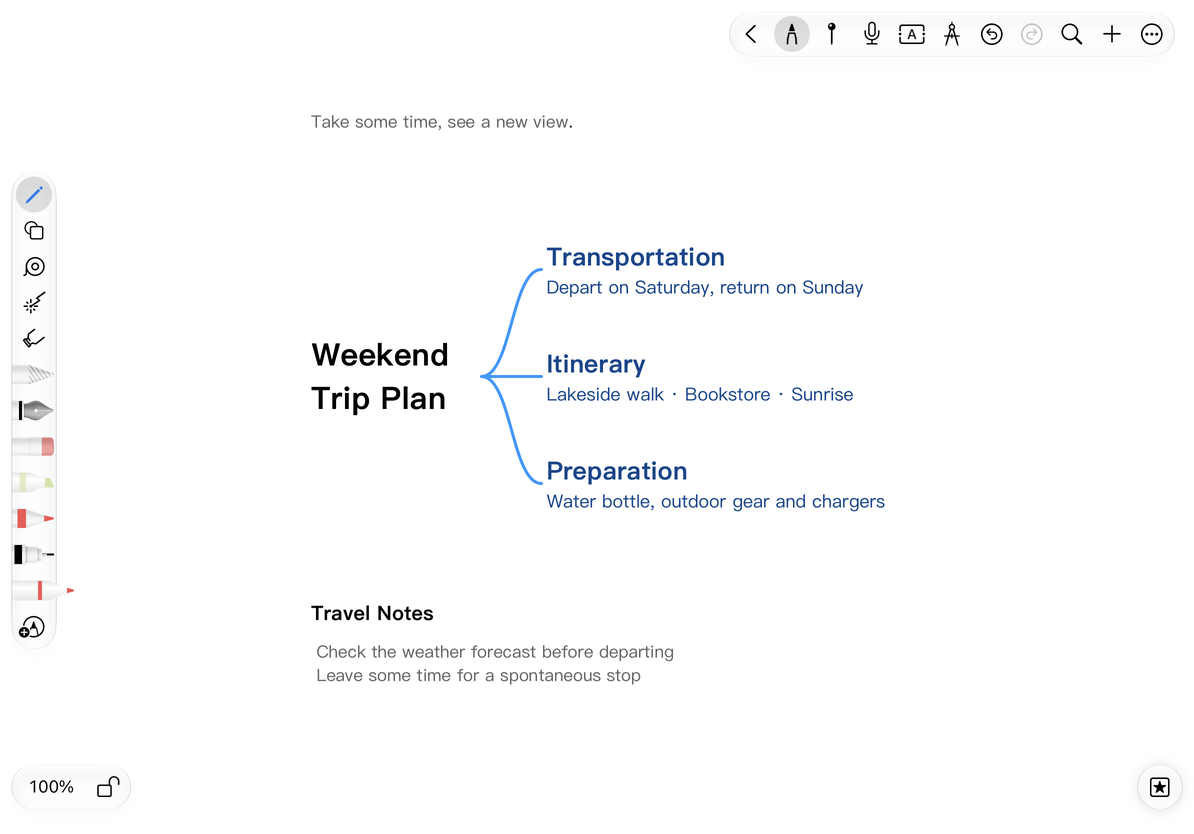
Write, browse and zoom
Choose a pen and write on the canvas. Pan using your current touch and Apple Pencil settings. To browse without drawing accidentally, switch to preview mode first. Pinch with two fingers to zoom. Scroll-direction lock and zoom lock restrict their respective gestures.
As your canvas grows, use the zoom controls, return to the origin, or navigate to handwritten content instead of dragging back manually. See Navigate, zoom, and search the canvas for the available controls.
Content may be far from your current position without having been deleted. If the canvas looks empty, check the zoom level, return to the origin, or search for your content.
Include text, images and structured content
Select what you want to insert from the add menu at the top. After inserting, tap the object to move the position, adjust the size or enter editing.
- Use Text Box for a short description, which can be placed anywhere on the canvas.
- Use Mind Map for classification and organization to expand the topics into nodes.
- Use Canvas Table for comparison information.
- Use Photos, Videos and GIFs to add reference images.
Some insertion options require Prodrafts Pro. If prompted, you can return to editing existing content. Canvas text boxes are positioned individually, unlike the continuous body text in a Text document.
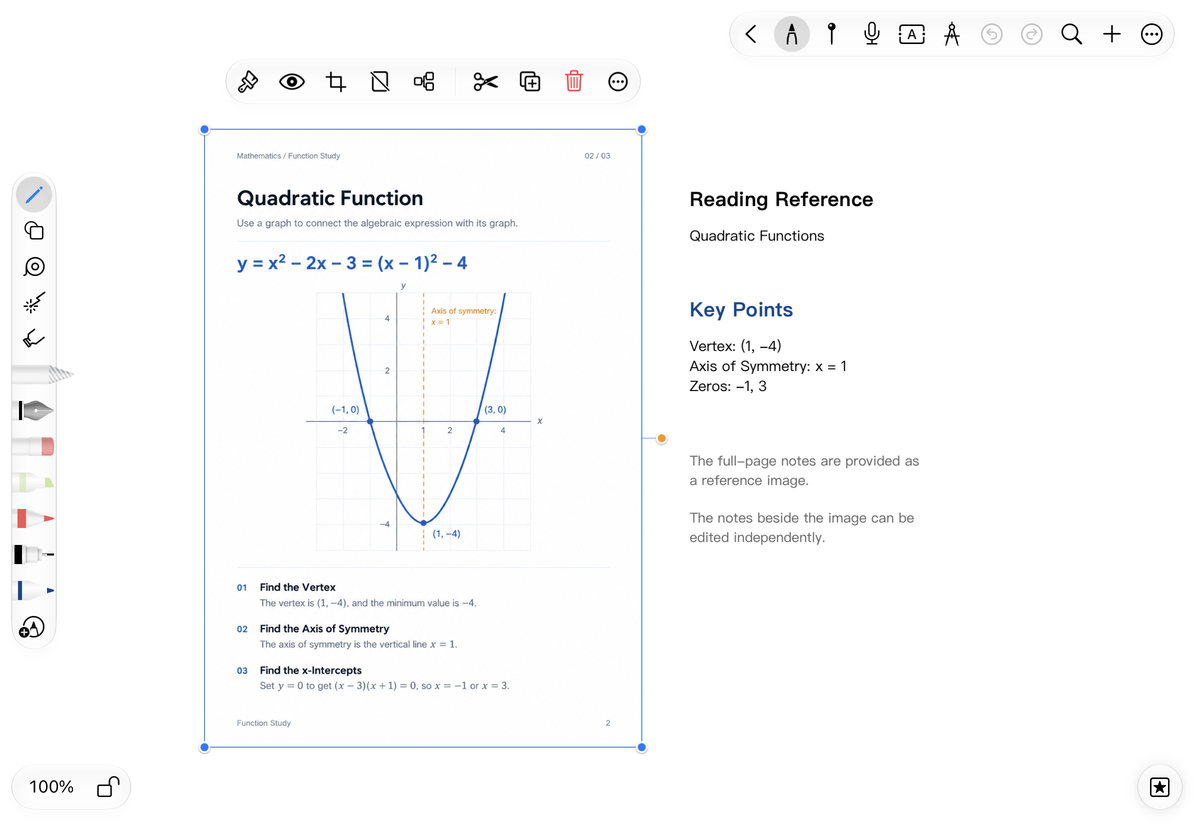
Full-page pictures can be used as reference materials; the text and graphics within the picture still belong to the picture, and a text box can be created next to it for recording.
Create signposts for large canvases
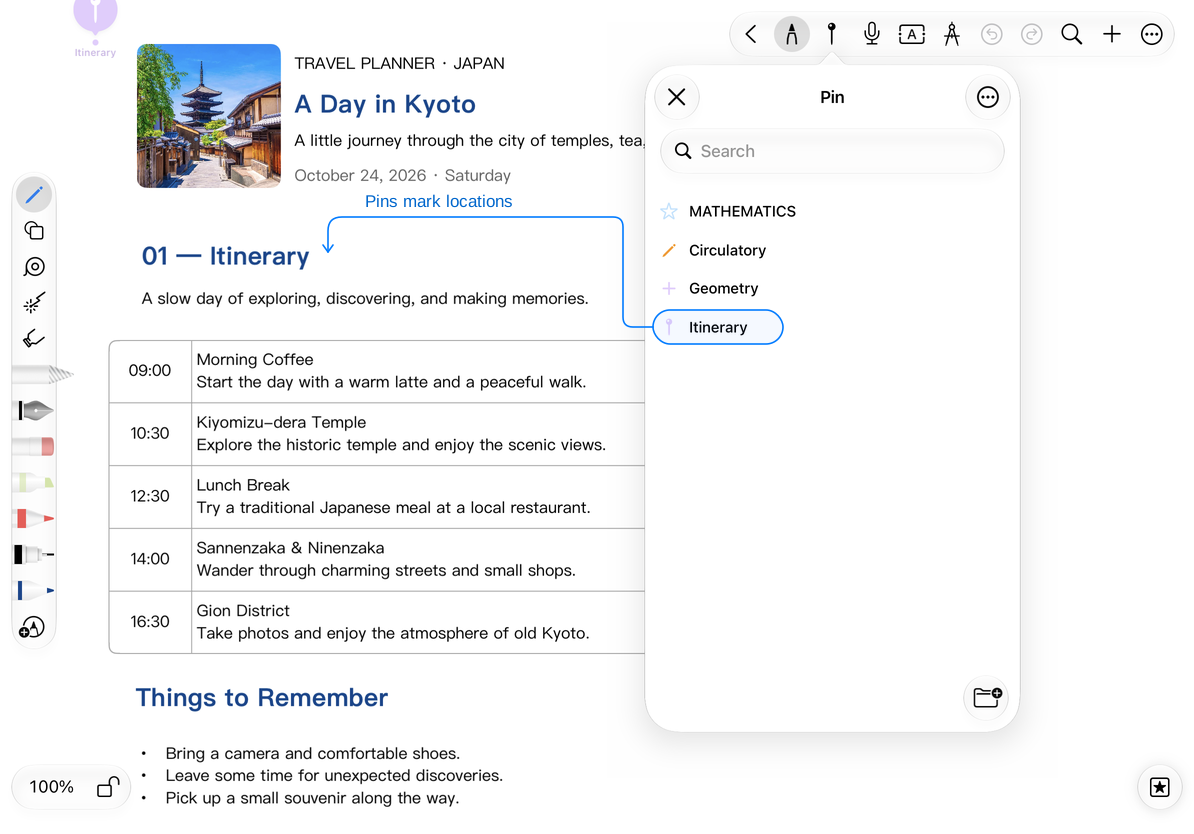
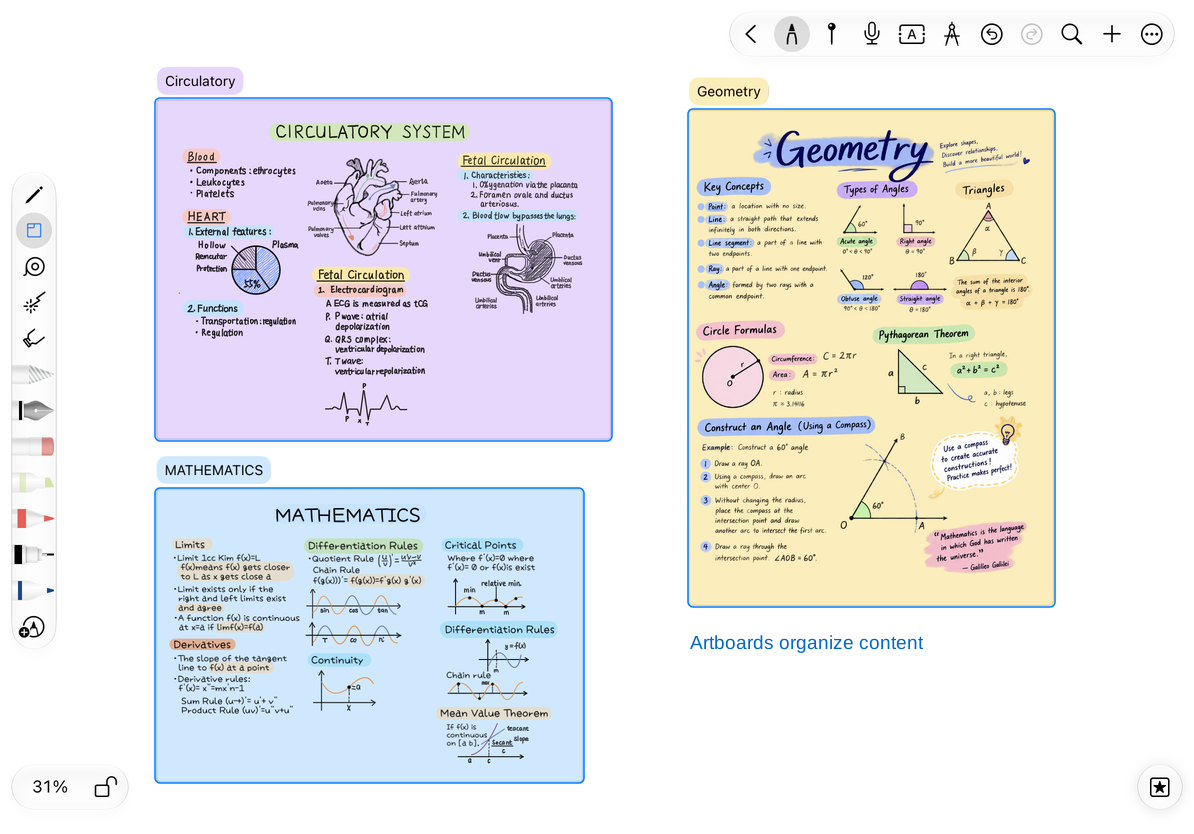
Pin saves a position that can be returned to, suitable for marking areas such as "derivation process" and "meeting conclusion". Artboard organizes an area and its content together. The two can be used together, but have different functions.
- When content starts to spread out, add pins in important areas.
- Give your pins a clear name.
- When you need to move or export a group of content as a whole, consider creating an Artboard.
Save and export
Edited content will be saved with the document. When you need to send it to others, first select the output range: the entire original document, a selection, or the artboard. Images and PDFs are output for reading; to retain the ability to continue editing in Prodrafts, see Native Document Export.
Frequently Asked Questions
Why are there no fixed page edges?
An Infinite document uses a freely arranged canvas. For a fixed paper size and ordered pages, create a Paged note. Adding grid lines to an Infinite document does not divide it into pages.
Why doesn’t the text automatically flow down like an article?
A text box is an object placed on the canvas. When you need to continuously enter paragraphs, an automatic heading outline and flowing long-form text, select Text document.