
Format text and paragraphs
Available in text documents on iPhone, iPad, and Mac. Leave preview mode and activate the text first. Select text to apply character formatting; alignment and indentation apply to paragraphs.
Choose a font size and text style
- Select the text to change.
- Open the font-size menu and choose 12, 13, 14, 15, 16, 19, 22, 24, 29, 32, 40, or 48px.
- Use the format menu for bold, italic, underline, or strikethrough.
- Choose superscript or subscript if needed. These are mutually exclusive: choosing one replaces the other.
Select an active style again to turn it off. Font size applies to body paragraphs; headings use their own styles, and code blocks do not use this command. If a selection contains several sizes, the toolbar’s displayed value does not mean every character has the same size.
Set text color and highlighting
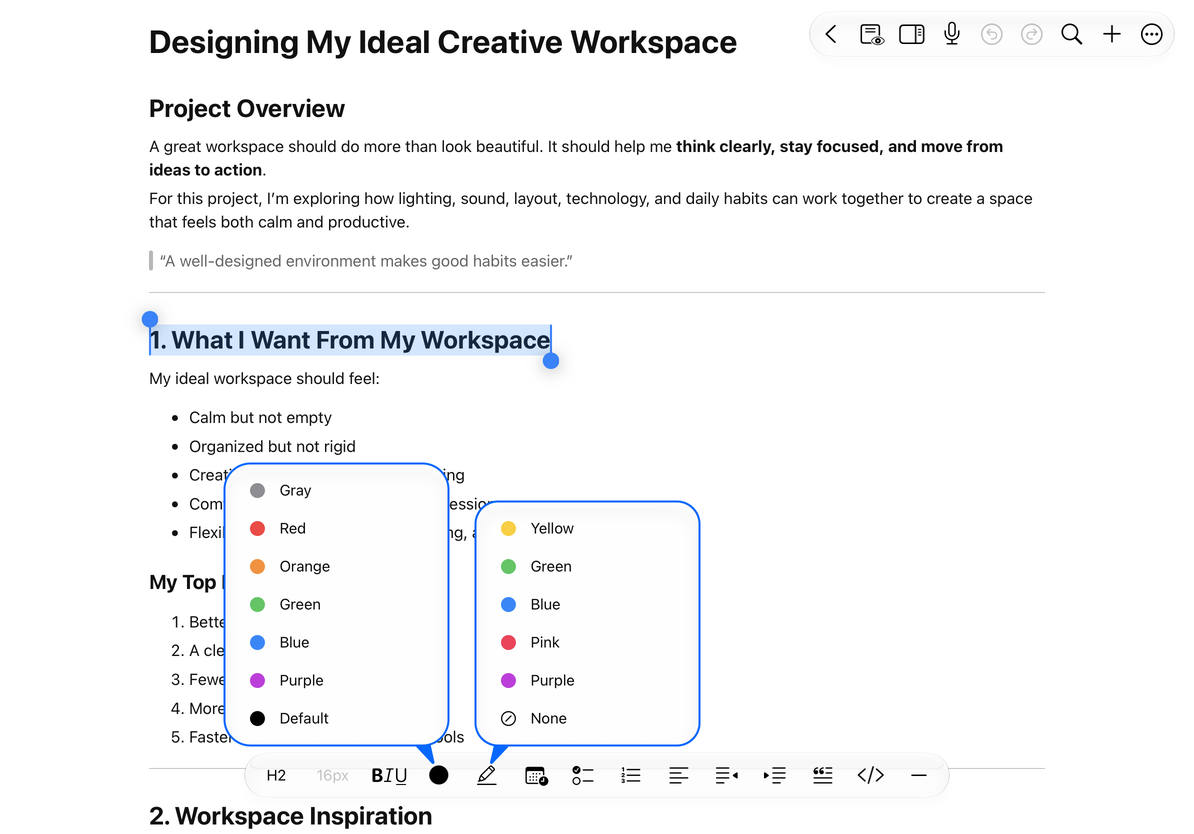
Select text and choose gray, red, orange, green, blue, or purple, or restore the default text color. Highlight colors are yellow, green, blue, pink, and purple. Remove Highlight clears the background emphasis. Text color and highlighting can be combined; keep enough contrast for readability.
Set text color and highlighting
Align and indent paragraphs
Place the cursor in a paragraph or select several paragraphs. Choose left, center, right, or justified alignment. Increase Indent moves paragraphs inward; Decrease Indent moves them outward. In lists, indentation also controls nesting. See Lists and content blocks.
Change a setting back or use Undo in the top toolbar to reverse it. Redo reapplies the edit you just undid.
Common questions
The font-size button is unavailable
Check whether you are in a heading, code block, or preview mode, or whether the body editor is inactive.
New text is also bold
Turn Bold off before continuing to type.
Is highlighting the same as a PDF annotation?
Text-document highlighting is character formatting. For original PDF text, see PDF annotations.