
Use stickers, emoji, and saved assets
The asset library is available in Infinite documents, Vertical documents, and Paged notes on iPhone, iPad, and Mac. It holds reusable stickers, emoji, and saved content. Some built-in stickers require Prodrafts Pro.
Insert stickers and emoji
- Tap the top add button and choose Asset Library / Stickers.
- Select a collection in the category bar and browse its thumbnails.
- Tap a sticker, then position and resize it on the canvas.
- To add an emoji, switch to the emoji category and choose one.
In a Paged note, assets are inserted on the current page. Reopen the asset library to add another item. Closing the panel returns to the note.
Insert stickers and emoji
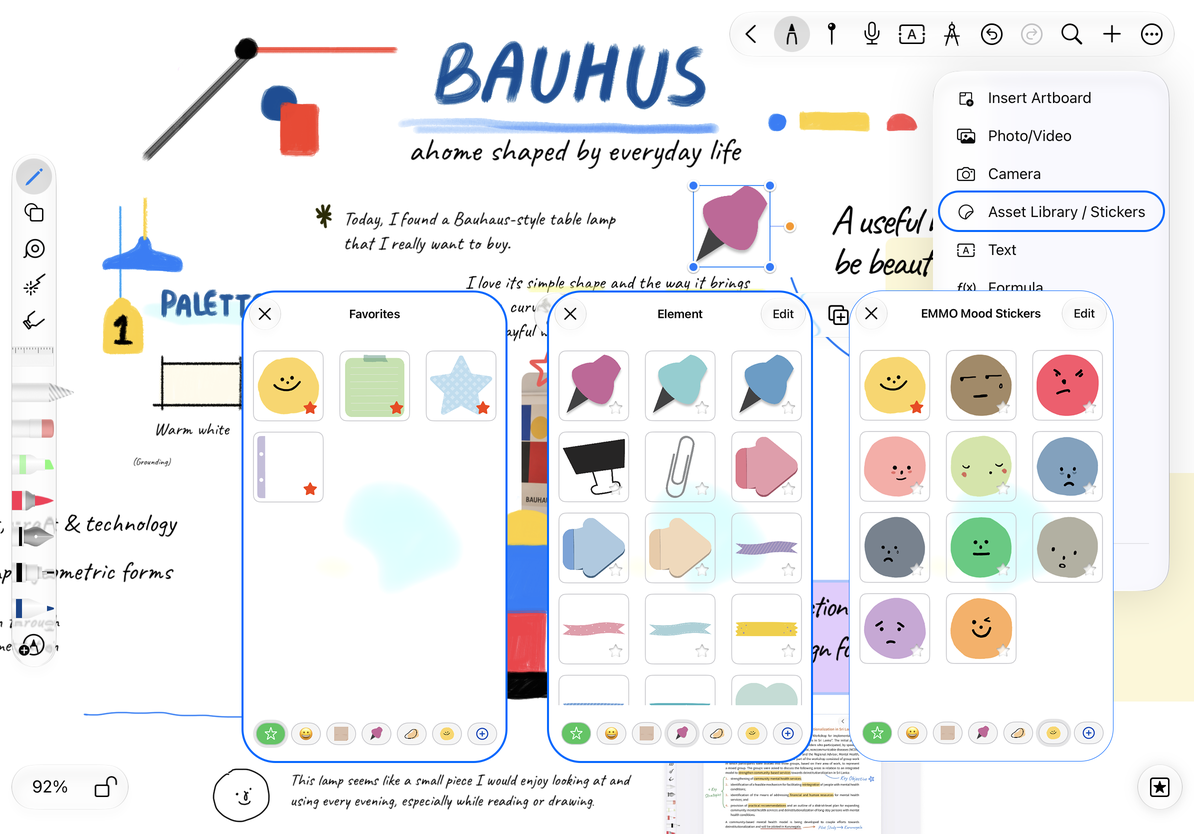
Save an existing object for reuse
- Select the object on the canvas.
- Open its More menu and choose Add to Assets.
- Choose the sticker collection where you want to save it and finish adding it.
- Next time, open that collection in Asset Library / Stickers and tap the saved asset to reuse it.
Saving an asset leaves the original object on the canvas. Available actions depend on the object type. If Add to Assets is missing, exporting or taking a screenshot is not the same operation.
Adjust and organize assets
After insertion, you can resize, move, or delete the object. Use Undo to reverse an accidental insertion. To name and order a set of reusable images, see Create and organize sticker collections.
Common questions
Selecting a sticker shows a Pro prompt
Some built-in assets require Pro. Follow the prompt to check your access, or use your own assets.
Why is this sticker panel unavailable in Text documents?
Text documents insert images through Photos and media, with a layout that follows the body text.
An asset was inserted on the wrong page
Undo the insertion, go to the correct page, and insert it again.
Related guides: Photos and videos · Sticky notes