
Read PDFs and switch editing modes
These controls apply to Paged notes, including notes created from paper templates and imported PDFs, on iPhone, iPad, and Mac. What you see combines the PDF background, handwriting, and added objects. Adding notes over a PDF is separate from changing its original text.
Switch between reading and editing
- Open a Paged note from the library. Scroll, enter a page number, or use thumbnails to reach the page.
- Tap Preview at the top to switch to reading with fewer tools taking up space.
- Return to editing when you want to use a pen, eraser, or Lasso from Pen Boxes.
- Add images, text boxes, and other objects from the top add menu. They are placed on the current page.
Preview changes the reading interface; it does not encrypt or lock the document. Use a document lock to restrict access.
Use immersive mode
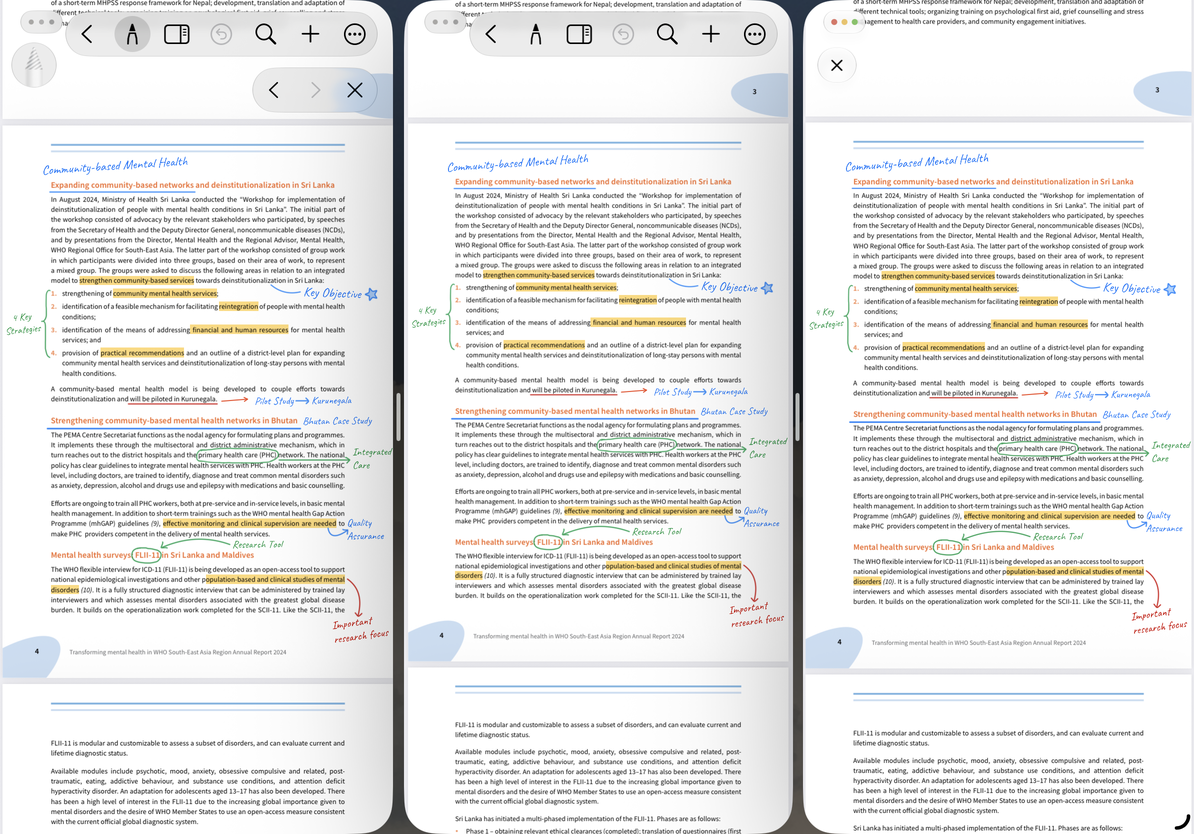
Choose Immersive Mode in More to give the content more screen space. Exit with the on-screen close button or Escape on a keyboard, then reopen any tools or sidebars you need.
Immersive mode and Preview are separate controls. One reduces interface elements; the other switches between reading and editing views. A hidden toolbar does not mean a document is password-protected.
Use immersive mode
Add content to a PDF
Paged notes use the canvas Pen Boxes and object tools. Add photos and videos, web cards, stickers, recordings, and more. The add menu also offers text boxes, formulas, tables, mind maps, and supporting tools. These sit on the page, rather than flowing with body text as they do in Text documents.
To highlight original sentences, see Annotate PDF text. For more writing room, add pages or use page extensions.
Common questions
I can only see part of the PDF
Adjust the zoom or reading settings.
I want to continue from a particular chapter
Use page numbers, bookmarks, or thumbnails. PDFs with a chapter structure may also have an outline.
Why can I not change the PDF's original sentence?
These tools are for reading and annotating the PDF. Adding a text box does not rewrite its original text.