
Meet Prodrafts and its four note types
Use Prodrafts to write by hand, draw, organize information, and write long documents. Choose a note type for your content, then learn the tools you need. You don't have to change all your notes to the same type to use tables, mind maps, or audio recordings.
This guide covers Prodrafts on iPhone, iPad, and Mac. Wherever it says “tap,” you can click on Mac. Features that require Apple Pencil, a camera, or a particular OS version are explained in their respective guides.
Choose a note type
| What you want to do | Note type | How content is arranged |
|---|---|---|
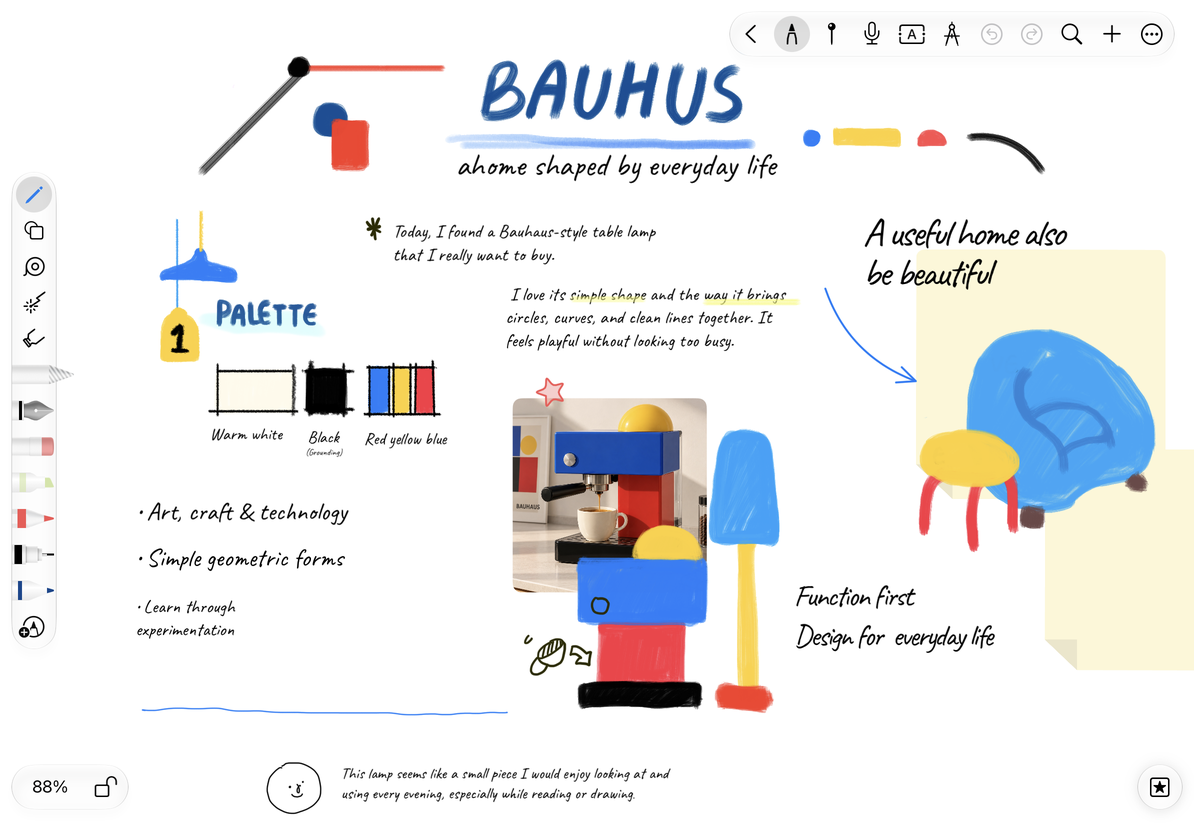
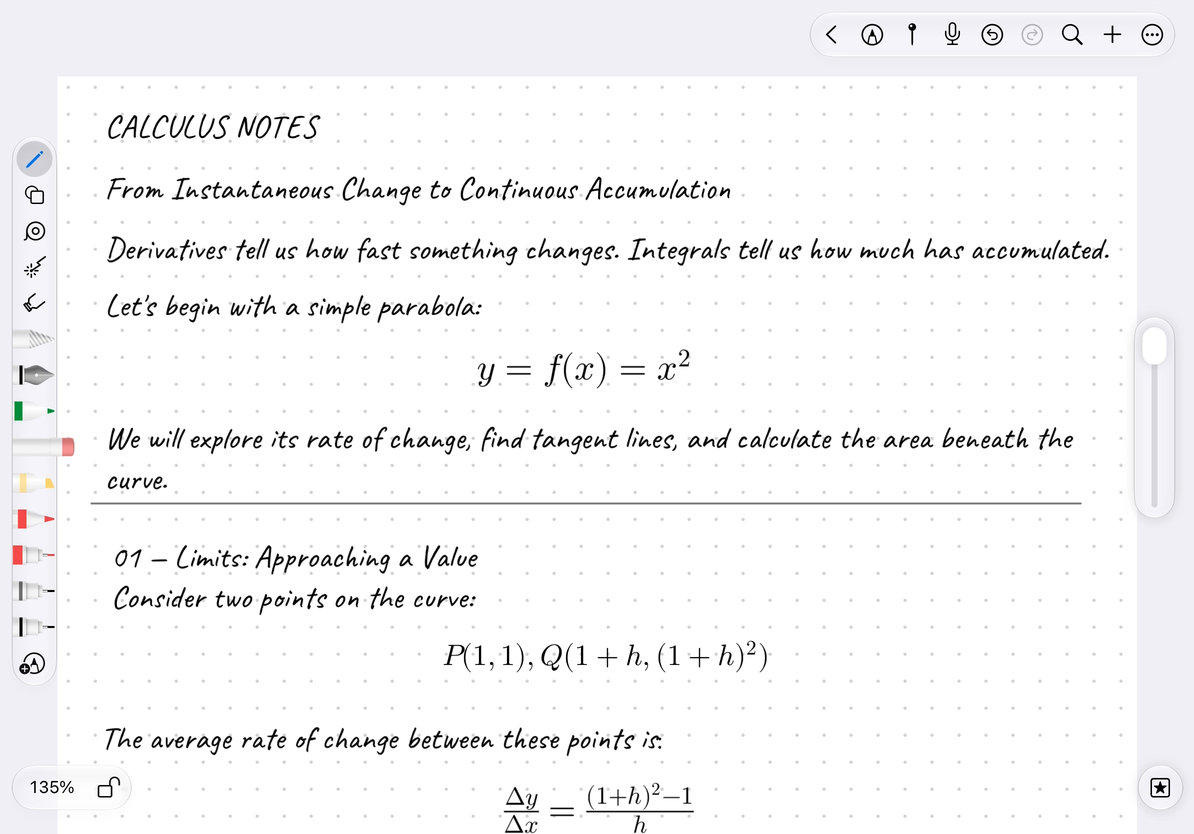
| Expand in any direction while calculating, arranging references, or building a mind map | Infinite document | Arrange handwriting and objects on the open-ended canvas |
| Write continuously from top to bottom, like a long scroll | Vertical document | A canvas with a fixed width that extends downward |
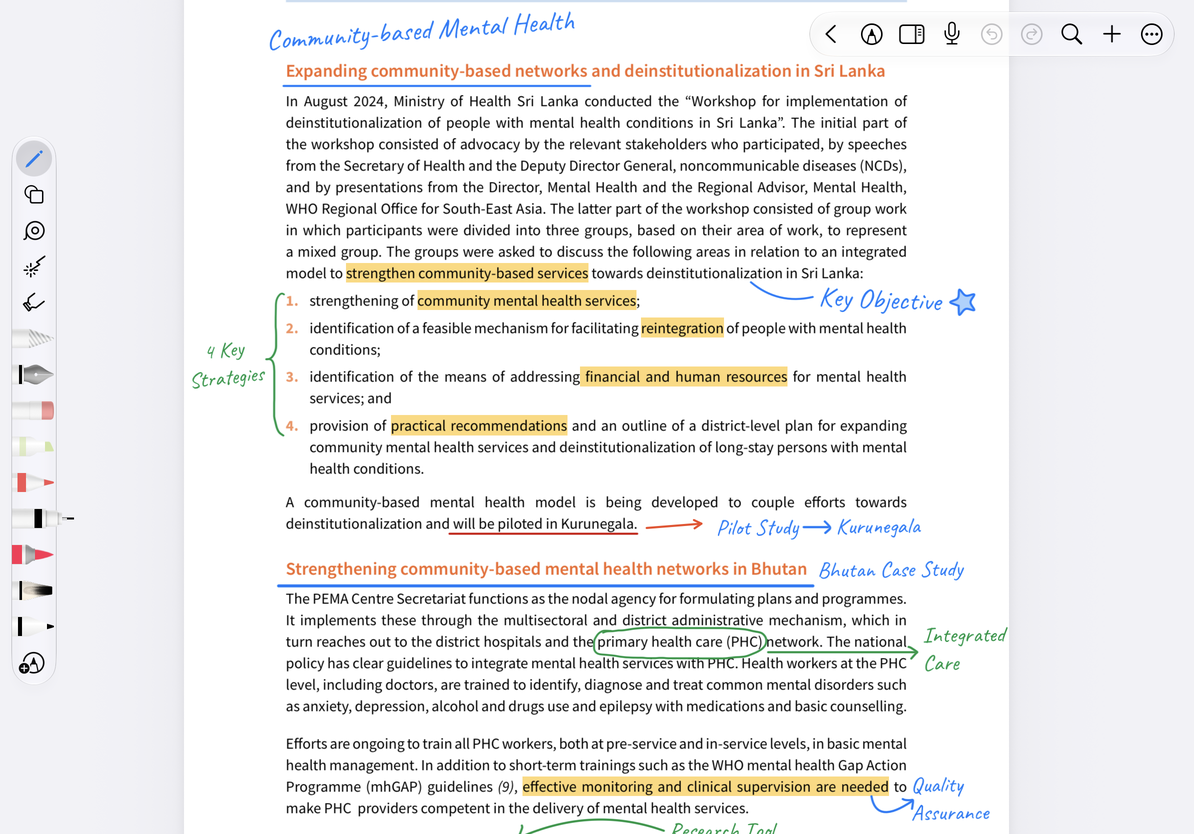
| Write notes by page, use paper templates, read handouts or PDFs | Paged note | Pages with a defined size and order |
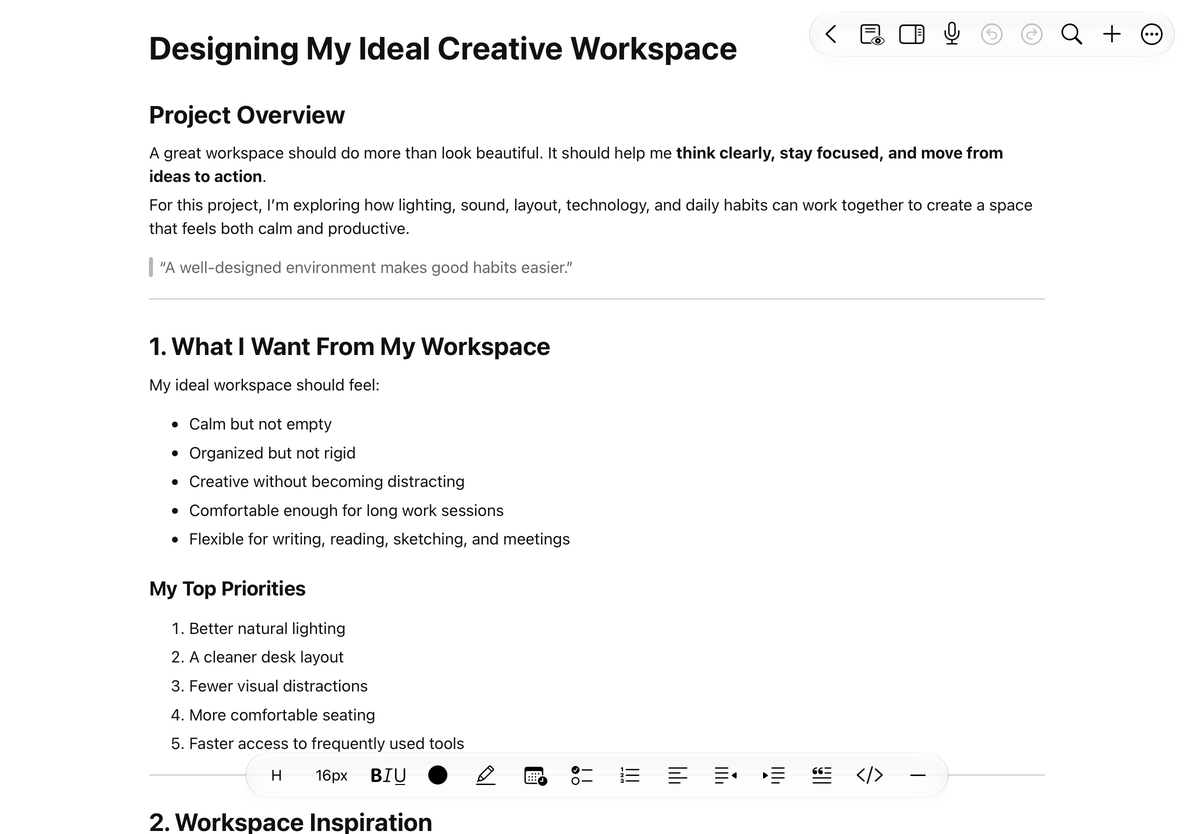
| Type articles, meeting notes, lists, and structured content | Text document | Paragraphs, headings, and blocks flow with the body text |
To try handwriting, follow Create your first note using a Paged note. If you mainly type, start with a Text document.
How PDFs and notebooks fit into Paged notes
In this guide, Paged note covers two common uses: starting from a paper template to create a notebook, or importing a PDF to read and annotate. Both use the same page management tools.
The paper background, original PDF text, and handwriting you add are separate content layers. In a PDF with selectable text, you can select and highlight the original words. Scanned image pages may not support this. See Annotate original PDF text.
Get to know the library and editor
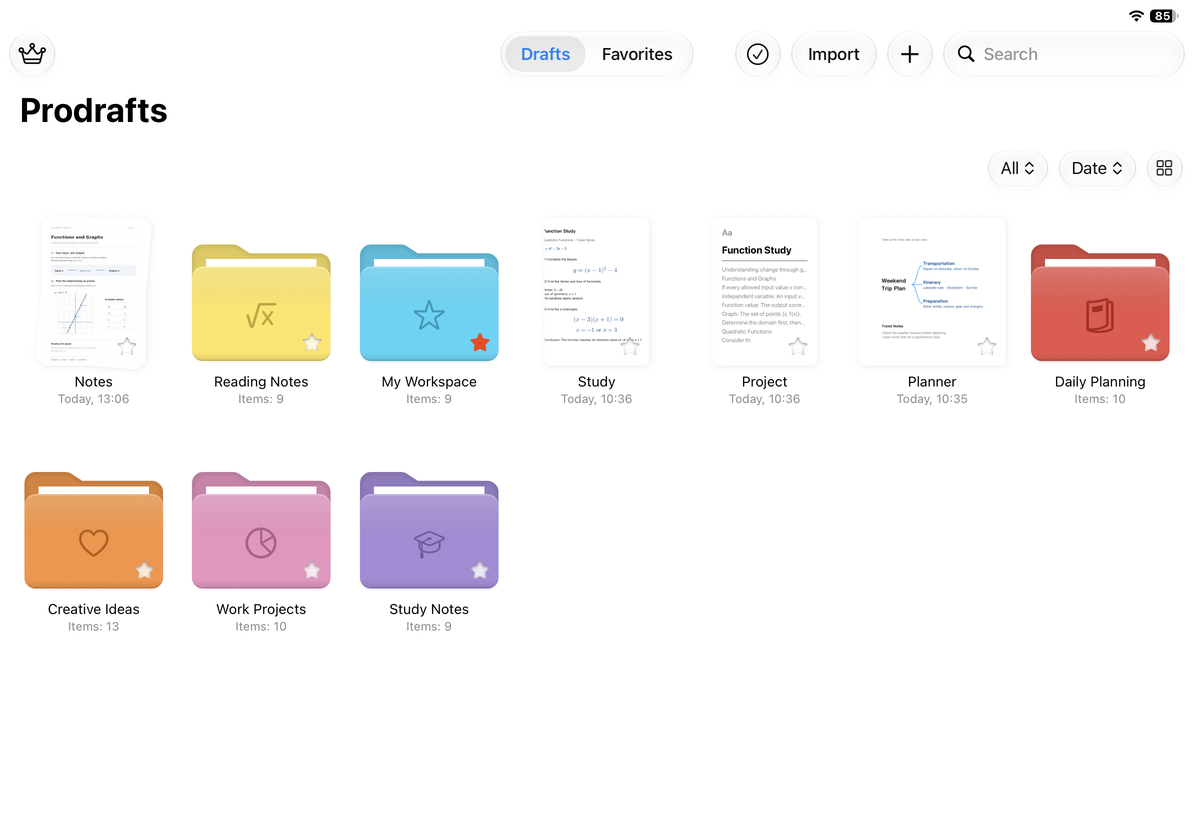
The library holds your documents and folders. Create notes, search by name, add favorites, or move, duplicate, and delete documents here. Tap + to create a note. To create it inside a folder, open that folder first.
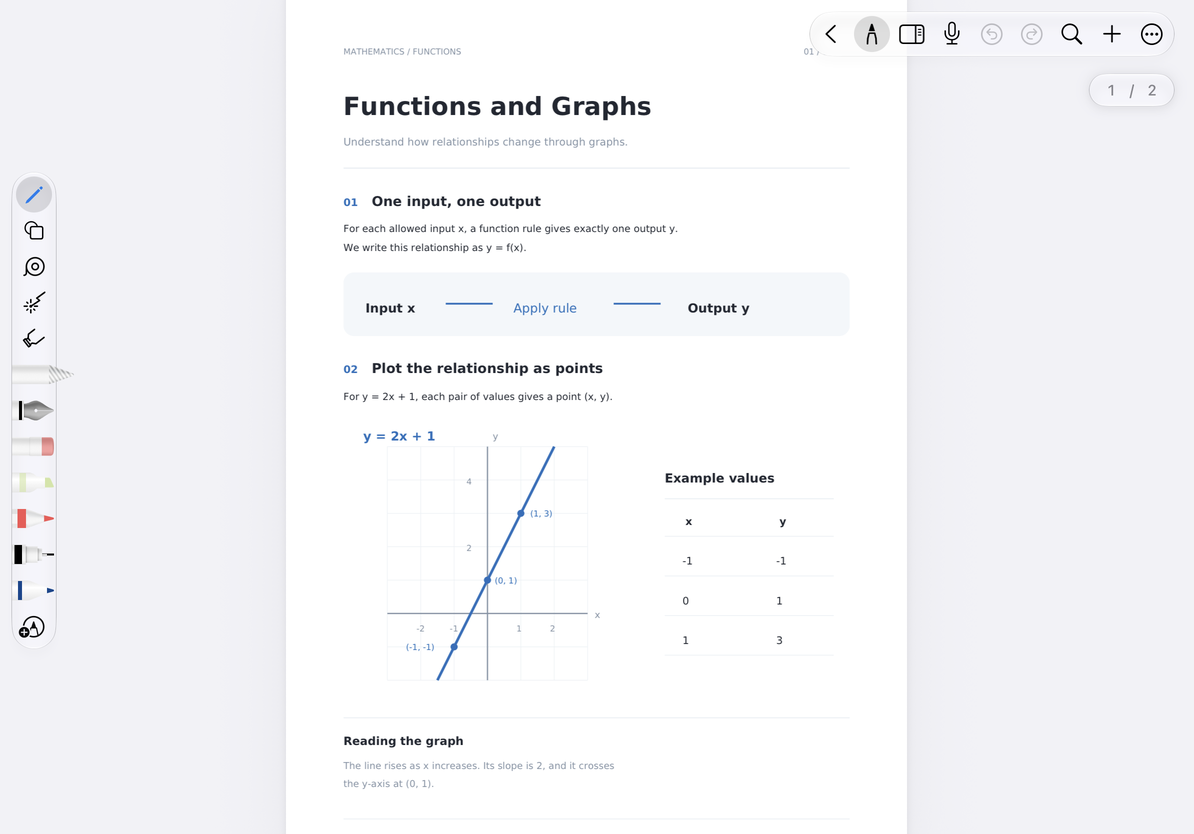
The editor shows the current document and its tools. Infinite documents, Vertical documents, and Paged notes provide handwriting tools and canvas objects. Text documents provide typing, headings, and formatting tools. You can customize the toolbar, so button positions may differ from the default layout.
Tools shared across note types
Infinite documents, Vertical documents, and Paged notes share tools for handwriting, shapes, text boxes, tables, and mind maps. Placement differs: Paged notes place content on the current page, Infinite documents use an open-ended canvas, and Vertical documents use a long vertical canvas.
Text documents have their own tools for text, tables, and formulas. A table in a Text document flows with the article; a canvas table can be placed anywhere. Check the note types listed at the start of each guide.
Recording, library management, sync, and backup also work across several note types. However, where recording cards appear, which export formats are available, and how content is saved may differ. Follow the instructions for your current note type.
Common questions
Do I need to learn it again for each type?
No. Each note type has a getting-started guide for its structure, while shared tools have a single main guide. Learn Pen Boxes or mind maps once, then check the differences for your current note type.
Why is a certain button in the tutorial not displayed?
Check the note type, whether preview or immersive mode is on, and whether you have customized the toolbar. Some features require a particular device, OS version, or Prodrafts Pro access. Each guide explains these requirements before the steps.