
Use document and location links
Connect related notes: open a handout from a course index, jump from a question to its answer, or revisit reference material from meeting notes. Prodrafts internal links can open a whole document or locate a page, canvas object, or pin.
Available on: iPhone, iPad, and Mac. All four document types can link to a document. Page links are for Paged notes; object and pin links are for handwriting canvases. Text documents can contain existing links, but do not currently provide links to individual paragraph positions.
Choose a destination
- Whole document: Build an index of course, project, or meeting material. Copy the address from the document's library menu or Share → Copy Link in the document.
- Page: Reference a particular handout page. Open it and choose Share → Copy Link to This Page.
- Canvas object: Return to an image, text box, or other supported object. Select it and choose More → Copy Link.
- Pin: Return to a named area. Choose Copy in that pin's menu, or use the copy-link button in its editor.
A page link follows the page itself, not just its current page number. It still refers to the same page after reordering. For an object or pin in a Paged note, the link opens its page before locating the target.
Copying an object's location link is different from giving it a destination. Copy Link lets other content refer to that object. Paste Link / Link to makes the object open somewhere else. A web card's Copy Link action copies its web address; see Web cards.
Copy a document link
- Find the document in the library.
- Touch and hold it, or right-click on Mac.
- Choose Copy Link.
- Return to your index note or another app that supports links and insert it where needed.
- Give it a clear label, such as “This week's meeting notes,” then open it to verify the destination.
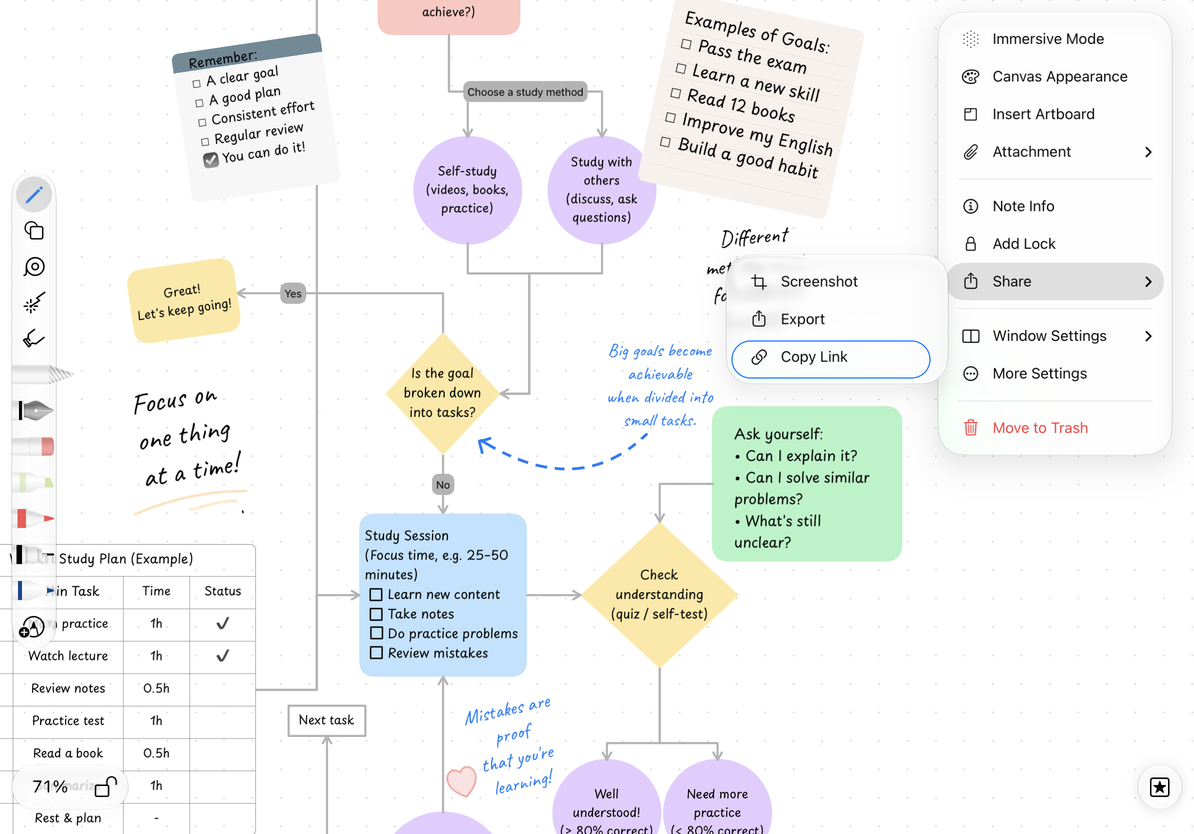
For an open document, use More → Share → Copy Link. The Mac File menu also has a document-link option.
Copy a document link
Copy a page link
- Open a Paged note and go to the page you want to reference.
- Choose More → Share → Copy Link to This Page.
- Add the link to text or a supported object in another note.
- Open it and verify the page and content.
Some versions call this Copy This Page URL. It references an existing page. To give someone a readable copy instead, export the current page.
Link to an object or pin
Select a supported canvas object and choose More → Copy Link. Opening that link locates and highlights the object. See Copy an object's location link.
To return to an area, add a pin and copy its location link from its menu. Groups organize pins; choose a specific pin when copying a location link. See Pin links.
Add a link to a note
- Canvas object: Select an image, text box, or other supported object and choose More → Paste Link, or enter the address through Link to. Use its right-arrow link button to open the destination.
- Canvas text: Add a link to a text selection, then use Open Link in the text link menu.
- Text document: Select text, add a link, and paste the address. Use Open Link while editing, or tap the linked text in preview mode.
See Add and edit object links and Text document links. While editing, tapping an object or text may select it or place the cursor. Use its link-opening control to navigate.
For example, copy a handout page link, return to the course index, select a text box labeled “Chapter 2 examples,” and choose Paste Link. Its right-arrow button now opens that page. Other objects in the index can point to different resources.
Go back and forward
After following an internal link, a small navigation bar appears when history is available. These controls are also called route navigation:
| Button | Action |
|---|---|
| Back (left arrow) | Returns to the previous internal link destination |
| Forward (right arrow) | Revisits a later destination after going back |
| Close (×) | Hides the bar and clears this navigation history for the current window |
Back or Forward is unavailable when there is no corresponding history. Closing the bar does not close the document or delete notes.
Each window has its own history. Going back and opening a different destination replaces the forward path. For example, if you return from a handout to an index and then open an answer sheet, the new path follows that choice.
History returns to link destinations: an object, page, pin, or a document's normal opening position. It does not record every scroll, zoom, or text cursor position, and it is not retained after restarting the app. To switch among recently opened notes, use Recent Files.
Web links and built-in PDF links
Put web addresses in object links or text links, or create web cards. The system and relevant app handle opening websites. Browser navigation is separate from Prodrafts' internal link history.
An imported PDF's built-in outline or page links follow destinations defined in the PDF. They are handled separately from Prodrafts page links created with Copy Link to This Page. See Page navigation for other ways to move between pages.
Before opening a link
Internal links reference existing documents. The device must be able to find and open the target; another device must also have the same document and required content. Locked documents still require authentication.
A link does not include document content or grant someone else access. To send a readable copy, export a PDF or image. To let someone continue editing in Prodrafts, export a native document.
Common questions
Why does a link not open for someone else?
Check that they have the corresponding document and that the app handling the link allows Prodrafts to open. Sending only an internal link does not send the note. Share an exported file when you need to transfer the content.
The app opens, but the target is missing
Try opening the document normally from the library. Check Trash, download status, and document locks. Then confirm that the referenced page, object, or pin still exists. If it was deleted or replaced, an old link may open the document without locating the original target. Across devices, also check iCloud status.
Do I need a new link after renaming a document?
No. The link uses the document's identity, not just its displayed name. A duplicate is a separate document; copy a new link if you want to reference that copy.
How do I return to the previous note?
Use Back as described above. If you closed the navigation bar, choose the note in Recent Files. For thumbnails, page numbers, and PDF outlines, see Page navigation.
Related guides: Object links · Pin links · Text document links · Web cards
Last checked: October 14, 2026. Menus may vary by device and app version.