
Recognize handwriting and convert it to text
This feature works with handwritten strokes in Infinite documents, Vertical documents, and Paged notes. It does not convert text in images, the underlying PDF, or typed text boxes.
Enable handwriting recognition
Open More → Handwriting Recognition and Search and enable recognition for the note type you use. Infinite and Vertical documents share one set of settings; Paged notes have separate settings. Enabling one does not enable the other.
Results depend on the languages and features supported by your device, as well as how clearly you write. Start with one or two clearly spaced lines in the same language, and check the result before converting longer passages.
Copy recognized text
- Select the Lasso tool. If needed, choose Handwriting Only in its properties.
- Circle the handwriting you want to convert.
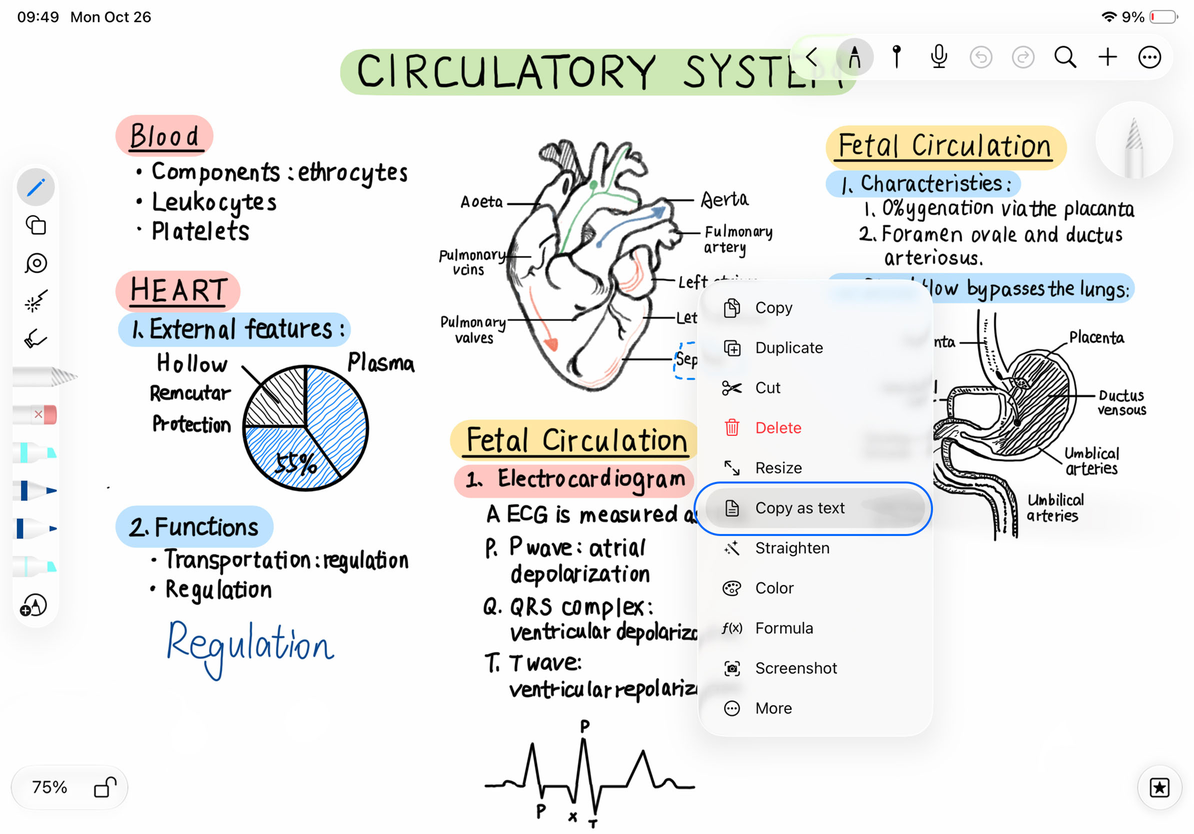
- Tap Copy as text in the selection menu.
- When the message confirms that the text has been copied to the clipboard, paste it into a text box, a document, or another text field and check it.
Copying leaves the original handwriting on the canvas. Pay particular attention to punctuation, line breaks, numbers, and characters that look alike.
Copy selected handwriting as text
Replace handwriting with a text box
After recognition succeeds, the brief result message includes Replace Selection. Keep the original handwriting selected and tap this button to delete the selected strokes and insert a text box containing the recognized text in the same area.
You can then edit the text and adjust its font, size, and position. Typed text has different spacing from handwriting, so individual characters may not line up with the original strokes. If you replace the wrong content, use Undo immediately. To extract text while keeping the handwriting, copy it without choosing Replace Selection.
Common questions
Copy as text is missing from the menu
Check that recognition is enabled for the current note type and that the Lasso selection contains handwriting, not an image or attachment.
No text appears after conversion
The selection may not have a usable recognition result yet. Try selecting a single clear line, or type the text yourself. Selecting an image repeatedly will not make it handwritten content.
The replace button has disappeared
Select the handwriting again and repeat the conversion. Do not assume that an earlier recognition result applies to a different selection.
Related guides: Lasso selection · Edit text boxes · Straighten and refine handwriting