
Save text styles and set text box backgrounds
Applies to text boxes in Infinite documents, Vertical documents, and Paged notes. The appearance of the container and the text format are set separately: the background panel changes the background color and border of the box, and the text style saves the font, font size, color, spacing, alignment and other layouts.
Set background and borders
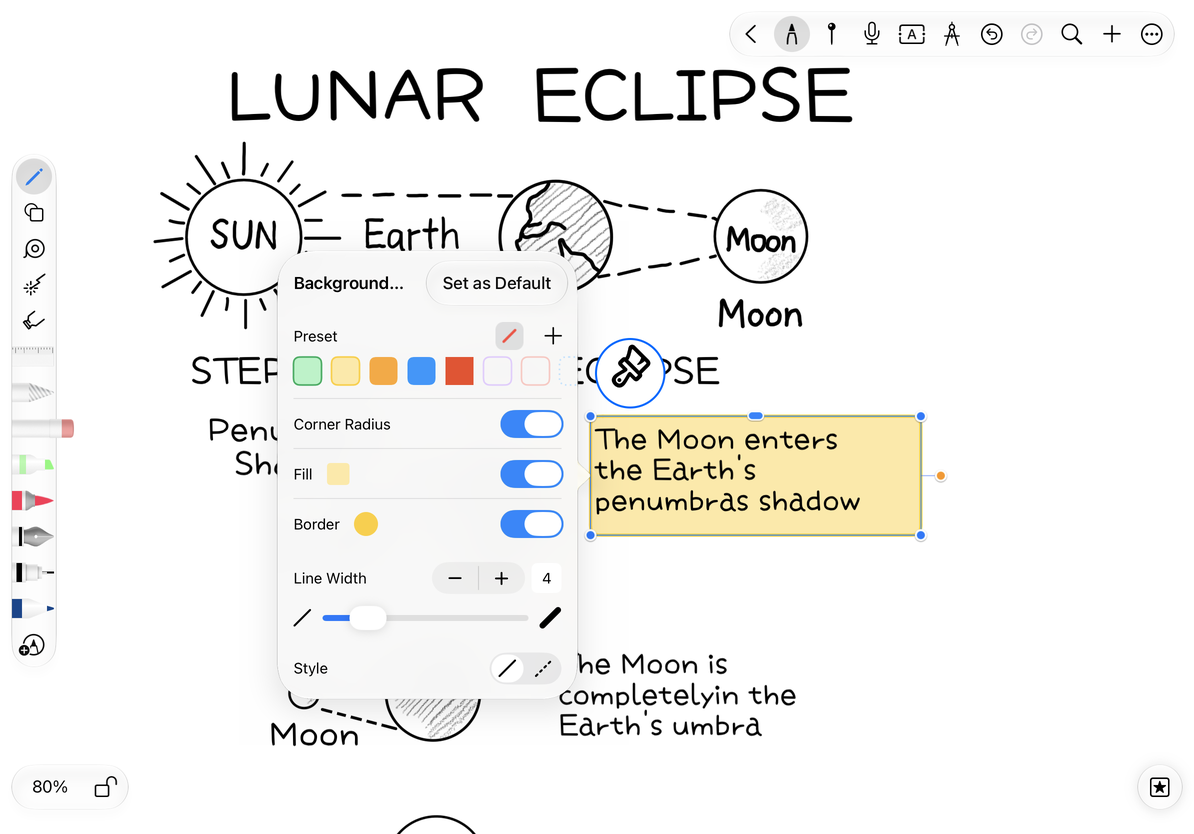
- Select the text box and open Style, or open the Background Style panel in the text toolbar.
- You can select a preset first, and then adjust the Fill switch and color.
- Open Borders and select the color, line width, and available solid/dashed appearance.
- Turn on rounded corners as needed. Don't assume that all text containers provide the same rounding parameters.
- Return to the canvas to see the text against the background; to remove the background fill, turn off fill or select a transparent appearance.
Set text box background and border
Save current text style
- Enter text editing, place the cursor in the text with the target format, or select a sample.
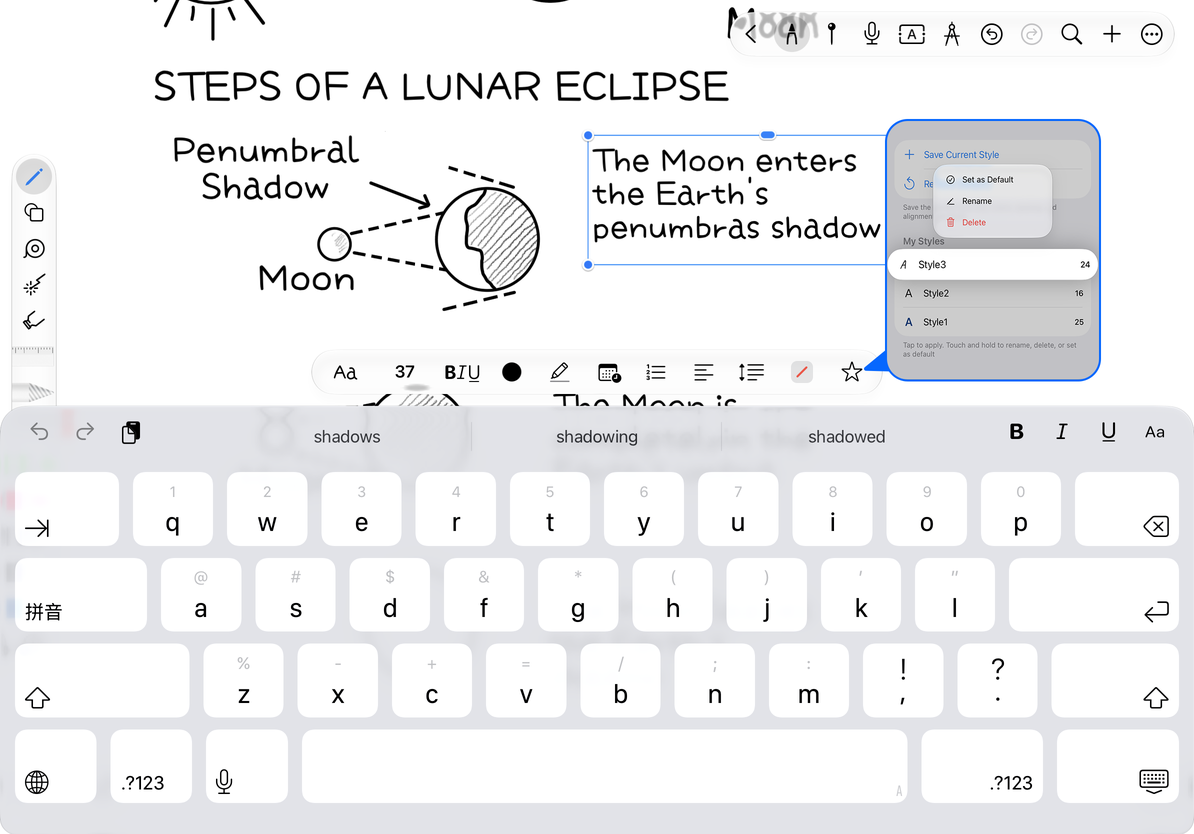
- Tap the style favorites button on the toolbar to open Text Style.
- Tap Save Current Style, enter a name, such as "Chapter Title", and confirm saving.
- The next time you edit another text box, open the same panel and tap the saved style to apply.
Save up to 20 text styles. When the upper limit is reached, delete styles that are no longer used and continue adding them. It is recommended that the name describe the purpose, not just the color.
Apply to selected text or the whole text box
When opened from the text editing toolbar, a style applies to the selected text, or to future typing if there is only a cursor. To format the whole box, select all its text. Alternatively, finish editing and choose Favorites from the object's floating menu to open Text Styles for the entire box.
Press and hold a style to rename, delete, or set it as the default. A new default affects future text; it does not reformat existing text boxes. Deleting a saved style does not delete text that already uses it.
Apply and manage text styles
Restore Defaults
Tap Restore Defaults in Text Styles. The scope depends on how you opened the panel: select text in the editor to reset only that selection, or use the whole-box entry to reset all text in the box. Undo immediately if you reset the wrong text.
Is the background color still there after restoring the default text?
Text formatting and the text box background are separate settings. Open the background panel to change the fill.
The word count has not changed but the line breaks have changed after application?
The font, size, and spacing affect how much width the text needs. Adjust the box width to change where lines wrap.
Related guides: Font format · Paragraph spacing · Object transformation