
Play recordings and adjust speed and noise reduction
Available for saved recordings in all four document types on iPhone, iPad, and Mac. Start playback from the current document’s recording list or a recording card. Cards flow with the text in text documents; in other document types, they sit on the canvas or page.
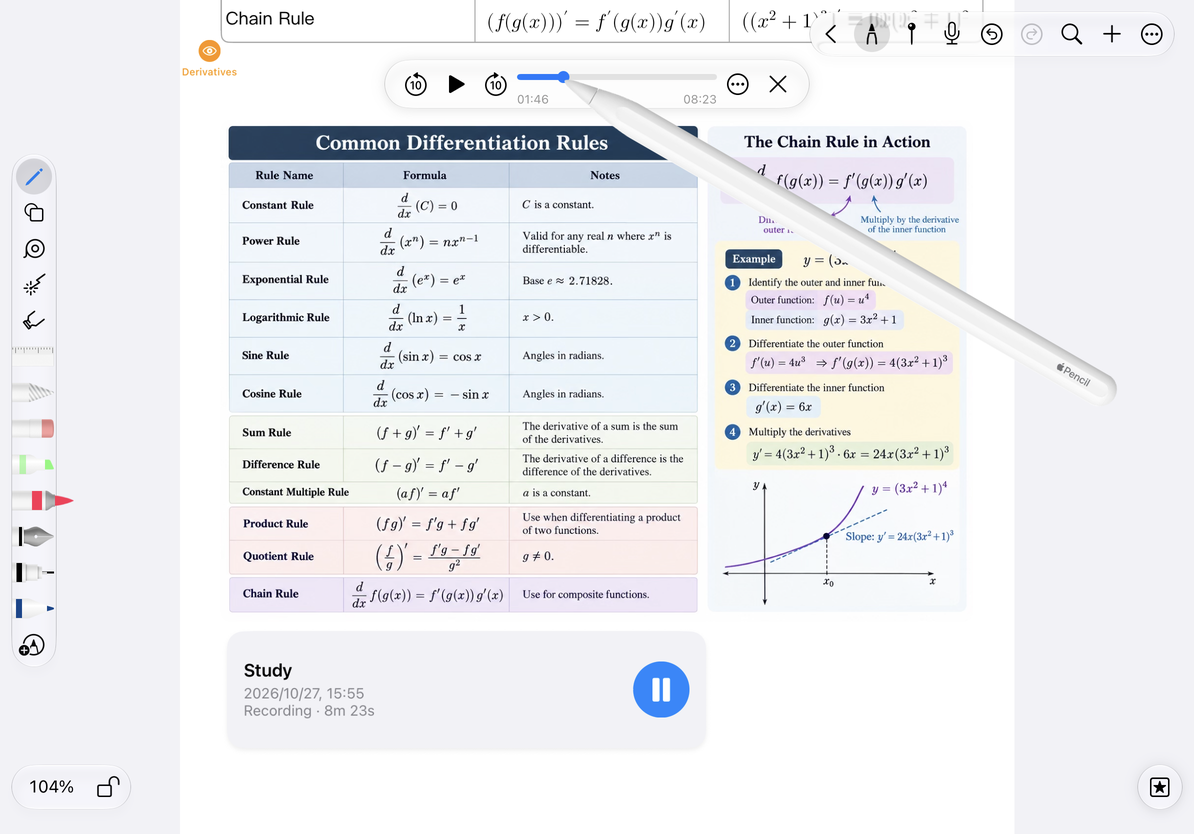
Play and seek
- Open the Recording list and tap a recording, or tap its card in the note.
- Use the play and pause buttons in the playback bar.
- Drag the progress bar to a time, or use the skip buttons to move backward or forward by 10 seconds.
- When finished, pause or close the playback bar and continue editing.
Skipping is useful for hearing a term again or moving past a pause. It changes only the playback position; it does not trim the audio.
Play and seek
Adjust speed and noise reduction
Open the recording list’s More menu and choose Playback Settings. Select a Playback Speed, then return to listen. Speed up familiar material or slow down for transcription and detailed checking. Choose 1× for normal speed.
Toggle noise reduction on the same settings page. Compare the same short passage with it on and off. Noise reduction reduces noise during playback; it does not create a new noise-free original or guarantee removal of all background sound.
Common questions
Why did playback stop when I started recording?
Recording and playback cannot run at the same time. Starting a recording stops playback.
Does seeking change the transcript?
No. It only changes where you listen. To view or regenerate text, open Transcript details.
The audio is still unclear
Check the system volume, output device, and original recording quality. Try a slower speed while referring to the transcript.
You can change playback settings back at any time. These settings do not delete or merge audio. To organize, share, or merge recordings, see Manage recordings.