
Capture and share a canvas area
Available in infinite and vertical documents. Use page export for paged notes and text export for text documents.
A canvas capture is useful for sharing a small derivation, sketch, or collection of material. It creates an image of the selected area and does not preserve individually editable handwriting or objects.
Choose the capture area
- Open the document and move or zoom the canvas to show the area. Dismiss any temporary overlays you do not need.
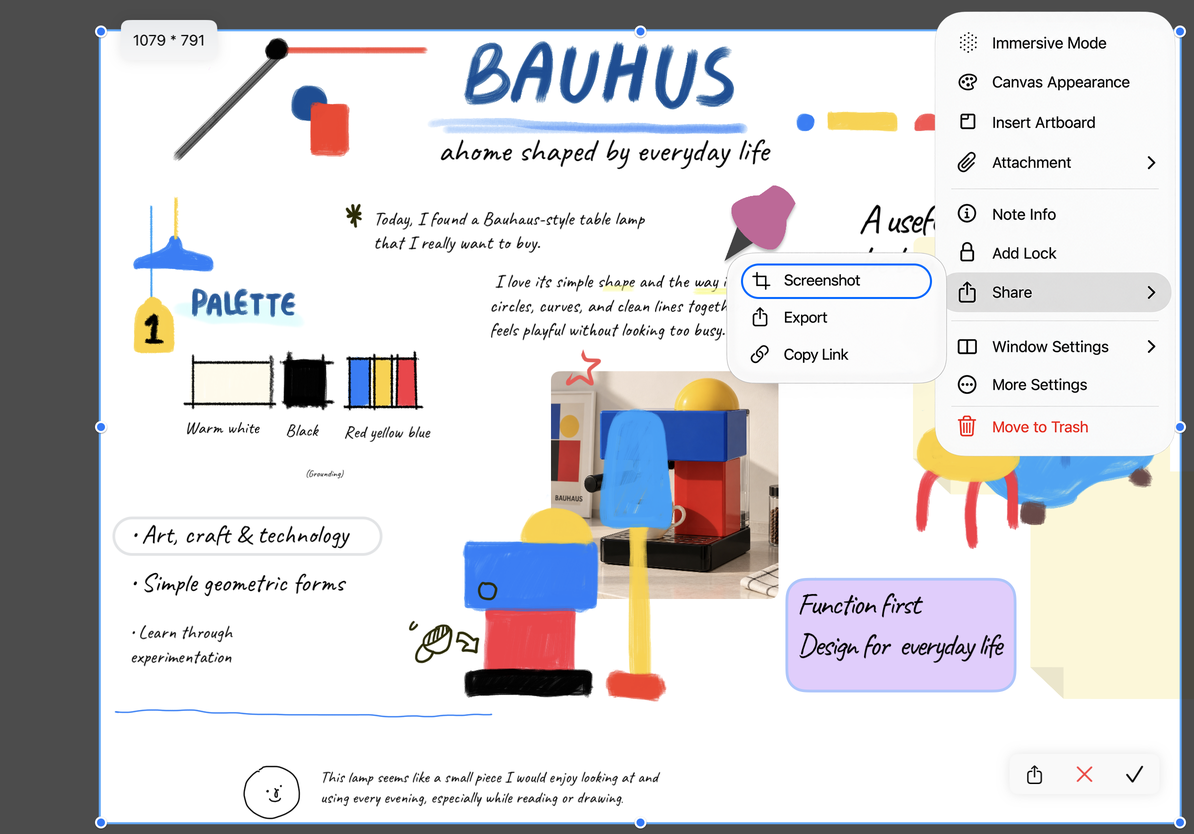
- Choose More → Share → Screenshot. A crop box appears with a shaded area around it.
- Drag inside the box to move it, or drag its corner and edge handles to adjust the width and height.
- Check the size indicator and make sure headings, margin notes, and thin lines fit inside. For a larger area, cancel, zoom out on the canvas, and reopen the capture tool.
Choose the capture area
Preview, share, or drag the image
Confirm to create a JPEG and open its file preview. Zoom in to check the edges, text clarity, and any unwanted content. Then use the preview’s system sharing controls to save or send it.
You can also use the share button in the capture toolbar once the area is ready. Choose a destination such as Save to Files and finish saving there. Opening the share sheet alone does not save the image.
On devices that support drag and drop, drag the image from the capture tool’s share button into an app that accepts images. The result remains an image, not the original Prodrafts objects. To leave without using it, close the capture tool.
Common questions
If part of the content is missing, adjust the crop box. To export a whole long document, use PDF or image export. Capturing a larger area does not necessarily make the text clearer; split it into two images or send a PDF if needed.
In paged notes, use More → Share → Export This Page if this capture tool is unavailable. To let the recipient edit the handwriting and objects, send a native Prodrafts document.
This article is current as of October 12, 2026; menus may vary across devices and versions.