
Use the calculator and unit converter
All four document types offer a calculator. In text documents, open it from the add menu or a configured toolbar shortcut. The scientific calculator requires Prodrafts Pro; follow the displayed prompts for other actions and entry points.
Open the calculator and calculate
- Choose + → Calculator in the editor, or use a calculator shortcut you added to the top toolbar.
- Enter numbers, arithmetic operators, and decimals. For example, enter
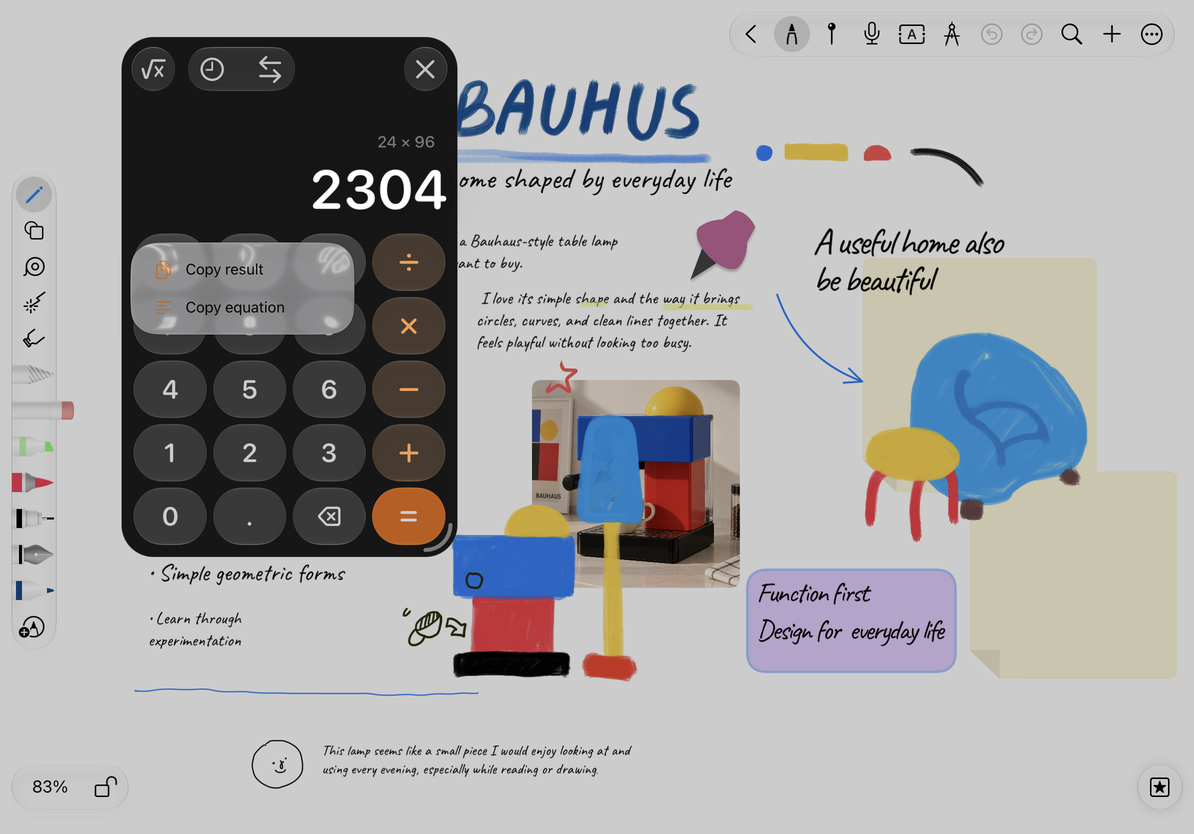
24 × 96and press equals to get2304. - Use Backspace to remove the last digit. C clears the current input; AC clears the calculation. The clear button changes with the current state and also has a long-press menu.
- Use the sign key to switch between positive and negative, and the percent key for percentages. Check longer expressions before pressing equals.
- Touch and hold the result, then choose Copy Result or Copy Equation to paste into a text box, text document, or another app.
Calculate and copy a result
Scientific functions and memory
Tap the scientific button at the top to show parentheses, powers, roots, exponentials, logarithms, factorials, trigonometric functions, and hyperbolic functions. π and e enter constants, EE enters a scientific-notation exponent, and Rand generates a random number.
Tap 2ⁿᵈ for the second function set, including inverse trigonometric and inverse hyperbolic functions. Tap again to return. Check degrees or radians before using trigonometry; for example, use degrees for the sine of 30°. Close any open parentheses before evaluating.
Memory stores a value temporarily: m+ adds the current value, m− subtracts it, mr recalls the stored value, and mc clears memory. The memory indicator shows that a value is stored. Clearing the current expression does not clear memory.
History and favorites
Pressing equals adds the calculation and result to history. Tap the clock icon for History and Favorites. Browse by date or search for part of an equation or result.
Tap an entry for details. Touch and hold it to choose Use Result and continue calculating, or Edit Equation to change the original expression. Star an entry to save it as a favorite; repeat to remove the star. Individual entries offer Copy, Share, and Delete. The list’s More menu can also share the currently displayed entries.
Clear History keeps favorites. Deleting a favorite individually still deletes that entry; the keep-favorites rule does not apply to every delete action.
Convert units
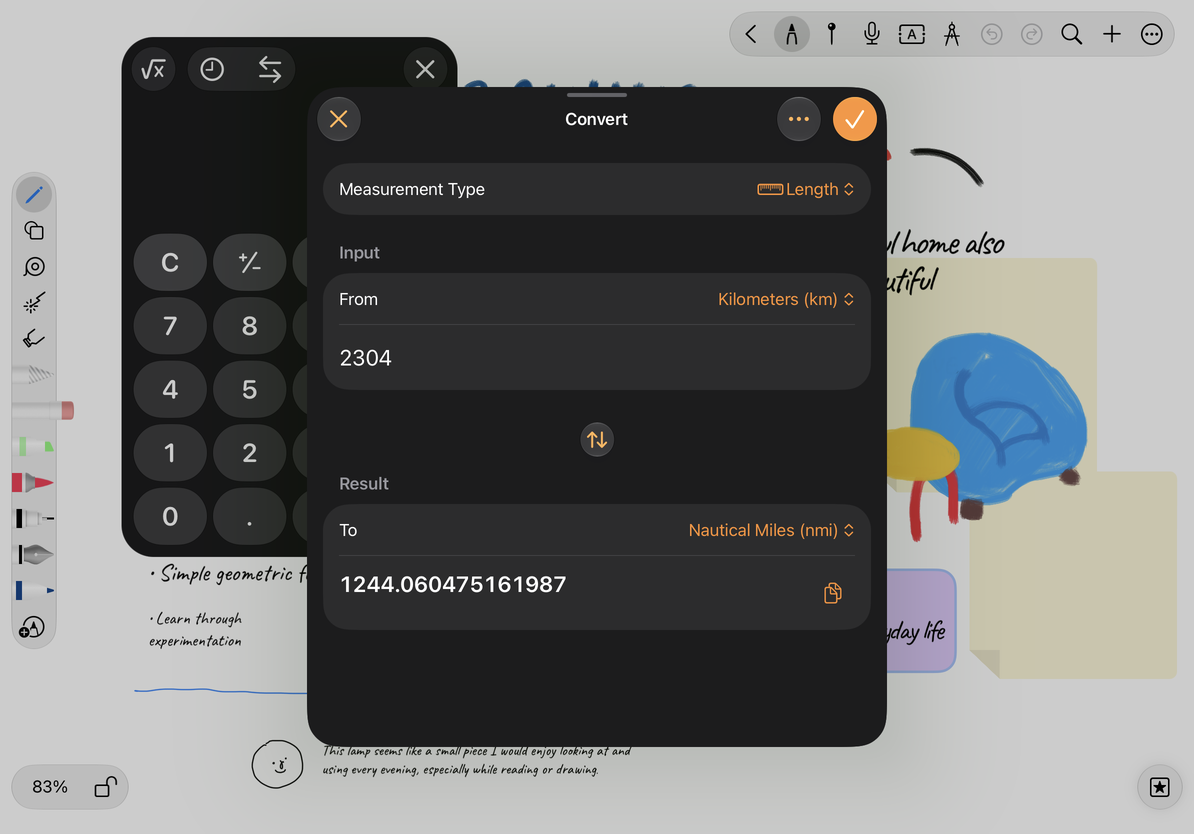
- Tap the two-way arrow at the top for Unit Conversion.
- Choose power, area, energy, time, speed, volume, temperature, pressure, length, or mass.
- Choose the source unit, enter a value, then choose the target unit. If you swap the direction, check both units again.
- Copy the result, or choose Done to bring it back to the calculator. The unit pair is saved for reuse in recent conversions.
- Choose a recent unit pair and enter a new value to use it again. Clear recent conversions when needed.
Convert units
Currency exchange is not included. If you see division-by-zero, incomplete-expression, or function-range errors, correct the input and calculate again. An error message is not a numerical result.
Drag the top or result area to move the calculator, and drag its corners to resize it. Accessibility actions also support moving and resizing. Close dismisses the calculator. For timing, use Stopwatch and countdown; for quick access, customize the toolbar.
This article is current as of October 12, 2026; menus may vary across devices and versions.