
Use multiple windows and split screen
All four document types can be viewed side by side. Available layouts depend on the system, device, and window space. Window behavior on iPad and Mac does not necessarily apply to iPhone.
Open another window from recent documents
- Open the first document and finish your current input.
- Open the recent documents list and find the second note.
- Use its New Window button and wait for the new document window to appear.
- Arrange the windows using the system’s window or split-screen controls. Check both titles so you edit the intended document.
- Activate a window before typing or using keyboard shortcuts. The active window receives those actions.
Open documents side by side
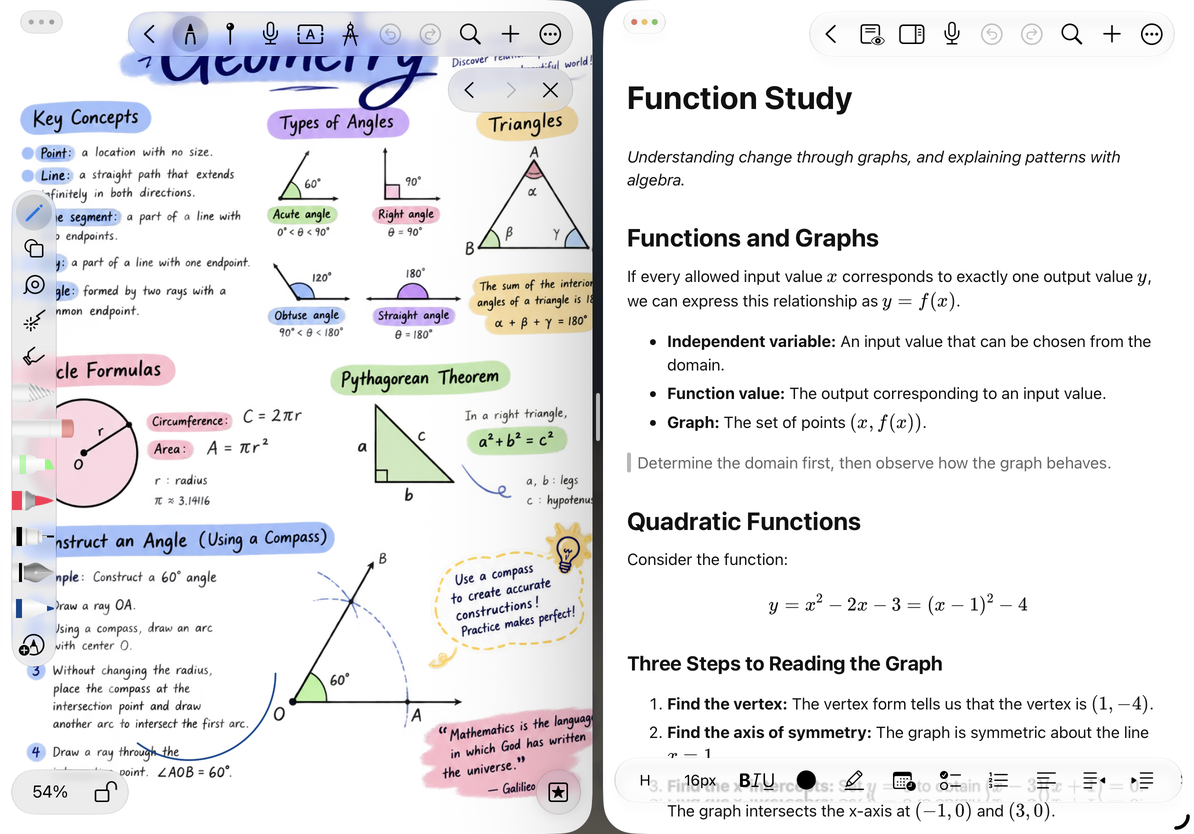
This may replace an existing second document window. Finish editing there before choosing another document. Each tap does not necessarily create an additional window.
Open a document by dragging
Where the system supports it, drag a document from the library or recent documents list to a window or split-screen drop target. Wait for a clear drop target before releasing, then check the new window’s contents.
Dragging a folder organizes the library; it does not work like dragging a document to open a window. If no window drop target appears, use New Window in the recent documents list.
Switch documents and save
When you switch through the sidebar or a link, the current document must finish saving before the next one replaces it. After typing a large amount in a text document, wait for the switch to finish and the new title to appear. A blank view during loading does not mean the contents have been lost.
If the same document is open in two windows, avoid alternating between unsaved edits in both. Saving text in one window may refresh another window that can receive updates, but this does not guarantee automatic merging of conflicts between devices.
Close windows and adjust the layout
Use the system window controls to close one side. Closing a window does not delete its document. Reopen it from the library or recent documents and check the saved content and reading position.
When a narrower window changes the toolbar or panels, look under + for actions moved into the menu. See Panel position and presentation to pin lists to the side. If a version panel appears after cross-device changes, follow Document conflict versions.
This article is current as of October 12, 2026; menus may vary across devices and versions.