
Export multiple documents together
Use this when selecting several library documents or exporting a folder. Available formats depend on the actual document types inside the selection, including nested folders; folder names alone do not determine the options.
Start batch export
- Enter the location containing the target document in the library, open the selection state, and check the required document or folder.
- Check the selection range, especially if there are subfolders and content not to be sent within the folder.
- Tap "Export" on the batch toolbar; you can also directly use the export operation in the folder menu to export the entire folder.
- Select the output method among the available formats, fill in the file name for easy identification, and then tap "Export".
- Wait for the copying, conversion and packaging to be completed; use "Cancel" in the progress when it is no longer needed, and wait for the completion before proceeding.
- iPhone and iPad save or send results through the system sharing panel; Mac selects the destination location and saves it in the file saving panel. After saving, expand the output package or check the file list, and check the quantity with the original selection range.
Start batch export
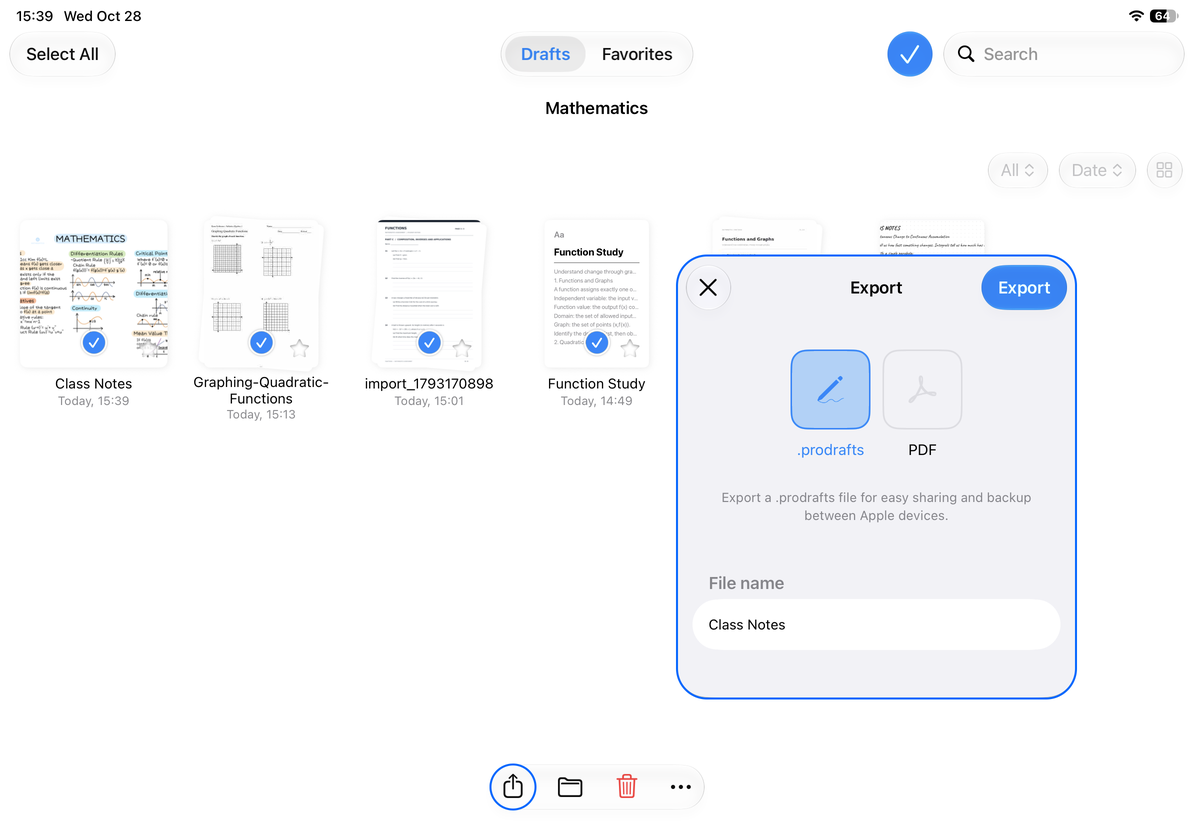
Why does the format list change?
| Selection | Available bulk formats |
|---|---|
| A mix of Infinite documents, Vertical documents, Paged notes, and Text documents, including folders with mixed types | Prodrafts, PDF |
| Only Text documents, including all documents inside selected folders | Prodrafts, PDF, HTML, Markdown, TXT, DOCX |
| Canvas or page image required | Export from an individual document or selected pages instead |
Format selection is based on the actual documents included, not which one is selected first. If you want to export a set of Markdown, but there is no Markdown in the list, check whether the selected folder is contains Paged notes with PDFs, Infinite documents, or Vertical documents; deselect any mismatching and open the export again.
Batch export does not show the Include Page Background and Include Annotations options available for an individual Paged note. To use different rendering settings for each note, export PDFs, images, or pages individually.
Verification after export
Prioritize checking the file number, name and directory, and then open at least one copy of each type to view the content. Duplicate names or subfolders with the same name especially need to be checked. You cannot judge that the internal structure is correct based on the package file name alone. The native format is for continued editing, and the PDF is for static reading; see Export Text document for the formulas and media differences in text output.
When an error occurs, keep the saved results and original document, and follow the failure prompts to split into smaller batches and try again. If a cloud document cannot be read, first make sure it opens normally on this device. For a separate copy of the whole library, see Creating a Backup.
This article is current as of October 12, 2026; menus may vary across devices and versions.