
Create, cancel, and save a backup
Applies to Infinite documents, Vertical documents, Paged notes, and Text documents. A standard backup collects the current library's folders and documents outside the Trash into a separate ZIP. A completed iCloud sync does not automatically save this ZIP to your backup location.
To upload later changes regularly to cloud storage or a NAS, use Automatic Backup. Export Backup creates a ZIP for you to save. Back Up Now on the Automatic Backup status page processes pending cloud backups.
Create and save a backup
- Finish editing the current document, return to the library, and open Settings → iCloud & Backup.
- Tap Export Backup. On devices with Home Screen quick actions, you can also press and hold the Prodrafts icon to open the backup page, then tap Export Backup. Opening that shortcut alone does not create a saved backup.
- Watch the percentage, current file name, and processing status. During backup, an overlay blocks interaction in the window that started it. Closing the page and changing the sync switch are temporarily unavailable.
- Read the result when processing finishes. If some documents failed, note the failure count. Reaching 100% does not mean every document is included.
- On iPhone or iPad, choose a destination in the system share sheet, such as Save to Files. On Mac, a save dialog opens directly. Choose a folder and finish saving.
- Open the destination, confirm that the ZIP exists, and check its size and contents. To restore it, select the ZIP through file import in Prodrafts.
Create and save a backup
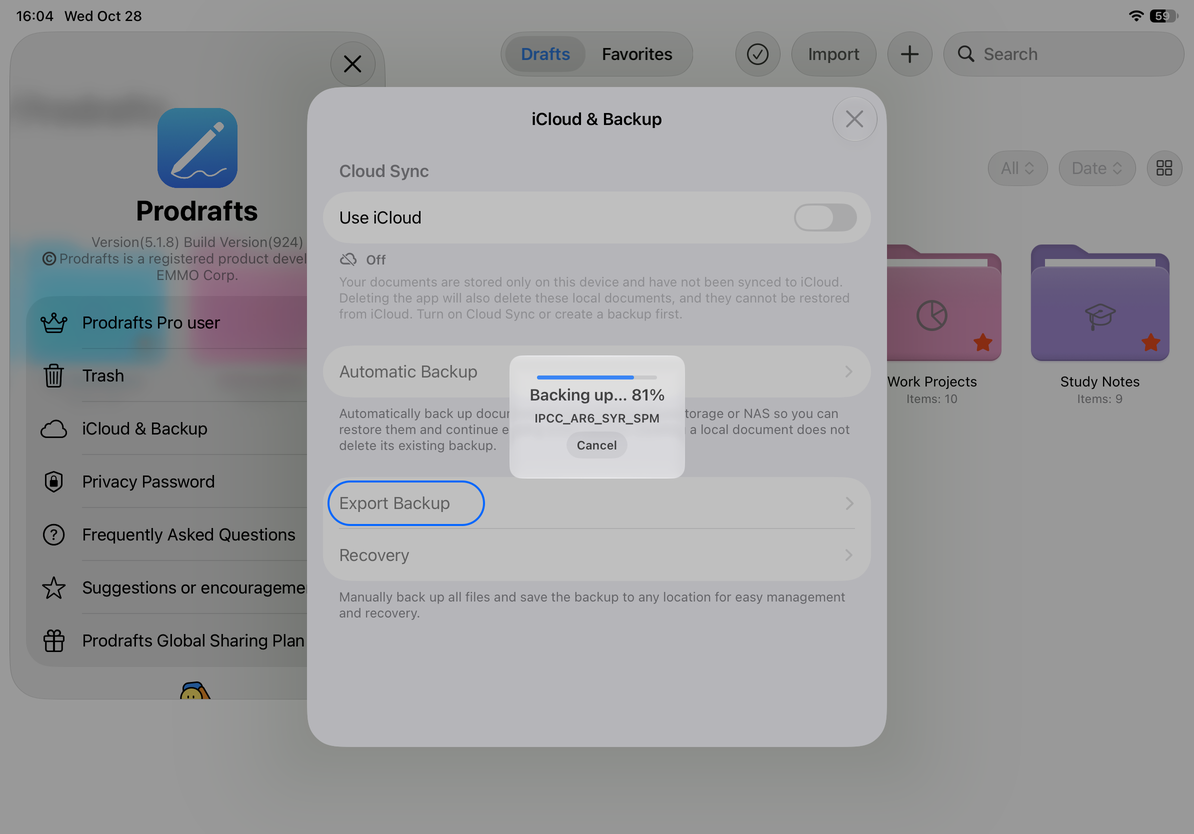
Documents in the Trash are excluded from this standard backup. Do not assume that cloud-only placeholders or unreadable files are fully included. Open important documents locally to check them first, and verify the backup result afterward.
Cancel a backup in progress
After you tap Cancel, the app shows Canceling…. The current copy or compression step may need to finish before cancellation can proceed, so the overlay may not disappear immediately. Wait until cancellation finishes and the page becomes usable again.
Do not start another backup immediately after tapping Cancel. Canceling a running backup stops file generation; canceling the final share sheet abandons that save or send action. On Mac, you must also finish the save dialog to keep the backup.
Finish sharing or saving
The completed backup is initially a temporary file. On iPhone and iPad, finish saving in the app you selected from the share sheet. On Mac, choose a location and finish the save dialog. Then confirm that the ZIP exists at the destination. Closing or canceling the sheet or dialog does not leave you with a saved backup.
Finalize sharing or saving
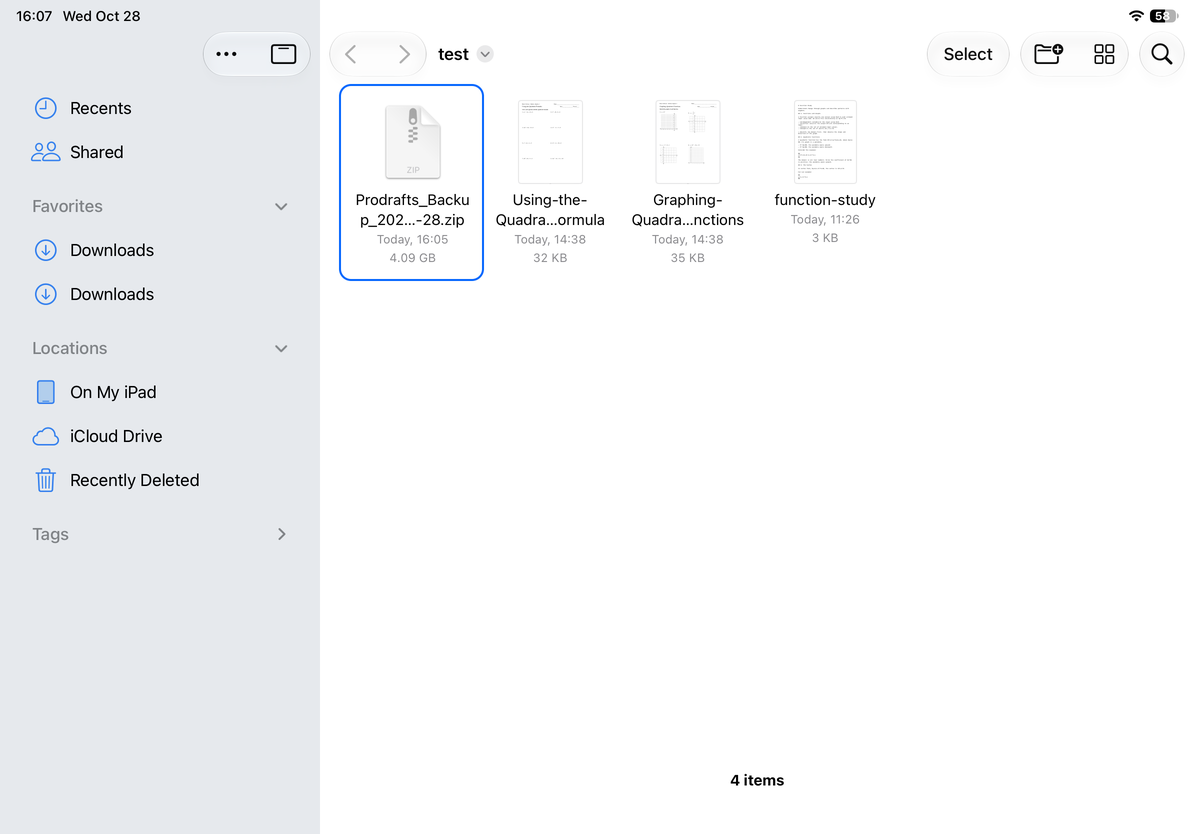
If backup fails, read the error and check free device storage and whether the documents can be read. You can export missing documents individually in their native format. If files still exist but their documents are missing from the library, use Recovery; this is different from importing a ZIP.
The backup menu label was verified on October 29, 2026; the remaining instructions were verified on October 12, 2026. Menus may vary by device and app version.