
Record and save audio
Available in infinite documents, vertical documents, paged notes, and text documents on iPhone, iPad, and Mac. Starting a recording in any document type requires Prodrafts Pro access and microphone permission. See the linked guides for the separate requirements for playing saved audio and generating transcripts.
Start and pause a recording
- Open the document where you want to save the audio. Tap the Recording toolbar shortcut or choose Recording from the add menu to open its recording list.
- Start a new recording. Allow microphone access when prompted on first use.
- Check that the recording bar appears and the elapsed time is increasing before speaking.
- Pause for a break and resume when ready. Pausing does not finish or save the recording.
- Use the finish control in the recording bar and wait for the audio to save.
Starting a recording stops playback. If microphone access is unavailable, allow Prodrafts to use the microphone in system settings before trying again.
Start, pause, and save a recording
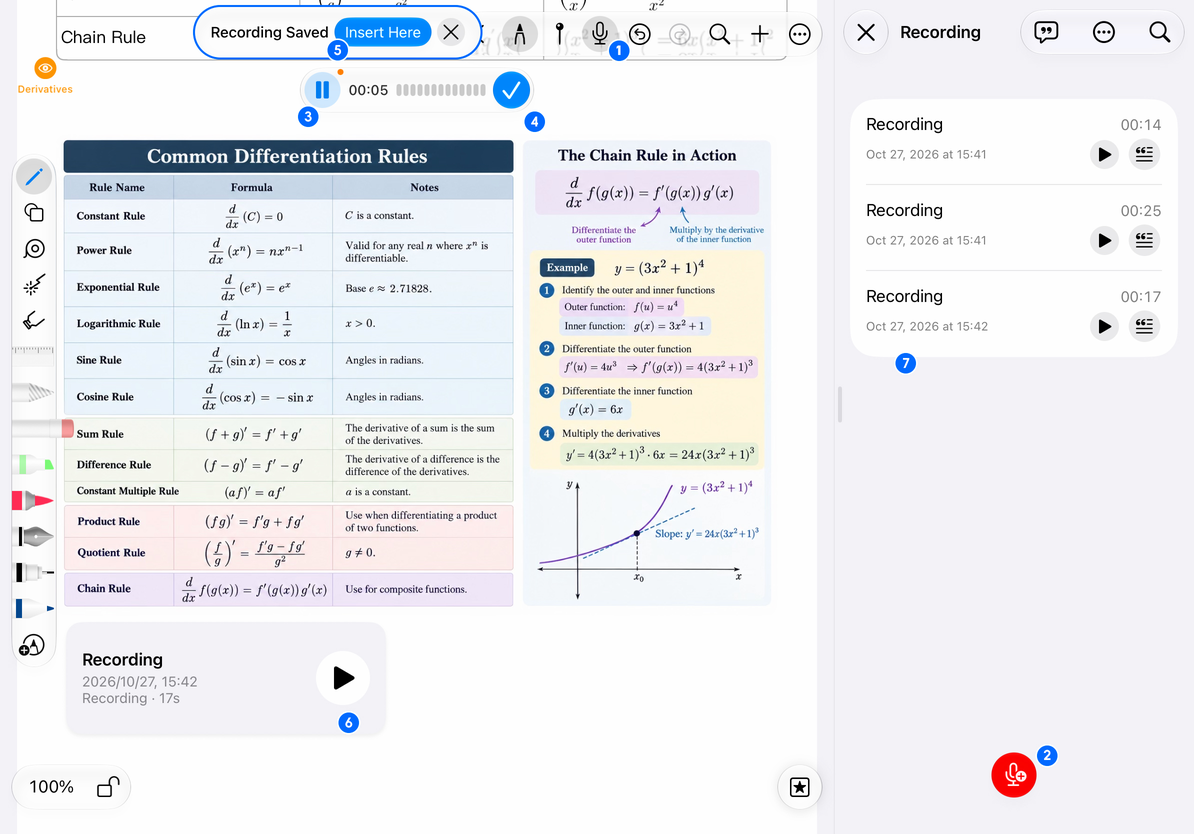
- Open the recording list: Tap the recording button at the top.
- Start a recording: Tap the red microphone button with a plus at the bottom of the list.
- Pause: Tap the pause button in the recording bar. You can resume later.
- Finish: Tap the blue checkmark to finish and save.
- Insert into the note: After saving, tap Insert Here to add a recording card.
- Recording card: The card shows the name, time, duration, and playback control.
- Saved recording: The audio remains in the current document’s recording list for later playback.
Save to the list, then insert a card
A finished recording is saved to the current document’s recording list. It does not necessarily appear as a card automatically.
- Infinite documents, vertical documents, and paged notes: Choose Insert Here in the save prompt to place a card on the canvas or page. Move it closer to the relevant notes as needed.
- Text documents: Use the save prompt to insert a recording card into the text. It follows the text layout rather than being freely positioned on a canvas. Tap the card to play it.
Even without a card, saved audio remains available in the recording list. Check there before recording the same material again.
After an interruption
If the system interrupts recording or the app resumes, check the recording list and any recovery prompt before starting another recording. Audio that plays from the list has not been lost. Rename and search recordings to distinguish separate sessions.
Common questions
The recording is silent
Check microphone permission, the active audio input device, and whether the elapsed recording time increases.
Does closing the recording list delete the audio?
Closing the list and saving audio are separate actions. After finishing a recording, check the save confirmation and its entry in the list.
Can audio play back in sync with handwriting?
These features provide audio recording and recording cards. They do not offer stroke-by-stroke or word-by-word synchronized playback.
Continue reading: Playback speed and noise reduction, Transcribe recordings, Manage and merge recordings.