
View document information
Note Info shows the document's name, file size, and dates, along with actions such as moving it to another folder. Use it to check the current document without returning to the library.
Open Note Info
Choose More → Note Info in the current document. All four document types have this option, though its position may depend on the toolbar layout.
The available fields depend on the document:
| Field | Purpose |
|---|---|
| Name | View or change the document's library name |
| File size | Check the storage used by the currently readable document |
| Modification date | See when the content was last updated |
| Creation date | See when the document was first created |
| Stroke count | Available for handwritten documents that provide this information |
| Location and actions | Move to another folder or open a new window where supported |
A dash for file size means the value is currently unavailable, not that the document is empty. Stroke count is different from a Text document's word count.
Open Note Info
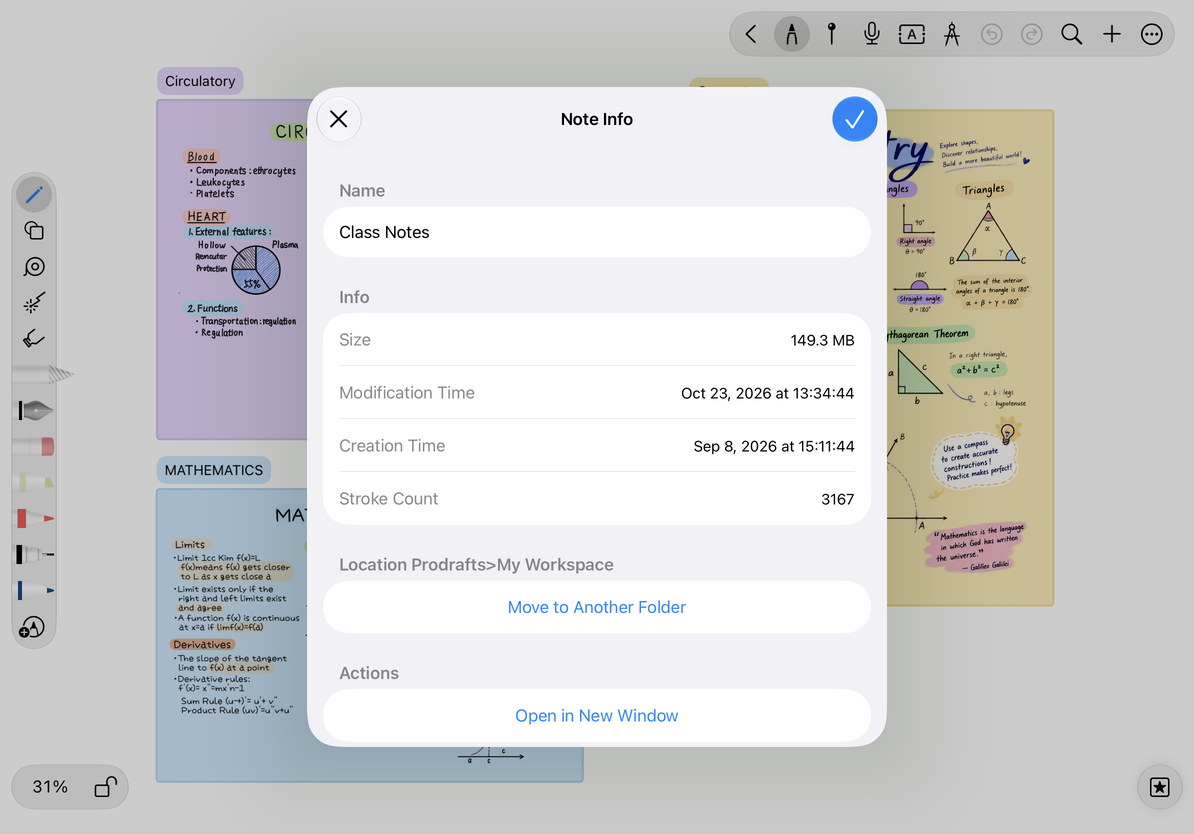
Change the name
- Tap the name field.
- Enter a new name.
- Leave Note Info and check the title in the editor or library.
Name changes are applied when you leave Note Info. The close button does not undo a rename. To view information only, leave the name unchanged. To discard a new name, restore the original name before closing.
Renaming a Text document here also updates the linked document title at the start of its content. Check the title in the editor and library afterward. This is separate from applying heading levels to other paragraphs.
Move the document or open a new window
Choose Move to Other Folder, select a destination, and complete the move. This moves the entire document, not an individual image or content block.
Use Open in New Window to view content side by side where supported. Window behavior depends on the device and system; see Multiple windows and Split View.
Manage the current Text document
The Text document's More menu may also offer word count, page appearance, document locking, sharing, Move to Trash, and More Settings.
- Add Lock / Remove Lock controls access. See Document locks.
- Copy Link under Share points to this document; it does not automatically upload a public file.
- Move to Trash affects the entire document, rather than a single content block.
- More Settings and document appearance serve different purposes. Check whether you want to change the current content or general tool behavior.
Common questions
Does the modification date prove that every device has synced?
No. It shows when the document changed. Check sync status to determine whether the complete document has uploaded or downloaded.
Does renaming create a new document?
No. It changes the current document's name. To keep the original and edit another copy independently, duplicate the document.
Related guides
Folders and moving · Document links · Text statistics and appearance