
Create and manage PPT views
Available in infinite and vertical documents. Turn on PPT View under More → More Settings. On iPhone, leave editing mode to see the view bar. Paged notes and text documents do not use this view bar.
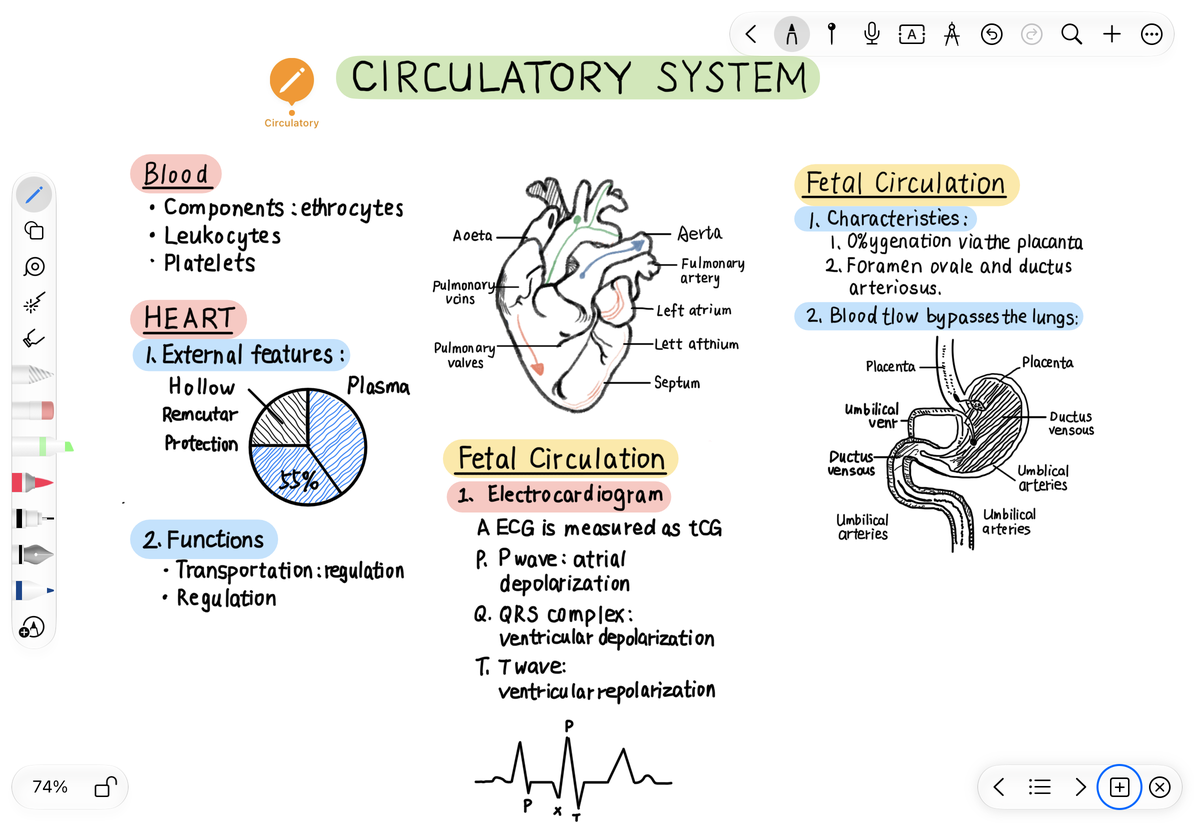
A PPT view saves a canvas position, zoom level, and visible area. For example, save views of “Problem”, “Derivation”, and “Conclusion” on one canvas, then jump between them while presenting. The original content stays on the same canvas.
Save your first view
- Open the document and bring the content into view. Pinch to adjust the zoom and leave room around text near the edges.
- Turn on PPT View and tap + in the view bar. This saves the current area as a view.
- If “This presentation view already exists” appears, choose Continue Adding only if you want another copy. Otherwise, cancel, adjust the canvas, and add a new view.
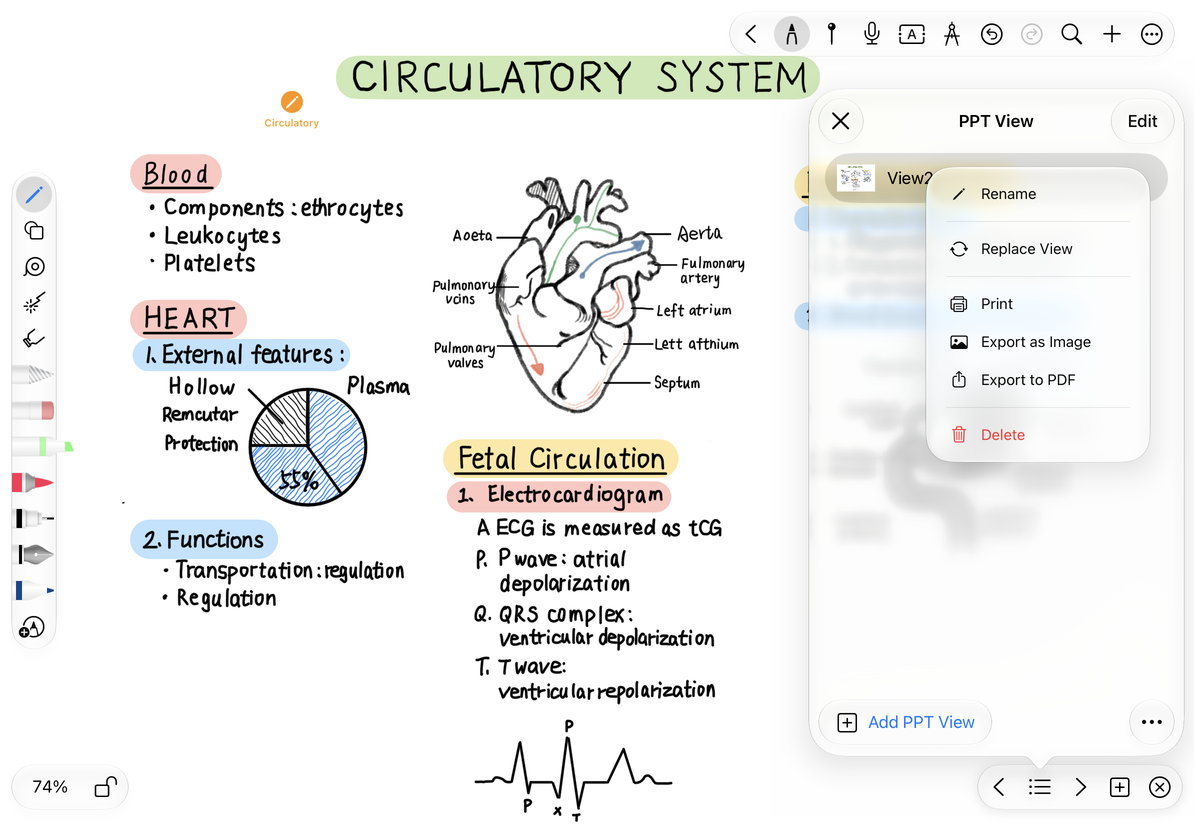
- Open the view list, open the view’s menu, and choose Rename. Use a helpful name, such as “01 Problem”.
- Move to the next area and repeat until you have saved the full presentation sequence.
Save your first view
Change the area, order, or number of views
Tap a view in the list to return to its saved position and zoom. To update its area, adjust the canvas first, then open that view’s menu and choose Replace View. Tap it again to check the result.
Drag list items to reorder them. Enter selection mode to select several views or all views, then delete any you no longer need. This deletes saved views, not the text, handwriting, or images on the canvas. To delete content, select it on the canvas.
Use the previous and next buttons in the view bar to present in order, or choose a view directly from the list. Collapse the controls when you need more canvas space; you can reopen the list from the view bar.
Export or print
Each view’s menu offers Export as Image, Export to PDF, and Print. To export or print only certain views, select them in the list and use the More menu. Outside selection mode, the list’s batch actions process the full set of views. Choose a save destination or receiving app in the system share sheet, then check the page order and edges of the output.
Export or print a view
“PPT View” means presenting the canvas through saved views. It exports images or PDFs, not editable .pptx files. If the visible area changes on another device or at a different window size, check each view and replace its saved area as needed.
If the view bar is missing, check the setting and make sure your iPhone is not still in editing mode. To show paged notes or text documents on another screen, use an external display or AirPlay. Use the laser pointer to point out details.
This article is current as of October 12, 2026; menus may vary across devices and versions.