
Add and refresh web cards
Web cards are available in Infinite documents, Vertical documents, and Paged notes on iPhone, iPad, and Mac. They bring a reference's address, title, and preview into your note. Loading or refreshing a preview requires access to the website.
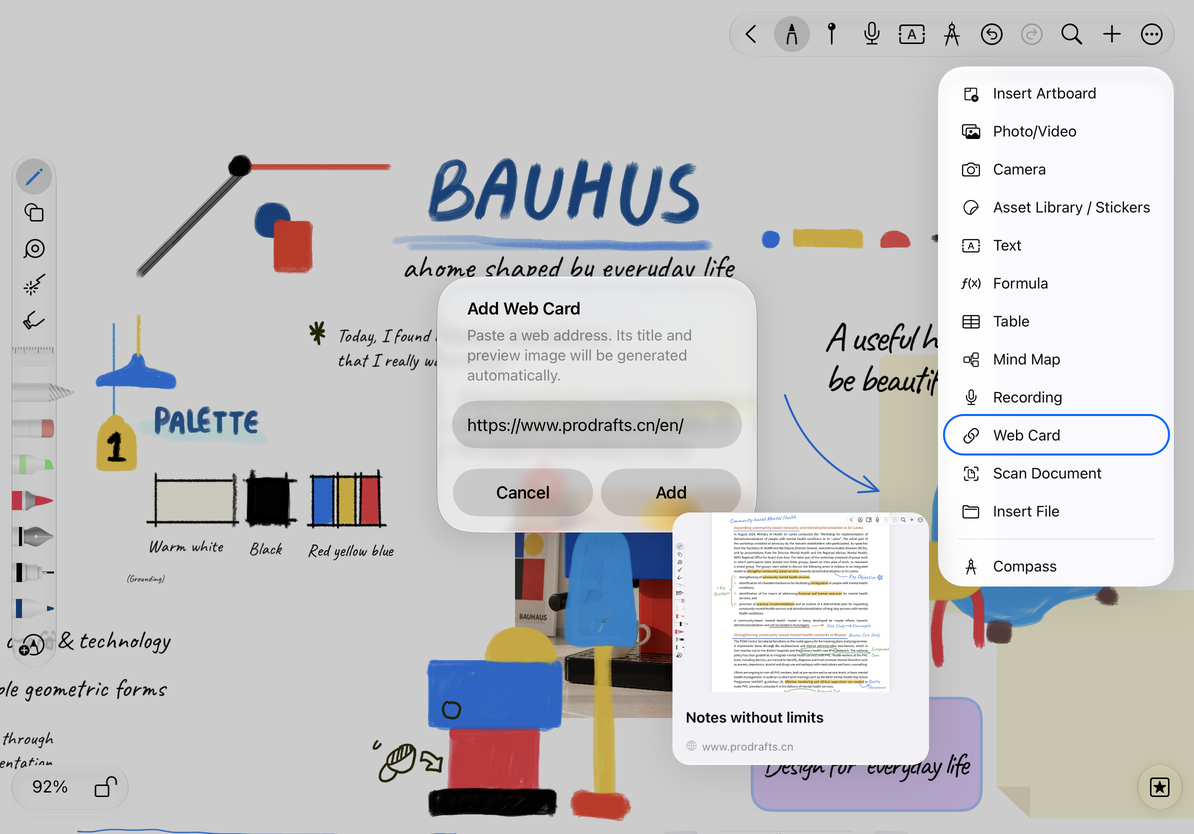
Create a web card
- Go to the intended canvas position or Paged note page.
- Tap the top add button and choose Web Card.
- Paste a complete web address, such as an
https://URL, into Add Web Card. - Check the address and tap Add. The card appears, then loads its title and preview image.
- Resize and position it beside the related note content.
If Add is unavailable or the app asks for a valid address, check for extra text, spaces, or a missing part of the URL. Cancel to stop creating the card.
Create a web card
Open, copy, or refresh
Select the card and open its menu:
| Action | Result |
|---|---|
| Open Web Page | Opens the original page so you can read its full content |
| Copy Link | Copies the address to the clipboard for use in another note or app |
| Refresh Web Preview | Requests fresh preview information, useful after a title or image changes |
Refreshing does not make the webpage editable or download the whole site. For a link within body text, use Text document links.
Continue editing and troubleshoot
Move or delete a card like any other canvas object. Undo immediately if you delete the wrong one. To use a different address, add a new card and remove the old one if no longer needed.
The address appears, but there is no preview image
Some websites provide no preview information or restrict access. Check your connection and try refreshing. You can still use Open Web Page to visit the address.
Can I read the full webpage offline?
A card is a link and preview, not an offline copy of the page. To keep reference material long term, import a file you have saved; see File attachments.