
Search, manage, and merge recordings
Available in infinite documents, vertical documents, paged notes, and text documents on iPhone, iPad, and Mac. The recording list and its search cover only the current document. See Record audio for the Prodrafts Pro requirements for new recordings.
Search and rename
- Open the current document’s Recording list.
- Search for a recording name or a word in an existing transcript.
- Play a matching recording to check its contents. Clear the search to restore the full list.
- Open the recording’s row menu, choose Rename, and enter a name such as “Physics — Momentum”. Confirm to save, or cancel to keep the original name.
A transcript must be generated before its words can be searched. Generate a transcript first if you want to search the spoken content.
Share, select, and delete
Each recording’s row menu offers sharing and deletion. Sharing opens the system share sheet, where you can save the audio or choose another app. Closing the share sheet does not delete the audio.
For batch actions, choose Edit from the list menu and select recordings. You can also select or deselect all, then share, delete, or merge. Exit selection mode when finished. Deleting here removes audio from the recording library; it does not merely hide a card. Check the names, durations, and selected count before confirming. Share and save important audio first.
Select, share, or delete recordings
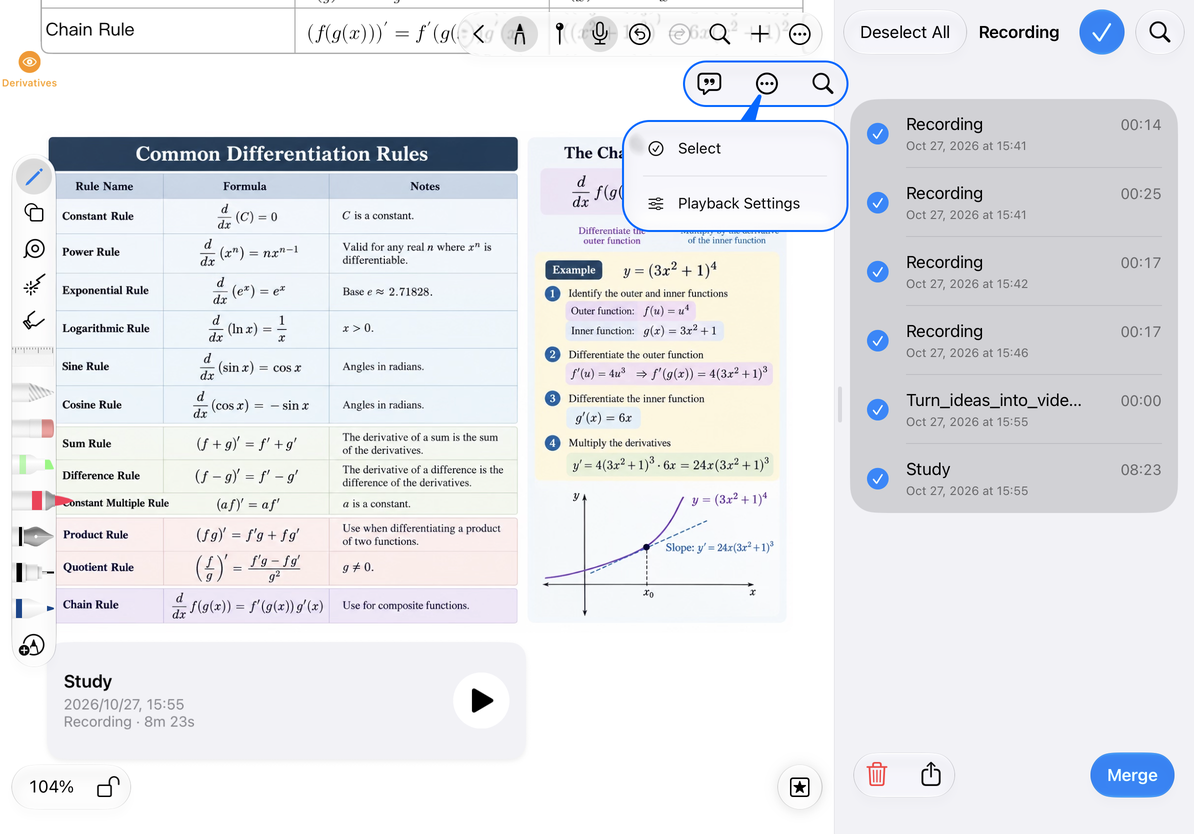
Merge two or more recordings
- Listen to each recording first. The order in which you select them does not set the audio sequence. If order matters, save the originals, try merging a small set, and listen to the joins.
- To preserve original audio or transcripts, share the audio and copy or share the transcripts before merging.
- Enter editing mode, select at least two recordings, and choose Merge. Wait for processing to finish.
- Listen to the new merged recording, especially the start and joins, then give it a descriptive name.
- The original recordings and their cards are removed. To play the merged recording from the canvas, page, or text, insert it again from the recording list and check its position and contents.
A successful merge deletes the selected original recordings. Their transcripts are not preserved as separate copies for the new recording; generate a new transcript from the merged audio. In text documents, the old audio and corresponding transcripts are also removed. Merging is not a reversible playlist arrangement.
Merge recordings
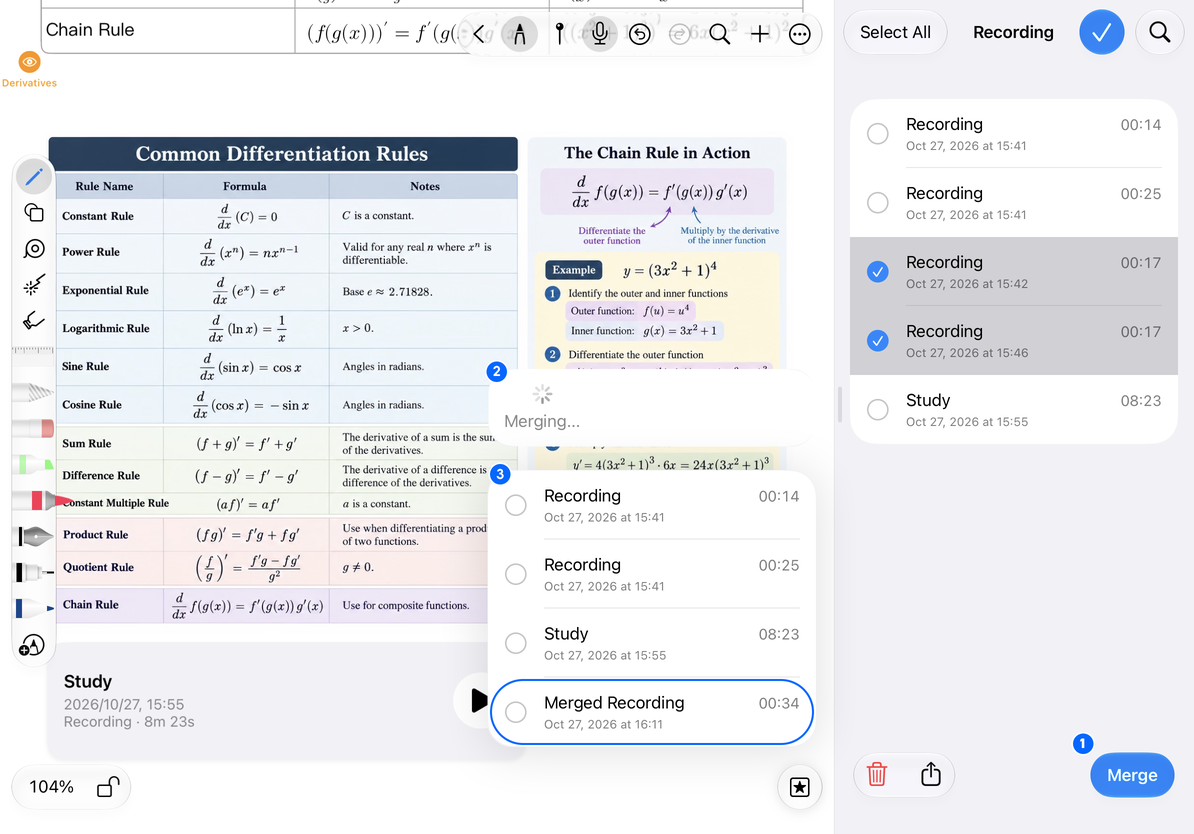
- Merge: Select at least two recordings, then tap Merge at the bottom right.
- Processing: Wait while Merging… is displayed.
- Result: A Merged Recording appears in the list. The example combines two 17-second recordings into one 34-second recording.
Common questions
Why is Merge unavailable?
Select at least two recordings and wait for any other merge to finish.
An audio file is missing or the merge failed
Stop retrying. Check whether the original recordings still play and save any available audio before troubleshooting further.
I only want to remove a recording card from the text
Removing a card from the text is different from deleting audio in the recording list. Check where you are performing the action.
Related guides: Playback and noise reduction, Transcripts, Native document export.