
Organize, search, and link pins
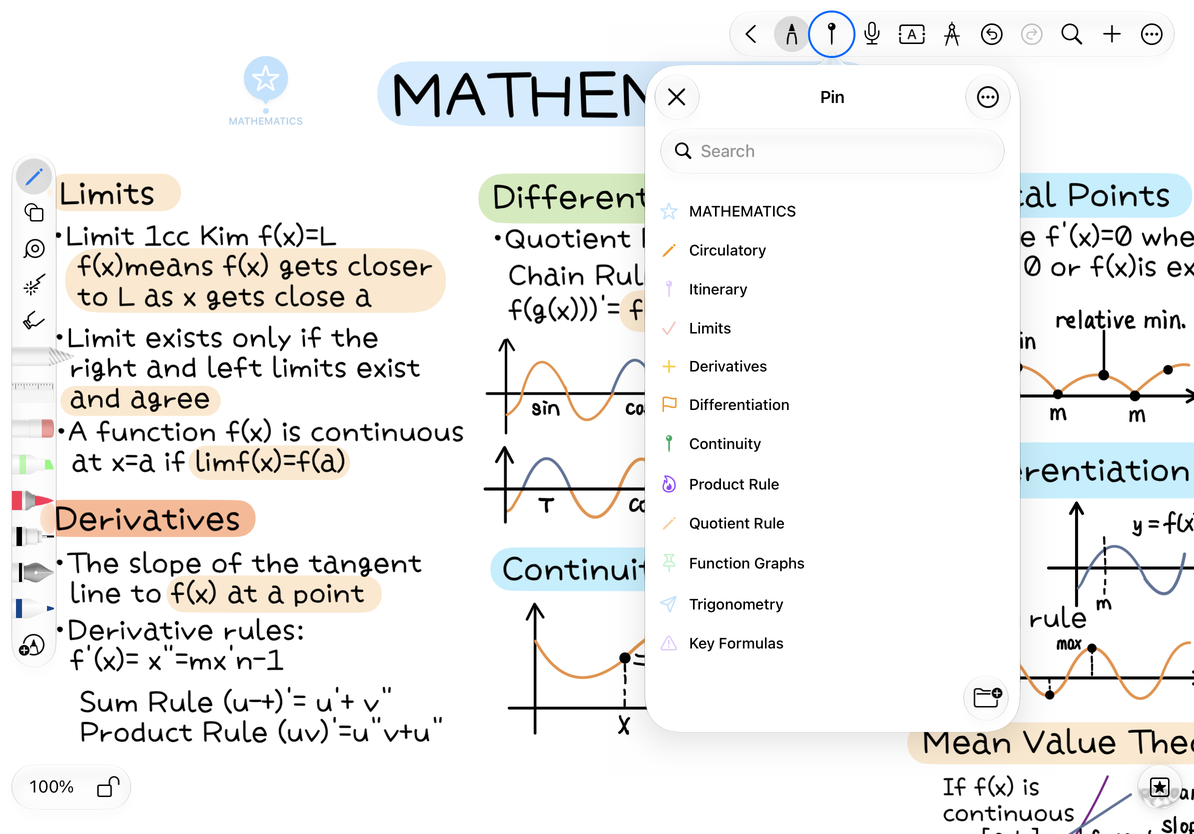
The pin list is available in Infinite documents, Vertical documents, and Paged notes on iPhone, iPad, and Mac. Start by adding pins and giving them meaningful names so they are easy to find.
Create groups and levels
- Open the current document's pin list and choose the new-group option.
- Enter a name, such as “Course” or “Chapter 1.”
- Drag a pin to the desired position or group. Check the insertion indicator before releasing.
- Expand or collapse groups with the controls beside them.
Groups support up to three levels. At the limit, create groups at the same level instead of nesting further. Use Rename in a group's menu to change its name; canceling keeps the original.
Reorder and search
Drag list items to reorder them. If the list offers forward and reverse order, choose the display order you prefer. Reordering changes navigation organization without moving canvas content to new coordinates.
Enter part of a pin's title in the search field, then tap a result to return to that location. This searches pin names, not nearby handwriting or text. To search content, use canvas search or Paged note search. Clear the search to see the full list again.
Reorder and search pins
Copy a location link
Choose Copy in a pin's menu, or use the copy-link button in its editor. Paste the address wherever Prodrafts links can be opened. The link identifies a location; it does not include note content or give the recipient a copy of the document.
Select an individual pin to copy its location link. Groups do not have this option. For a pin in a Paged note, opening the link goes to its page and then the pin. You can attach the link to an object or text in another note to build an index. See Document and location links for instructions and Back/Forward navigation.
If a link does not open from another device or app, check that the same document is available and opens normally on that device. You can also locate the pin directly in its list.
Understand what deletion removes
Deleting one pin removes only that marker. Deleting a group also deletes its pins and subgroups. Expand and check it before confirming, or cancel to keep it. Deleting pins and groups does not erase canvas content.
Common questions
Why does search not find my note content?
Pin search matches marker names. Use the document's search feature for handwriting, text, or original PDF text.
Does deleting a group delete the related notes?
No. It removes the group's markers and subgroups, leaving canvas content intact. Move any pins you want to keep to another group before deleting.
Related guides: Pin properties · Page outlines · Text outlines