
Use the ruler and reference markers
The top ruler is available in Infinite documents, Vertical documents, and Paged notes. Use it to check horizontal positions and place fixed reference markers. It does not constrain handwriting or directly measure physical lengths on printed paper.
Show the ruler
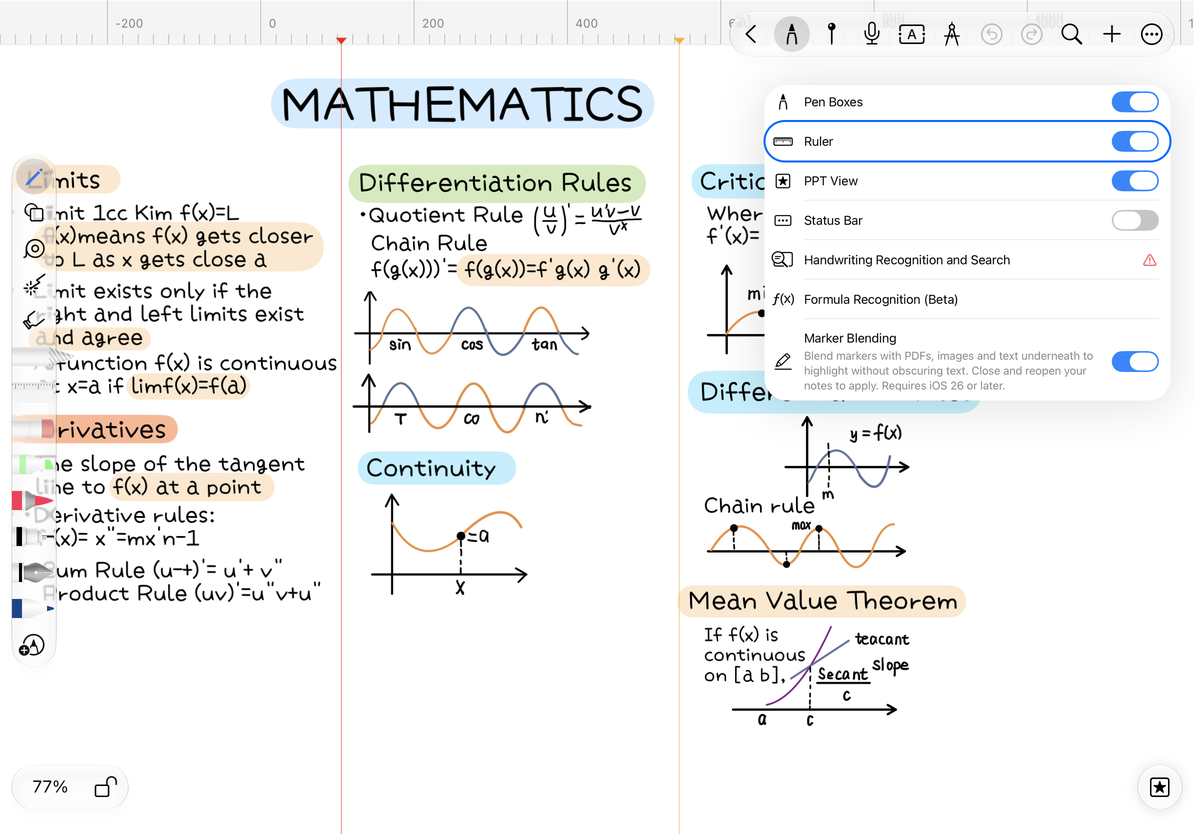
- Open More → Ruler and enable it.
- Pan or zoom the canvas to see how the scale changes with the view.
- Turn it off in the same menu when no longer needed.
Infinite documents offer a wide horizontal canvas; Vertical documents have horizontal boundaries; Paged notes also depend on page size. The same distance on screen does not necessarily represent the same printed length.
Add and move reference markers
Touch and hold the top ruler, then drag to place a marker. Check its position before releasing. Drag it again to adjust it later. For example, use two markers to define the left and right columns and keep several sections aligned.
For free users, adding or moving markers by touching and holding may show a Pro prompt once there are three markers. To continue adjusting, you can delete an unused marker to bring the count below three, then move or add a marker. Make sure you no longer need that reference position before deleting it.
Place markers on the top ruler
Change a marker's color or delete it
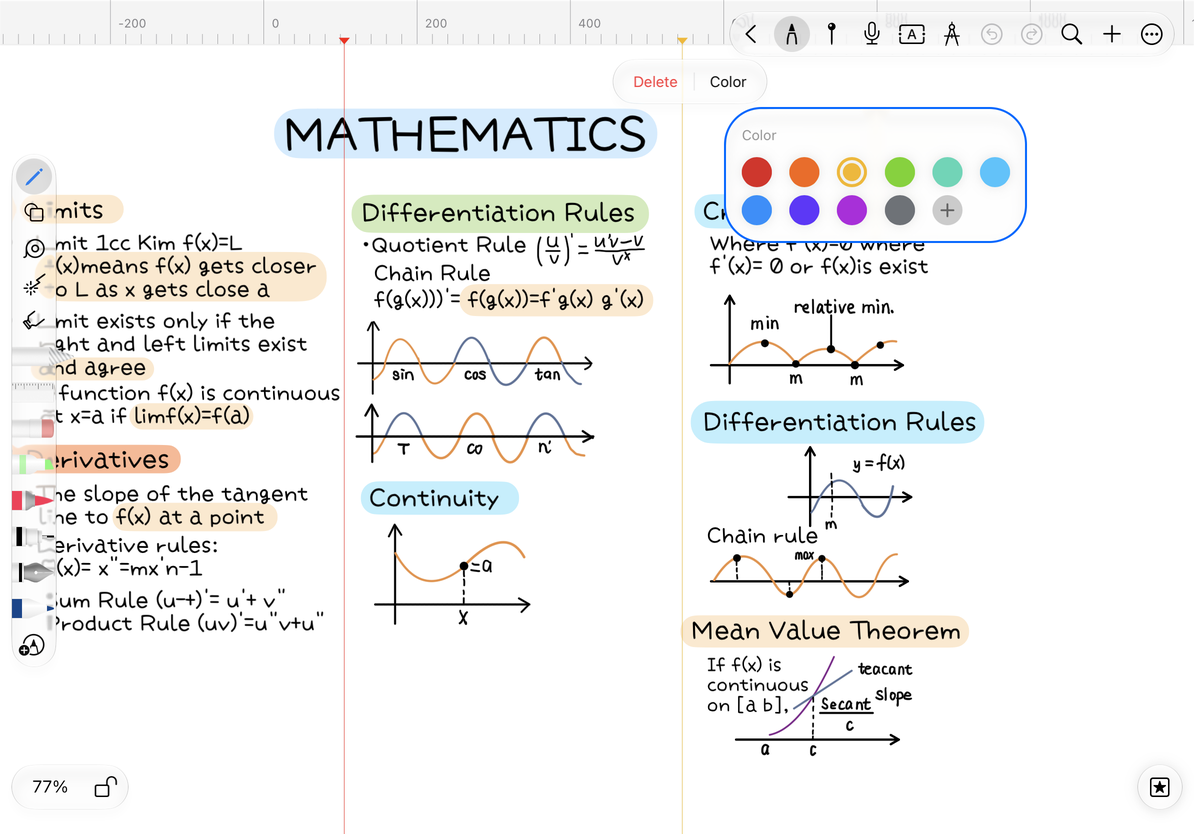
Tap an existing marker to open its menu, or use its context menu on Mac. Choose Color to distinguish markers by purpose, or Delete to remove an unused one. Deleting a marker removes only the reference position, leaving nearby handwriting and objects intact.
Hiding the ruler does not delete markers. Turn the ruler off to make room for reading; delete individual markers when you want to remove their reference positions.
Change colors and delete markers
Want to draw a straight line?
Use the drawing ruler.
Want to align two images automatically?
Want to change paper lines or a grid?
Change the canvas background or paper template. Reference markers are separate from the paper pattern.
Related guides: Align objects · Canvas background