
Create a canvas table and edit its contents
Available in infinite documents, vertical documents, and paged notes. A canvas table is a positionable object for comparisons, plans, and organized information. It is not a spreadsheet calculator and uses different controls from tables in text documents.
Create and position a table
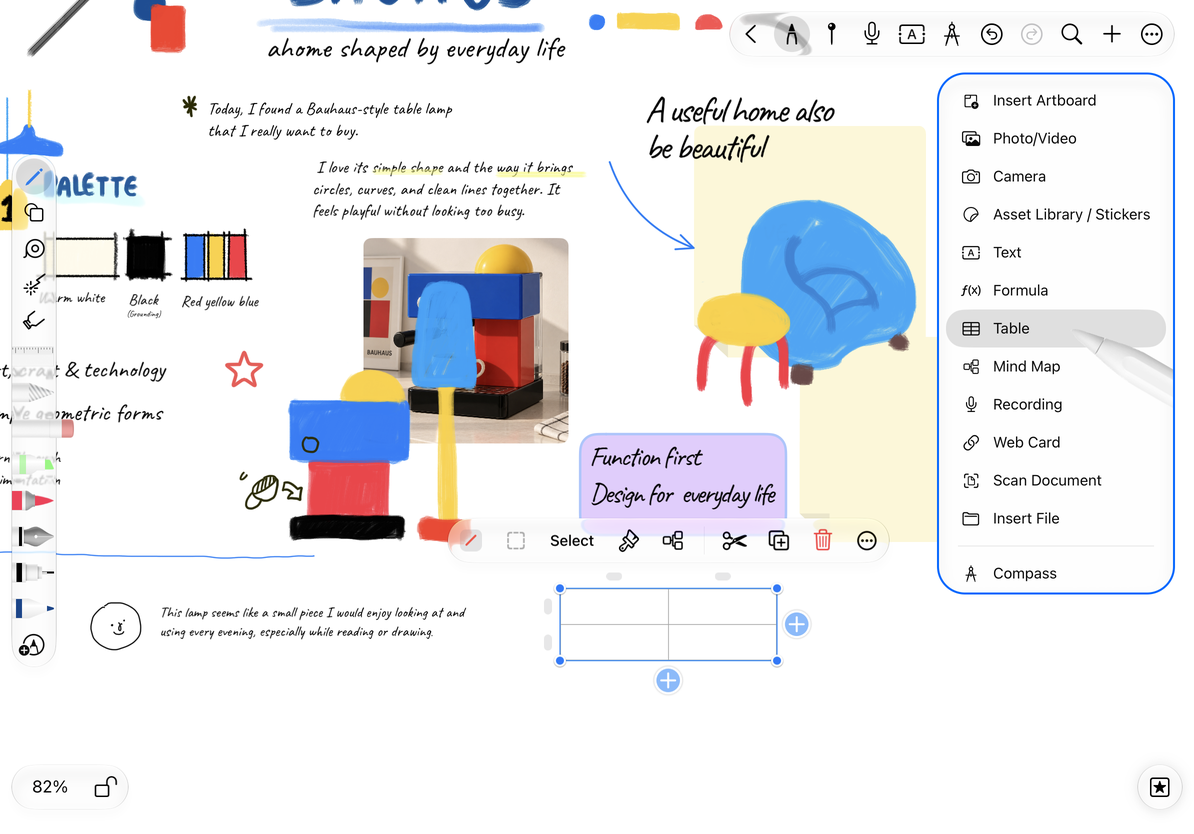
- In editing mode, choose Add → Table, use a table shortcut in your toolbar, or touch and hold a blank area to open its menu.
- A new table starts with 2 rows × 2 columns.
- Select the whole table and move it into place.
- Tap a cell to edit it. Start with headings and a sample row.
The main add action in infinite and vertical documents, and the canvas long-press action, check for Prodrafts Pro access. Follow the prompts for other actions. In paged notes, go to the intended page first; a canvas table does not become text that flows across pages.
Start with a 2 × 2 table
Enter and edit content
Select the table, then tap a cell to type. Tap another cell to edit it. Finish typing and tap outside the table to return to the canvas. To change one word, select the text within the cell rather than clearing the whole cell.
A text cursor, a highlighted cell range, and a selected table frame indicate different editing states. Finish typing before moving the table. Select a cell range before applying batch formatting or merging cells.
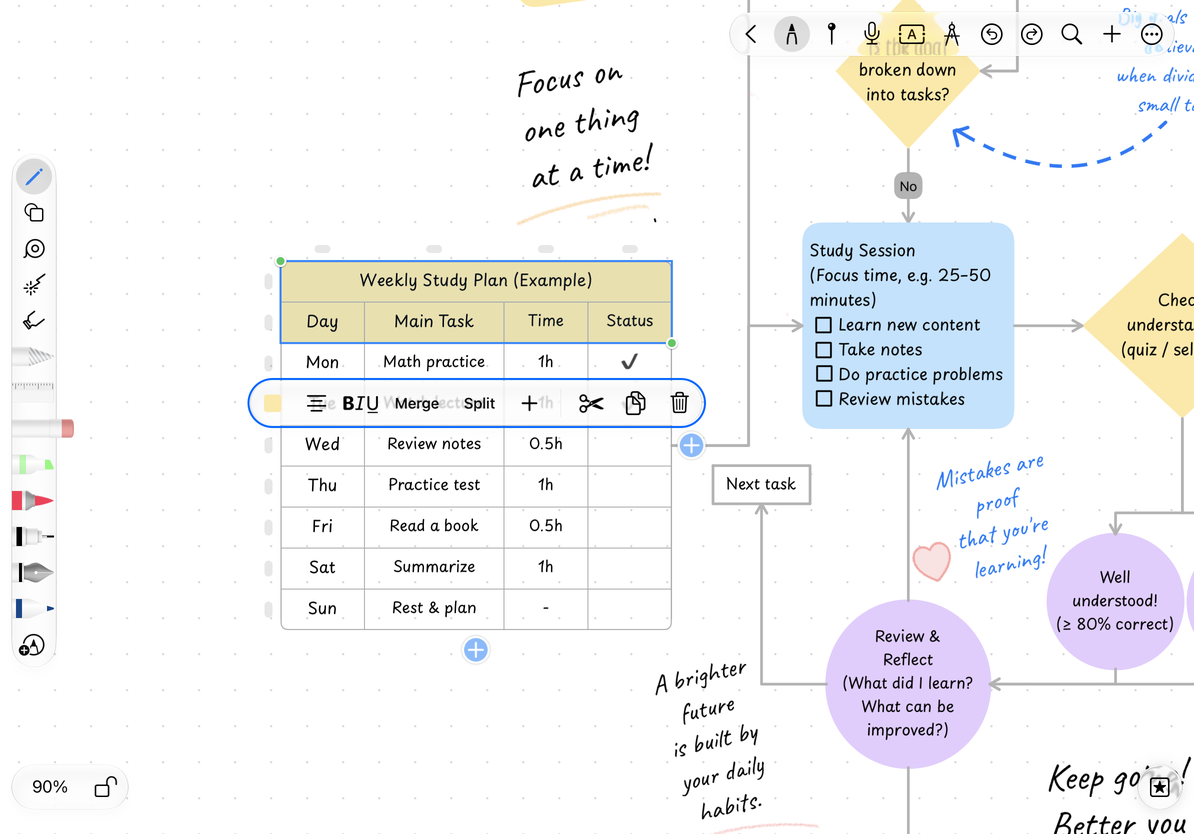
Select several cells
- Touch and hold the starting cell, then drag to the last cell.
- Release and check the highlighted range and menu.
- Drag the selection handles at either end to expand or reduce the range.
- Keep dragging near a scrollable edge to let the view scroll and reach more cells.
With system accessibility features enabled, cells offer selection actions and selection handles offer directional adjustments. Use the actions announced by the system to adjust the range without performing the same long-press drag.
Select a contiguous cell range
Tapping selects only the whole table
Select the table first, then tap the intended cell.
I want to change a whole column
Tap its marker at the top. For a whole row, use its marker at the side.
I want to merge cells or change rows and columns
Check the selection first, then follow Rows, columns, and merging.
Related guides: Table structure · Table style and size · Text document tables