
View and edit page outlines
Page outlines are available in Paged notes and imported PDFs on iPhone, iPad, and Mac. They provide named destinations for chapters and topics. Text documents use a separate automatic heading outline.
View an existing outline
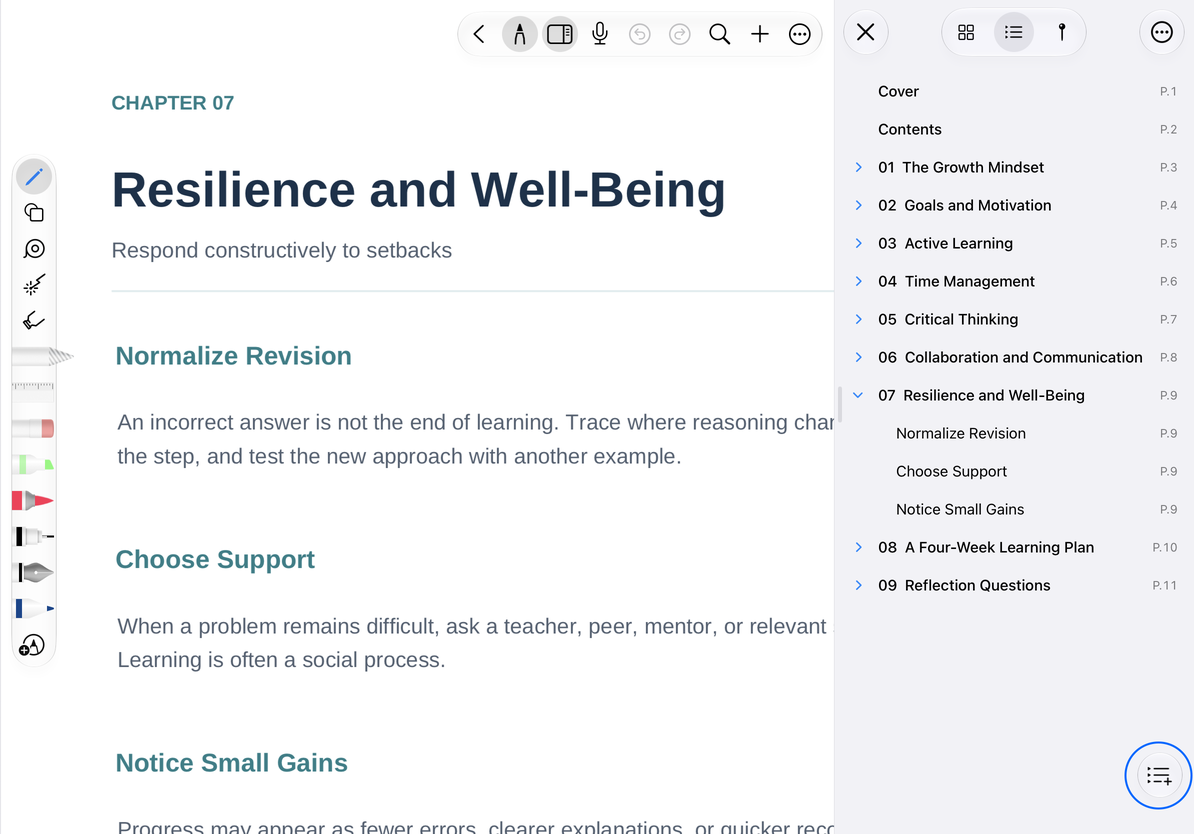
Open the page sidebar from the top toolbar and switch to Outline. If the PDF has an outline, browse it here. Expand or collapse its levels and tap an entry to go to its page. You can add entries manually if the PDF has no outline.
Add a chapter
- Go to the first page of the chapter, open the outline sidebar, and tap Add Outline. You can also use the add-to-outline option in More.
- Enter a name, such as “Chapter 3: Results.”
- Check the destination page. It defaults to the current page, but you can choose another page in the document.
- Confirm, then tap the new entry to verify its destination.
The name cannot be empty. The page number must be between 1 and the total page count. Cancel if you do not want to add it. These numbers follow document order and may differ from printed handout numbers.
Add a chapter
Edit, reorder, and nest entries
Use an editable entry's menu to change its name or destination, then open it again to check. Drag entries to change order or hierarchy. Watch the insertion indicator before releasing: drop at the same level for a sibling, or inside a chapter for a child. Expand the parent afterward to confirm the hierarchy rather than judging only by how far you dragged.
Expanding or collapsing changes only the list display. Deleting an outline entry removes the navigation item, not its PDF page. To remove a whole page, use Delete Page.
Common questions
The document has no outline
Not every PDF includes one. Use the steps above to create your own.
An entry opens the wrong page
Edit its destination and check the difference between printed numbers and document order.
I want to find a word
Use PDF search. The outline does not automatically turn every paragraph into a chapter.
An existing entry is missing an editing option
Use the actions available in that entry's menu, or create a separate manual entry.