
Adjust connector styles and paths
Applicable to smart connectors in Infinite documents, Vertical documents, and Paged notes. First create a connection, then adjust the appearance and path.
Color, line width and arrows
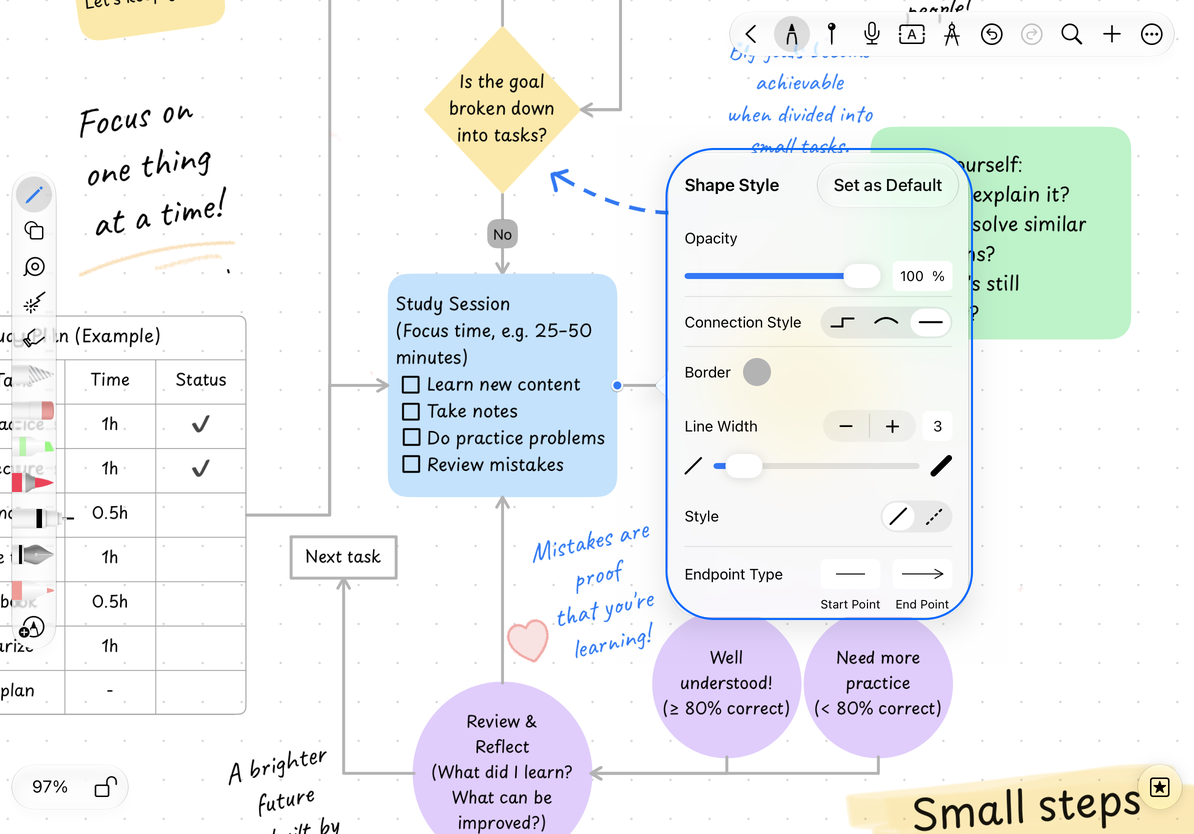
- Tap on the connecting line to open Style.
- Select the desired route appearance in Connection Style.
- Adjust border color, line width, and opacity; select the appearance of the start and end arrows in Endpoint Type.
- To use these settings for future connectors, tap Set as Default.
The default value is used for later connection lines created, including new lines dragged from object connectors; existing lines need to be modified separately. The style of mind map automatic connections is controlled by the map structure and should be set from the style menu of the map node.
Set connection line styles and arrows
Adjust endpoints and right-angled segments
When you select an unlocked right-angle connector, you'll see the endpoints and bar handles on the adjustable segments.
- Drag an endpoint to change its attachment position, connect to another object, or form a free endpoint.
- Drag the handle on the horizontal line segment to change the position of the horizontal line up or down.
- Drag the handle on the vertical line segment to change the position of the vertical line left or right.
Segment adjustments preserve endpoint connections where possible. Near an endpoint, the app may add a bend or limit movement to keep the line leaving the object in the correct direction. Canceling a gesture or making no actual movement leaves the path unchanged.
Path handles are hidden when zoomed below 50%; reselect when zoomed in. Line segments that are very short or crowded together may not display independent handles to avoid overlapping control points.
Curves and restoring automatic routing
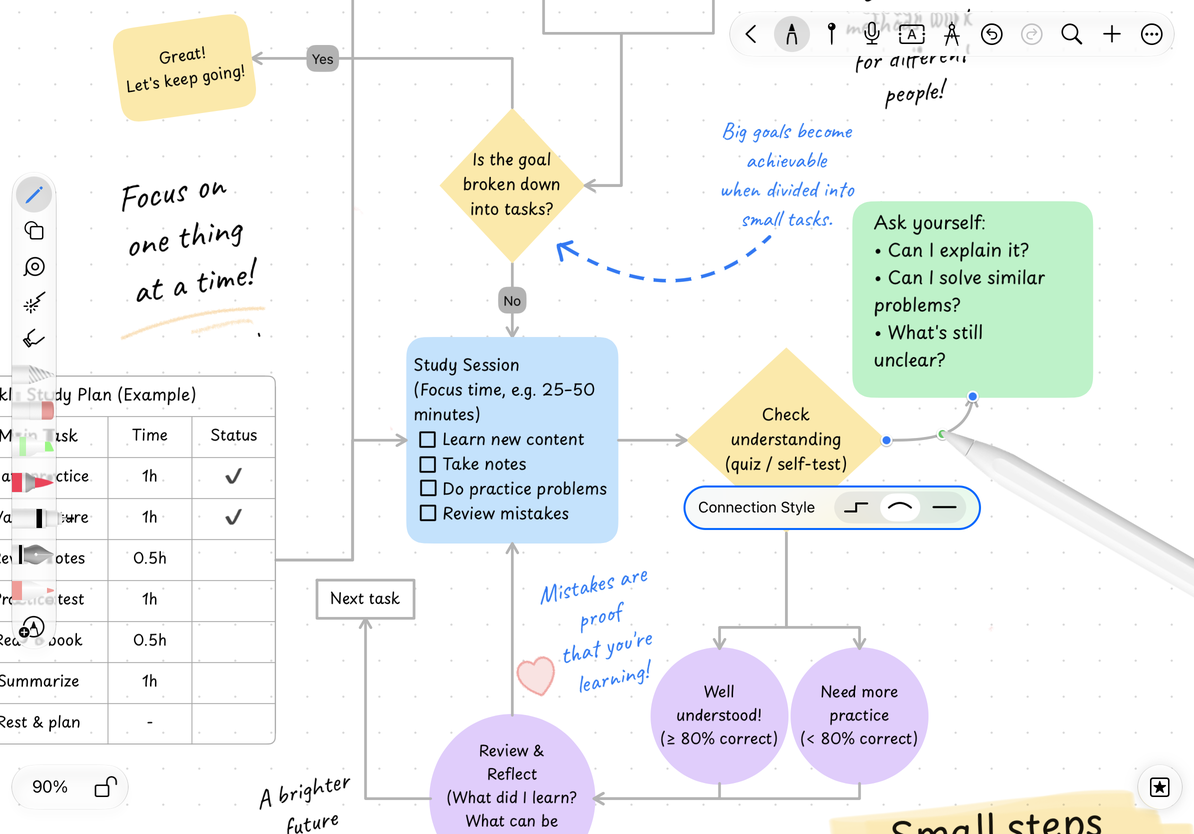
Use a curve's control points or handles to adjust its bend. Double-tap a handle that supports automatic curves to restore the automatic bend. Older manual curves may use different controls.
For manually adjusted right-angle connecting lines or automatic curves, you can select Restore automatic routing in the connecting line menu. The system will recalculate based on the current endpoint; you can undo this recovery if you are not satisfied. Older manual curves do not offer the same recovery commands and need to continue to use their own curvature control points.
Adjust the curvature of the curve
What happens after moving an object
When you move one connected object, the endpoint and neighboring segments update while valid interior segments are preserved where possible. Moving both objects in one action moves the connector with them. Moving the objects in separate actions updates each end separately.
Right-angle automatic routing only avoids the two objects it connects, and does not automatically bypass every picture and text box on the canvas. When irrelevant content blocks the route, manually move segments or adjust the layout. Curves are also not guaranteed to avoid all objects.
An old connector takes a long detour?
Try restoring automatic routing first.
Want to export a flowchart?
Use Lasso to export the complete area and check whether the arrows and edges are complete.
Related guides: Create Connectors · Object Lock · Export Selection