
Navigate, zoom, and search an Infinite or Vertical canvas
Applies to Infinite and Vertical documents on iPhone, iPad, and Mac. They share many tools, but Vertical documents have horizontal width limits and different zoom menus and navigation controls.
Zoom and lock scrolling direction
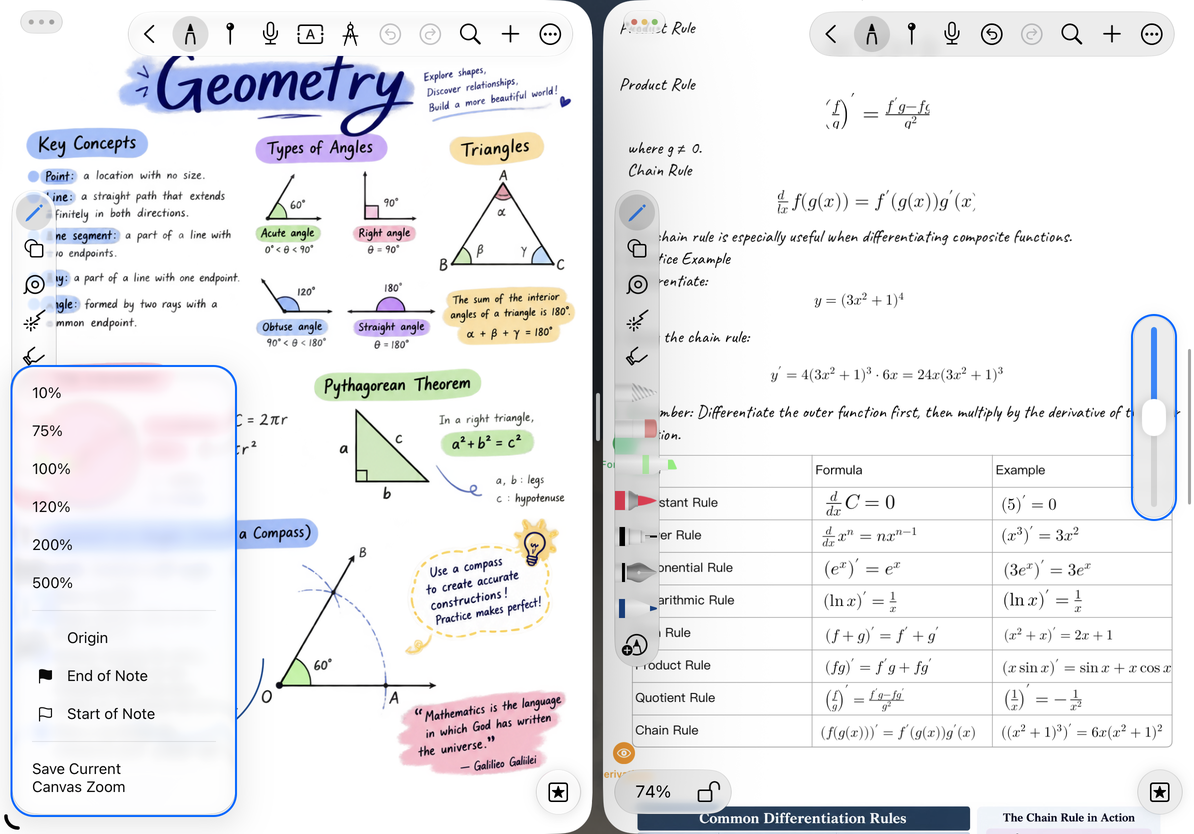
Use the plus and minus buttons in the lower-left zoom bar, or pinch to zoom. In an Infinite document, tap the zoom value to choose a preset or Save Current Canvas Zoom. Choose a starred value later to return to that saved zoom level.
The zoom bar's lock button controls the canvas's scrolling direction. In More Settings → Preferences → Lock Zoom, choose whether locking direction also disables pinch-to-zoom. This is separate from the device's screen rotation lock. If you cannot zoom, check both canvas settings.
With a keyboard, press ⌘+ (or ⌘=) to zoom in, ⌘− to zoom out, and ⌘1 to return to 100% where allowed. Returning to 100% does not move the canvas to the origin.
Temporarily pan with the keyboard
On Mac or iPad with an external keyboard, focus the canvas, hold Space, then drag with the left mouse button or by pressing the trackpad. Release Space to return to the previous tool. Space alone does not move the canvas. For continuous navigation, press H to select the Hand tool, then choose another tool when finished.
When the cursor is in text or a search field, Space still types a space. See Keyboard shortcuts for other default keys.
Return to a familiar location
The Infinite document zoom menu includes Return to Origin, Start of Note, and End of Note. Start and End go to the first or last handwriting stroke. If there is no handwriting but there are canvas objects, they fall back to an existing object's position. They do not calculate the visual top or bottom of the note, and do not necessarily follow the reading order of images or text.
Vertical documents are navigated vertically and do not offer the Infinite canvas's full zoom menu. Wider layouts also provide a vertical scroll slider. To save a chapter location for later, add a pin.
Return to a familiar location
Search the current canvas
Tap Search in the toolbar, enter a keyword, and choose a scope such as All, Text, or Files. Handwriting is also available when handwriting recognition is enabled. Use Previous and Next to move between results and adjust the matching options as needed. Close the search bar to finish; reopen it to search again.
Canvas search does not replace text and is separate from library file-name search. If the Handwriting scope is missing, check whether handwriting recognition is enabled. To find and replace body text, use Text document find and replace.
Reading view and scrolling
Tap Preview to switch between editing and reading. Immersive Mode in the More menu hides more of the interface; use the exit button or Escape to leave it. Neither mode replaces a document lock.
If the canvas moves too quickly or slowly after you release it, open More Settings → Preferences → Canvas Scrolling Speed and choose a slower or faster setting. This changes scrolling momentum, not content positions.
Frequently asked questions
The canvas looks empty
You may be far from the content. Return to the origin, the first or last stroke, or a pin.
A Vertical document does not scroll endlessly sideways
Its horizontal width is limited by design.
I want to change the reading background
See Canvas background.