
Use an external display and AirPlay
Available in infinite documents, vertical documents, paged notes, and text documents. Connect an external display or AirPlay receiver through the system first. Available modes vary by system, cable, and display.
Connect and choose a display mode
- Connect the display or AirPlay receiver using your device’s system controls. Make sure it shows your device’s screen, then open Prodrafts.
- Open the note and navigate to what your audience should see. In a paged note, go to the intended page; in a text document, scroll to the intended paragraph.
- Tap the presentation button at the top to open the display menu. Text documents can also use a presentation shortcut added to the top toolbar.
- Choose Presentation to show the current note’s content on the external display, or Screen to return to screen mode. A checkmark indicates the current choice.
- Scroll slightly or turn a page while watching the external display. Check the content, zoom, and orientation before presenting.
Choose an external display mode
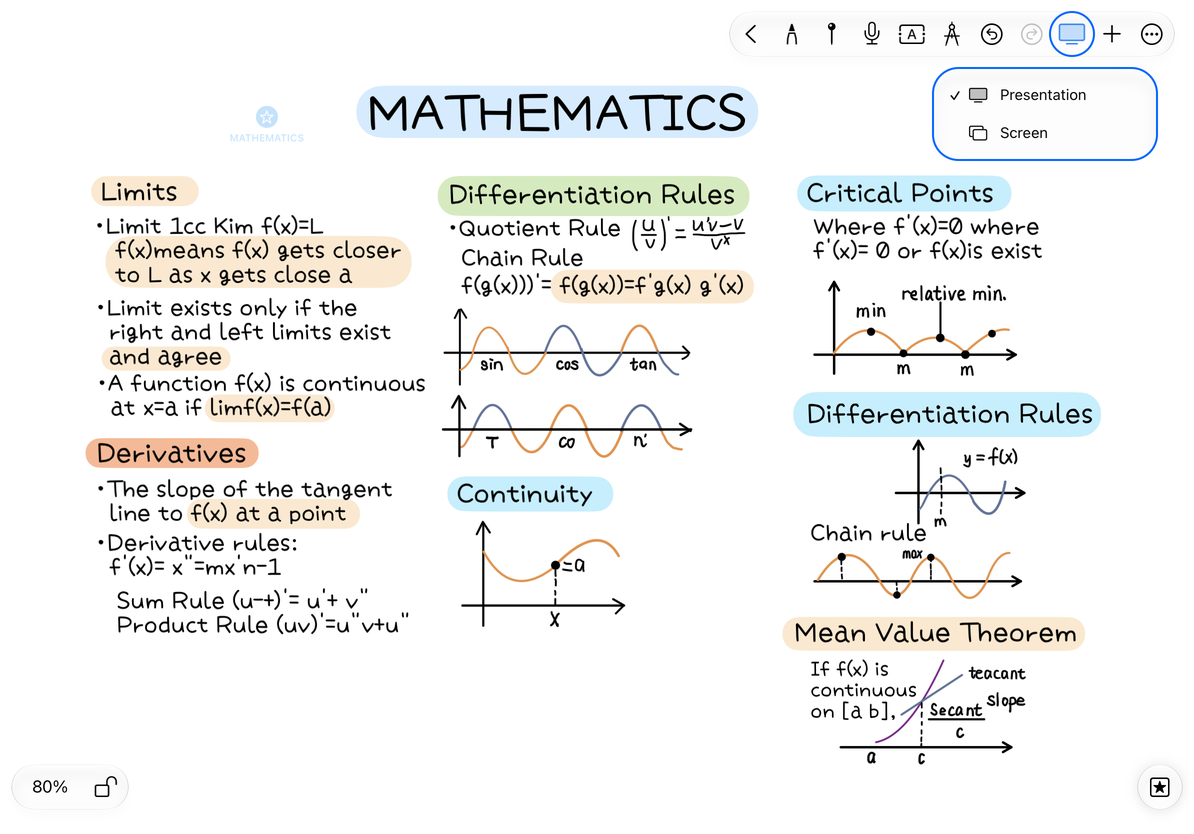
Presentation and Screen control what the external display shows. Demo Mode in Gesture Settings controls touch indicators. You can set them independently.
Switch the document being presented
If several Prodrafts windows are open, activate the intended window before opening or switching to the document. The presentation source depends on the document window in use. Check the external display after switching; the title on your own device alone does not confirm what your audience sees.
Infinite and vertical documents show the canvas; paged notes show a page; text documents show the body text. Text documents do not use PPT views, so you do not need a view for each paragraph. Test videos, recordings, and other dynamic content with the actual connected display. Playback on your device does not guarantee simultaneous playback on the external screen.
End a presentation or troubleshoot
When finished, choose Screen, disconnect AirPlay through the system controls, or unplug the display. Disconnecting does not delete your notes.
If the presentation button is missing or unavailable, check that the system recognizes the external display, then return to the document. If the wrong note appears, activate the correct window and choose the display mode again. If the proportions look wrong, adjust the document zoom and device orientation, then check the display. Do not delete canvas content to change the display proportions.
To present several canvas areas in sequence, see Create and manage PPT views. To send a standalone file, see Export PDF, images, and pages or Export text documents.
This article is current as of October 12, 2026; menus may vary across devices and versions.