
Draw circles and arcs with the compass
Applies to Infinite documents, Vertical documents, and Paged notes. The compass draws arcs around a fixed center. Its output is handwriting that you can select or undo.
Open compass and position
- Open the tool in Add → Compass; when there is a compass button in the custom toolbar, you can also tap it directly.
- While the center is unlocked, drag its control to reposition it.
- Drag the outer radius control to change the radius and starting direction.
- Observe the radius value and fix the circle center when the position is appropriate.
A Paged note keeps only one compass at a time. Opening it on another page moves it there; it does not leave a permanent tool on each page.
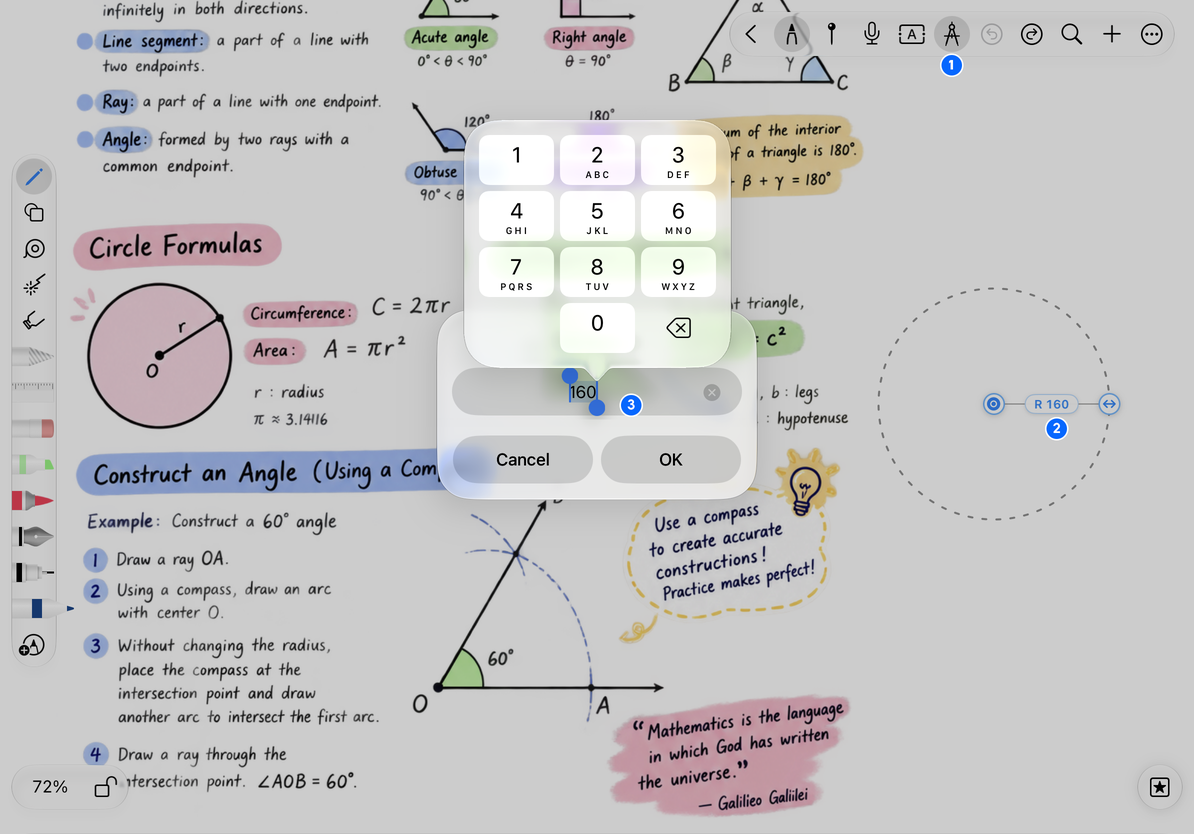
Enter the specified radius
Keep the center of the circle unfixed, tap the radius value, open Specify Radius, enter a positive number and tap OK; tap Cancel if you do not change it. Input is processed according to the available range.
The radius value here is for the geometric size of the canvas and should not be directly regarded as millimeters/cm on the screen or on the printing paper. When physical dimensions are required, a combination of page size, export and print scale checks are also required.
Enter the specified radius
Lock the center and draw an arc
- First select a writing pen and set its color and thickness.
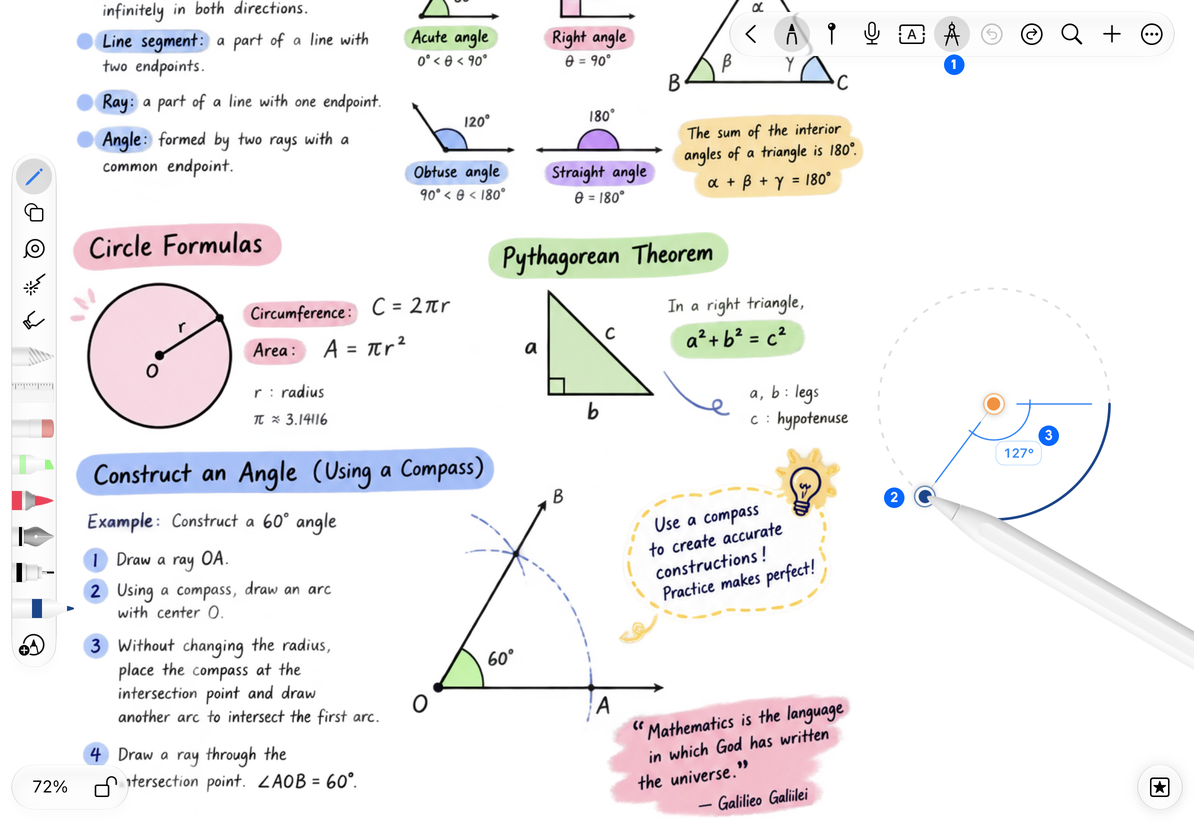
- Tap the center control to lock it. The center icon becomes a solid orange circle, and the outer radius-adjustment arrow becomes a drawing point.
- Drag the outer drawing end and move it around the center of the circle in the desired direction.
- Look at the angle labels and release after reaching the required arc; continue to go around for a complete circle to form a circle.
- After the drawing is completed, use Undo to roll back the unnecessary arcs, or use the Lasso to edit the strokes that remain.
Compass uses the most recently selected pen style. Even if you switch to the Lasso or eraser, those tools do not become the compass's “ink”; if you want to change the color, you should first select or adjust the writing pen.
After fixing the center of the circle, drag the drawing end
Reposition and close
Tap the center of the circle to unfix it and adjust the radius and direction; dragging the center of the circle directly will return to the rearranged state. When finished, close the tool from the compass entry point and the handwriting you have drawn will remain.
Dragging the outer end only changes the radius, without drawing a line
The center of the circle is not yet fixed.
Cannot enter radius
Unfix it first and end the current drawing.
Want to get an ellipse object with a configurable border
Use the Shape tool for an editable ellipse object. The compass produces circle and arc handwriting.
Related guides: Pen Properties · Drawing Ruler · Select handwriting