
Add pages and change paper
These controls apply to Paged notes on iPhone, iPad, and Mac. Scan-to-page is unavailable on Mac, and taking photos requires a camera and permission. Adding a page, changing its template, and inserting a scan onto a page produce different results.
Add pages at a chosen position
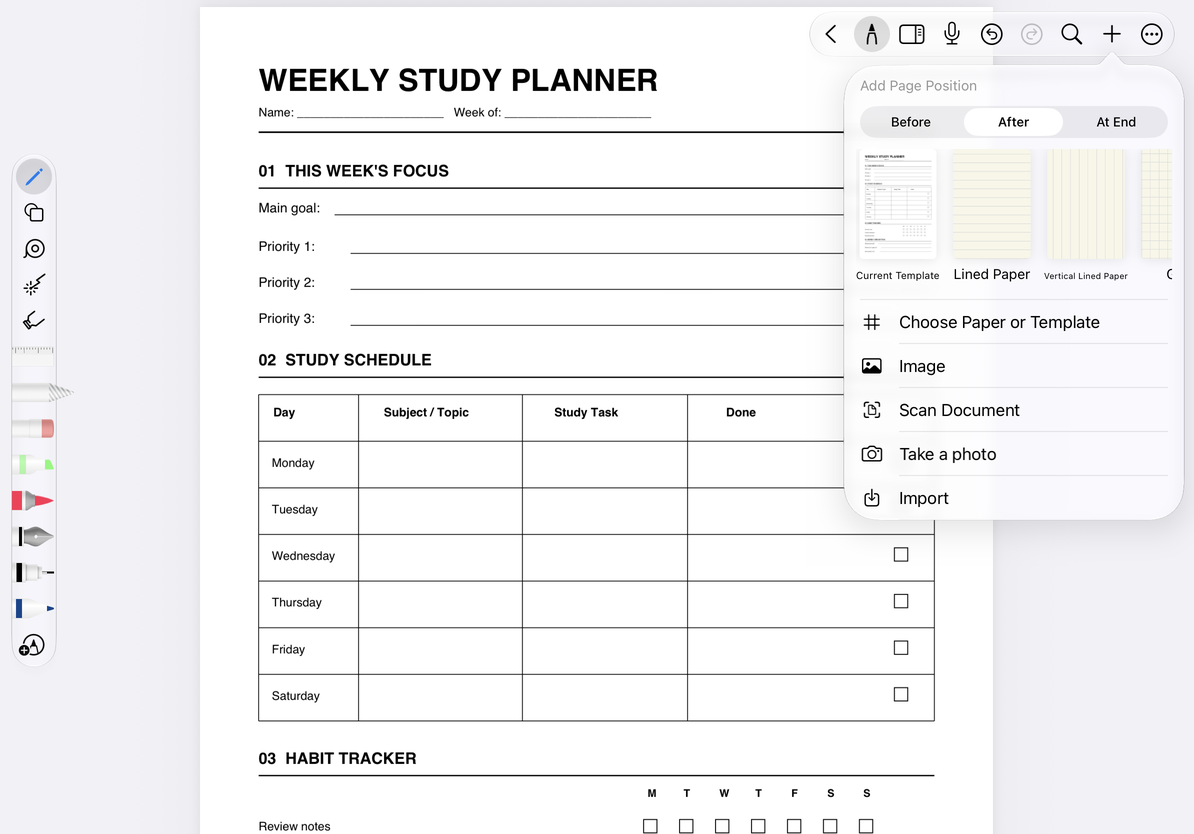
- Go to the reference page and open Add Page from the add menu or its thumbnail menu.
- Under Add Page Position, choose Before or After. Where available, choose At End to append pages to the document.
- Choose a source and complete its selection or import flow.
- Check the thumbnails to verify the new page count and order.
| Source | Result |
|---|---|
| Current Template | Creates a new page with the current paper background |
| Select Paper / Template | Opens paper styles, common templates, and saved favorites |
| Image | Uses selected photos as new page content |
| Take Photo | Creates a page after you capture and accept a photo |
| Scan Document | Adds scanned sheets as new pages, rather than movable attachments on the current page |
| Import | Adds pages from an external file through the import flow |
| Paste Page | Appears when Prodrafts pages have been copied and can be pasted |
Add pages at a chosen position
Configure the paper
Choose a blank, lined, grid, or dotted style in the paper picker. Set the available page size, orientation, background color, line color, spacing, and margins, then check the preview.
Common Templates offers built-in collections with background color and preview options. My Favorites holds saved custom templates. Controls vary by style and entry point; for example, choosing paper for an expanded area does not offer whole-page size settings.
Change the current page's template
Choose Paper Settings from the current page's More menu, select a template, and apply it. If asked to change the current page's template, read the prompt and apply or cancel. A different size may no longer suit existing text or handwriting. Check content near the edges immediately and return to the previous template if needed.
This changes the current page's background, rather than copying the written page elsewhere. For important pages, copy the page first for comparison.
Pull to add pages
Enable Pull to Add Page under More → Reading Settings to append a page by continuing to pull at the document boundary. Use the Add Page panel when you want explicit control over the source and position. Turn pull-to-add off if you only want to read.
Common questions
My scan became an image on the current page
You used the top Scan Document attachment option. To create a new page, start from Add Page instead.
Paste Page is missing
Copy a Prodrafts page first.
I want to reuse a page background
See Save templates.