
Turn off sync and keep local data
Applies to all four document types with iCloud enabled. Turning this off stops this device from syncing through the setting. Finish editing first and create and check a backup of anything you need to retain long term.
Understand the two choices
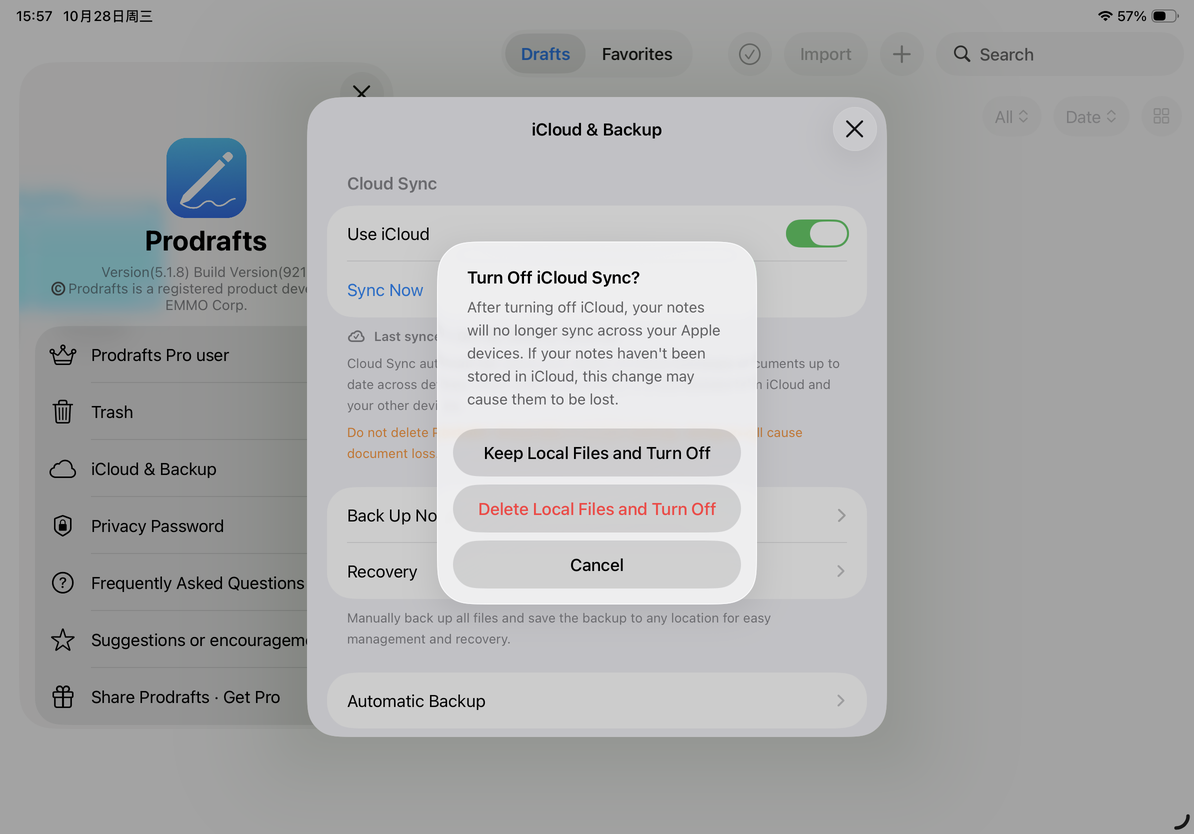
Keep Local Files and Turn Off saves local copies of cloud documents whose complete contents are already on this device. It skips documents that are unavailable or not downloaded. It does not automatically download the entire cloud library.
Delete Local Files and Turn Off clears the relevant entries from this device’s document list while keeping the cloud data. It is not an image-cache cleanup, and its name does not mean that every attachment or all app data on the device will be erased. If you want to keep using notes on this device, check the results of keeping local files.
Keep local files and turn off sync
- Open Settings → iCloud & Backup and turn off Use iCloud.
- In Turn Off iCloud Sync?, choose Keep Local Files and Turn Off, or Cancel if you are not ready.
- Wait through Waiting for Sync to Stop… and Checking iCloud Documents…, then watch the save progress and processed count.
- Check the Saved and Skipped counts. Skipped documents that were unavailable or not downloaded have not been saved locally.
- Return to the library and open the documents you need offline. Check their text, pages, and attachments.
Keep local files and turn off sync
If Save Incomplete. iCloud Remains On. appears, read the error and check the network, free space, or file availability. A failed attempt does not mean sync has been turned off.
Turn off sync and clear the local list
Delete Local Files and Turn Off affects the local document list. Before choosing it, make sure you can access the cloud again and have saved any independent backups you need.
If the app says some documents have not finished syncing and the local list cannot yet be cleared, finish syncing first or choose Keep Local Files and Turn Off. This check protects unsynced data. Do not bypass it by deleting documents.
After a successful change, the iCloud page shows sync as disabled. Back up documents that exist only locally. Deleting the app affects locally stored data and is not a troubleshooting step for sync problems.
Turn sync back on later
Enabling sync again may move local content into iCloud and handle documents already present there. If separate copies appear, compare them first; see Conflict copies after syncing again. To reduce only the image cache, use Clear the image cache.
This article is current as of October 12, 2026; menus may vary across devices and versions.