
Set up and organize Pen Boxes
Applies to edit mode in Infinite documents, Vertical documents, and Paged notes. Text documents use their own text toolbar instead of these Pen Boxes.
Each saved pen in Pen Boxes remembers its type, color, and thickness. Save separate presets for a black writing pen, a red correction pen, and a highlighter so you can switch without adjusting them each time.
Add and remove frequently used tools
- Expand Pen Boxes and tap + next to the pen list.
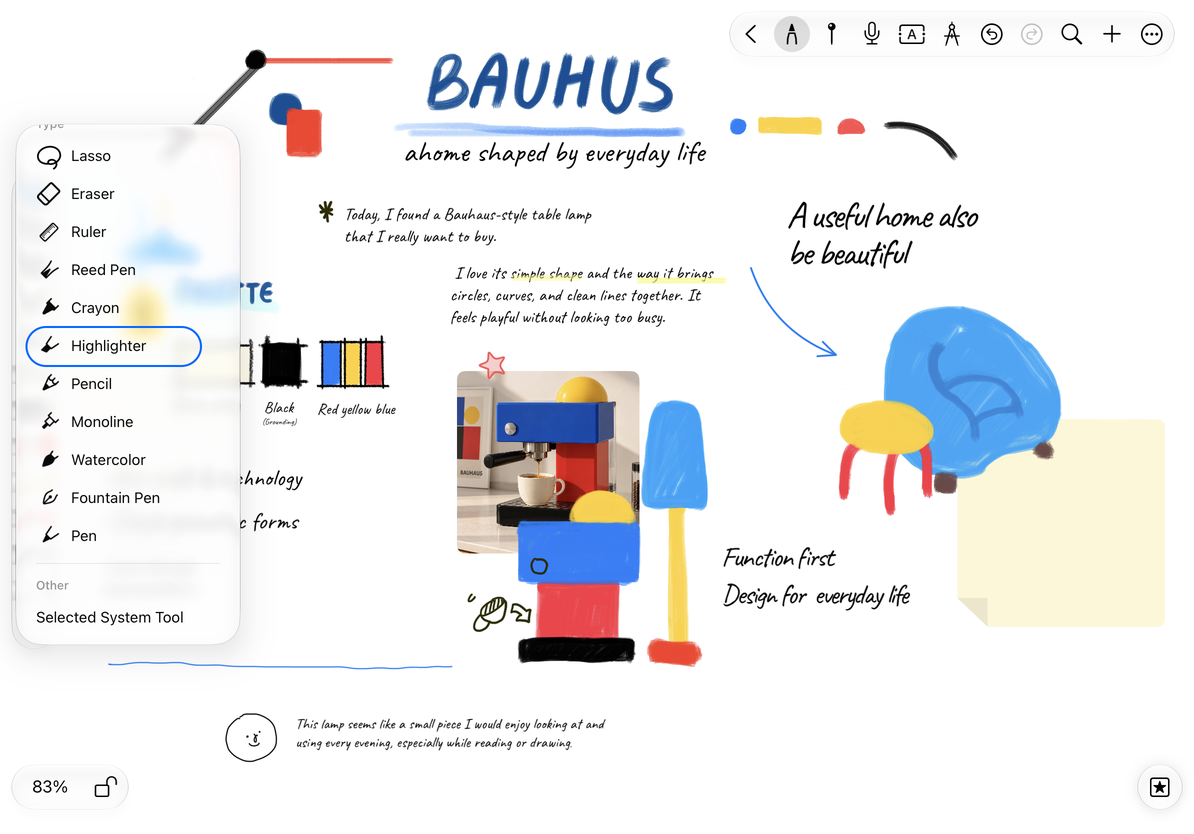
- Choose a pen, eraser, Lasso, or ruler from the list. The newly added writing tool becomes the current tool.
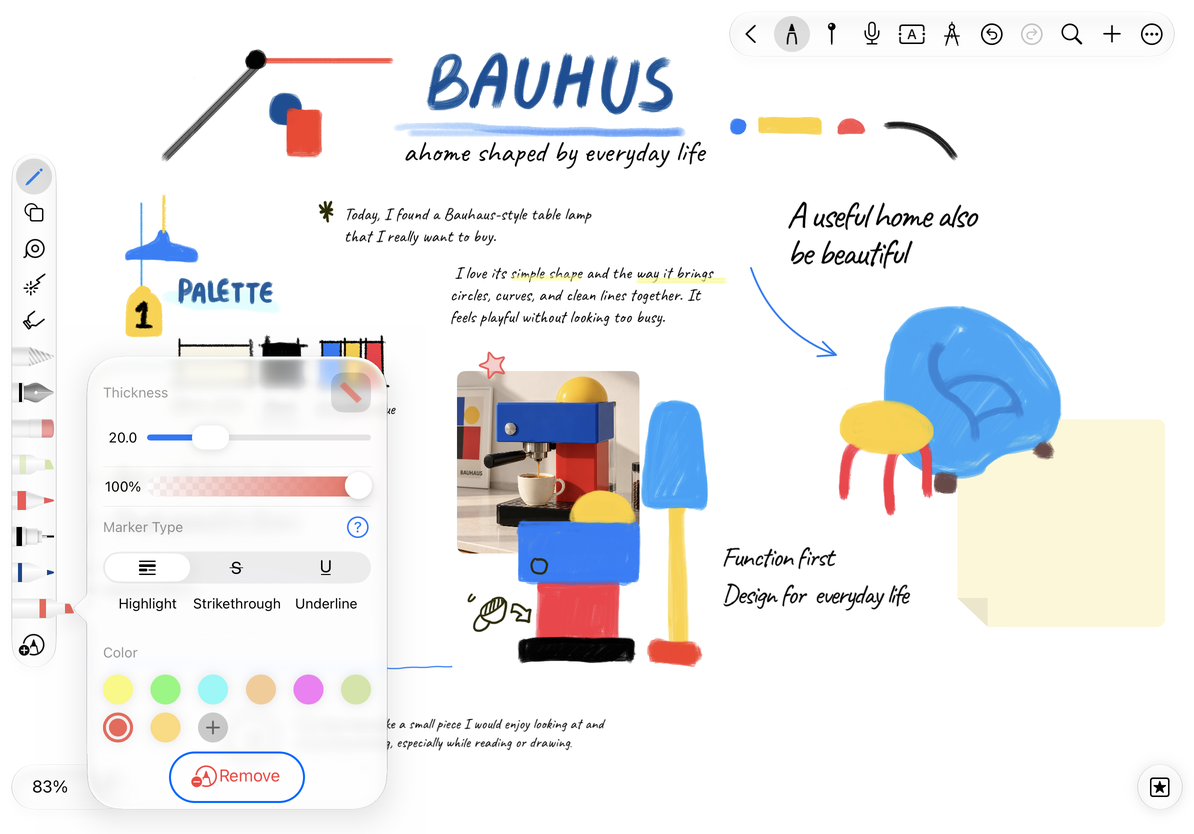
- Tap the selected tool again to open the properties panel and set the color, thickness, or options specific to the tool.
- When you no longer need a preset, tap Remove in its properties panel. This only removes the Pen Boxes preset and keeps what has been written.
Free users are prompted about Prodrafts Pro when adding beyond 3 saved tools. Pen Boxes can hold up to 30 tools. Only one Lasso and one ruler are kept; adding them again does not create duplicates. You can still adjust existing pen presets.
1. Open the add tool entry point
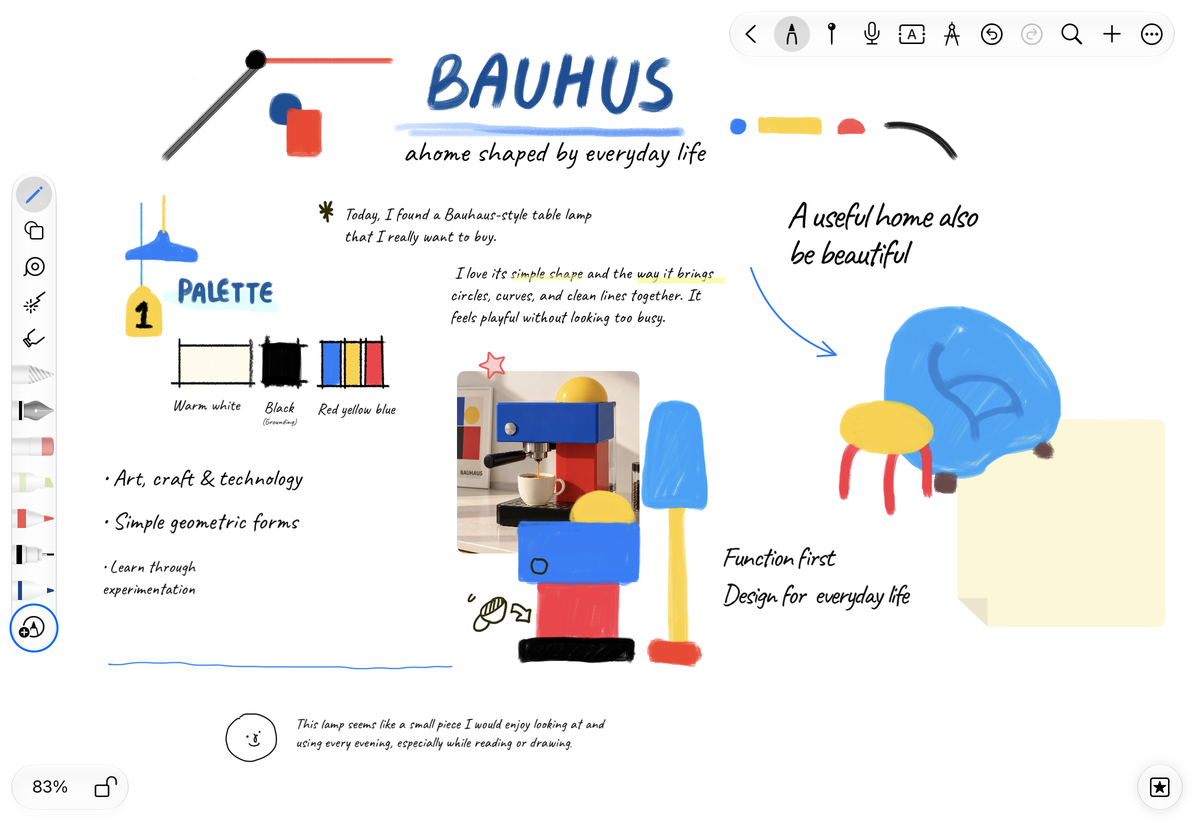
2. Select the tool you want to add
3. Remove the tool in the properties panel
Arrange tools and display categories
Drag saved tools in the pen list to place the most commonly used pens where they are easily accessible. When there are many tools, scroll along the list direction to view them without deleting tools to free up screen space.
On Mac or an iPad with a keyboard, press 1–9 without Command to select the first nine tools in Pen Boxes. Numbers follow the displayed order, including erasers, Lasso, and the ruler. Reordering tools changes their number keys. Choosing a pen restores its saved type, color, and thickness; choosing the ruler shows or hides it. See Keyboard shortcuts for the full list.
To change the tool categories in Pen Boxes, open Handwriting Settings → Edit Pen Box Toolbar. Use the plus and minus buttons to move categories between the "Show" and "Hide" lists, and then use the reorder handle to adjust the display order. The first category, which contains writing tools, cannot be hidden or moved; hiding a category does not mean deleting the content in the note.
Move, collapse and expand
- Drag an empty area or the drag area of Pen Boxes toward the top, bottom, left, or right edge of the screen.
- Drag Pen Boxes toward a corner to collapse it and make room for the canvas.
- Tap the collapsed Pen Boxes icon to expand it again.
Pen Boxes adjusts to the available editing area when you rotate the device, use Split View, or resize the window. Drag a pen to reorder it; drag the Pen Boxes area to move the whole toolbar.
1. Pen Boxes after being folded
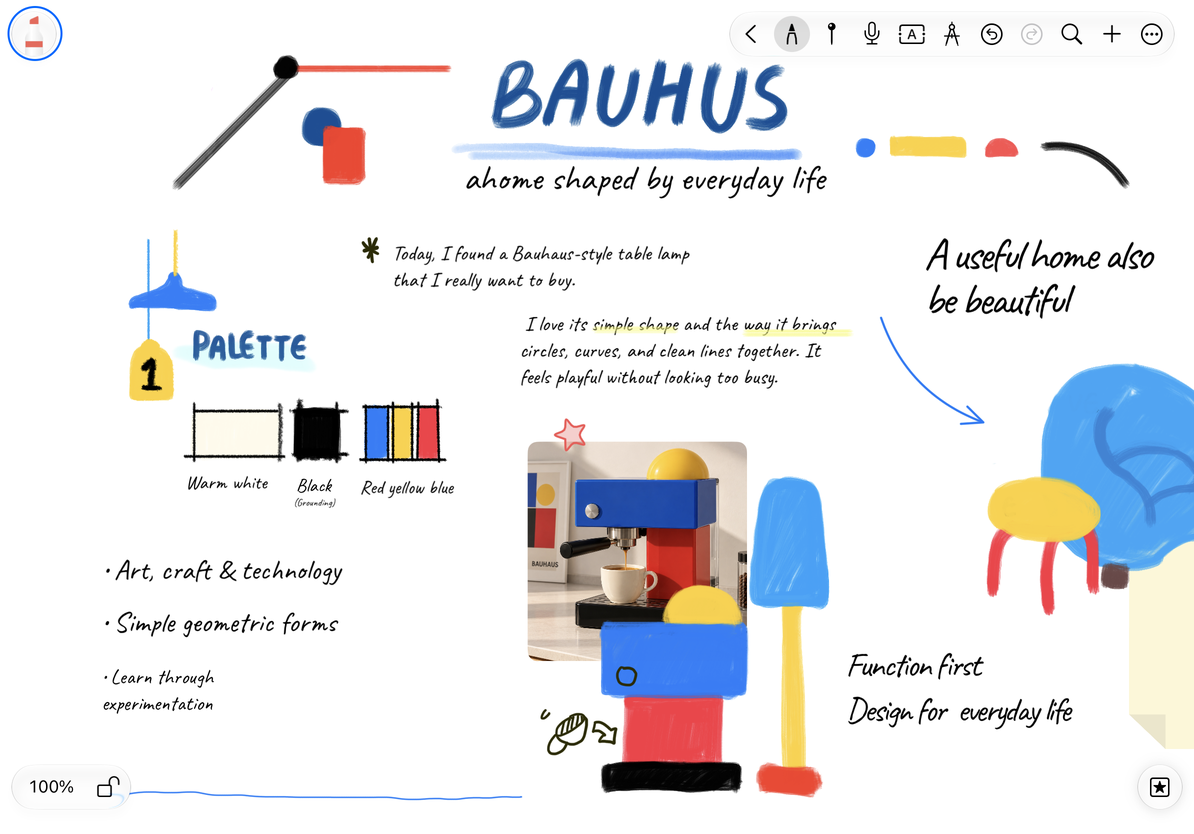
2. Tap the icon to expand Pen Boxes
Set up Perfect Shape
Tap "Perfect Shape" in "Handwriting Settings" to enter the main switch and advanced options page. You can turn on Align with Other Shapes, Select Shapes After Drawing, and Auto Fill Color; the three options will retain their respective selections.
For the complete operation of draw-and-hold recognition, adjustment while holding, and control point refinement after lifting the pen, see Draw and snap with Perfect Shape.
Use the system Pencil toolbar
On supported iPads, you can switch to the system Pencil toolbar in Handwriting Settings. Its layout and panels are managed by the system, so the custom Pen Boxes instructions may not apply. This switch is not available on iPhone or Mac.
Can't find a certain tool?
First check the hidden list of "Edit Pen Box Toolbar".
Remove button not showing up?
The current tool may be a temporary tool that has not yet been saved. Only saved presets need to be removed.
Related guides: Select pen type and pen properties · Set up Apple Pencil · Customize the toolbar