
Use the eraser and Scratch Out to Erase
Applies to handwriting you add in Infinite documents, Vertical documents, and Paged notes. The eraser does not delete text boxes, images, or the PDF background. Select objects and use Delete to remove them.
Choose erasure method
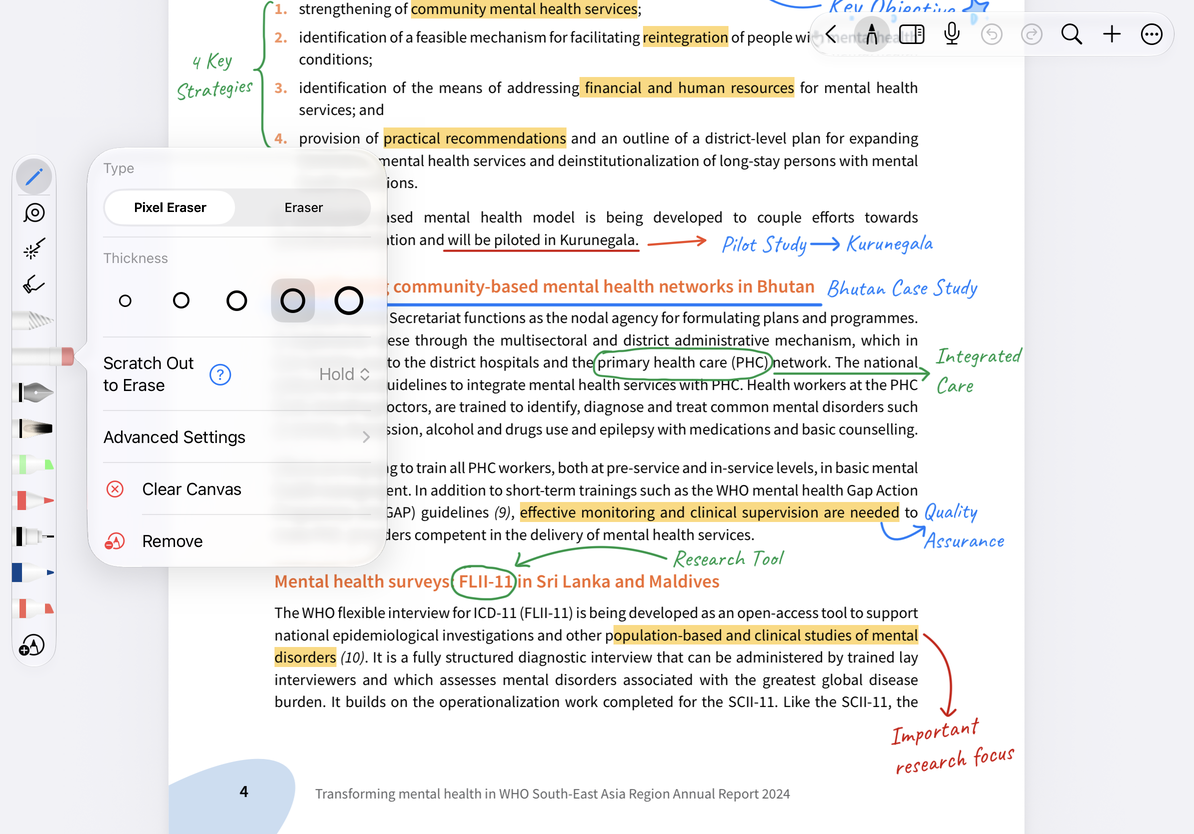
- Tap the eraser in Pen Boxes and tap it again to open the properties.
- Select Pixel Eraser in Type to perform partial erasing; when you need to delete the entire stroke, select another eraser.
- When you need to refine a part of the word, use partial erase and adjust the thickness; when you want to remove the entire extra line, use full stroke erase.
- Drag over the handwriting and select the pen back when finished.
The full stroke eraser does not display size controls because it targets full strokes. After entering Advanced Settings in the eraser properties and turning on Auto Deselect, ending erasure will switch back to the previous writing tool (when there is a recoverable tool); if you need to erase multiple places continuously, you can turn it off and manually select the pen back.
Remove in the properties only deletes the saved eraser preset, not the paper content. Temporary tools do not have this item.
Set eraser type and size
Scratch Out to Erase
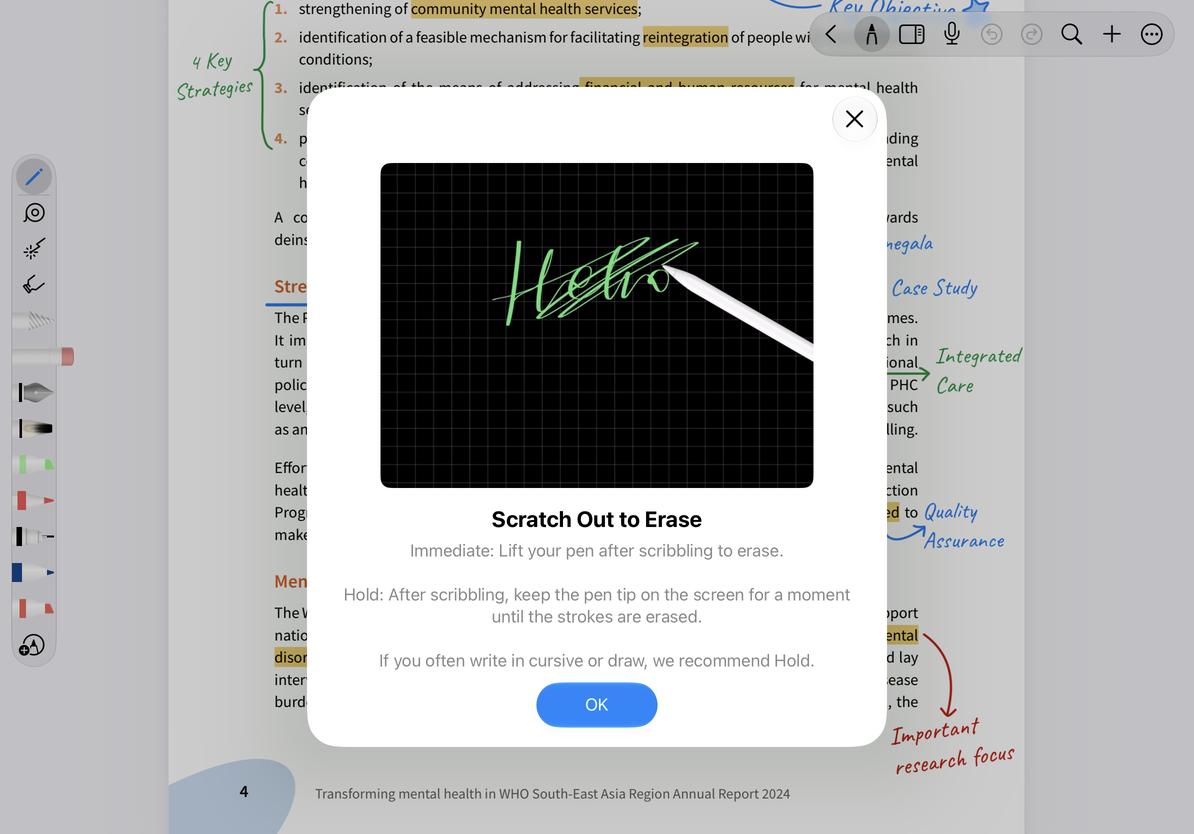
Supported iPads can set the action of "crossing out what has been written" in the Scratch Out to Erase setting in the eraser properties. iPhones and Macs don't offer the same setup.
- Open the eraser properties and find Scratch Out to Erase.
- Select Immediate to let eligible scratching actions process the handwriting directly.
- On devices supported by iPadOS 26, you can also select Hold; the corresponding second option for older systems is Off.
- Tap the question mark next to it to view the built-in graphic or video tutorial, and then practice on a short trial writing.
On iPadOS 26, Hold is an alternative trigger, not a way to turn Scratch Out to Erase off completely. Its availability depends on system support. Choose the trigger that best avoids confusing your normal writing or drawing with an erasing gesture.
Scratch Out to Erase instructions
Undo accidental erasing
Tap Undo on the toolbar immediately and confirm that the deleted handwriting is restored before continuing. To clear a large range of content, you can use Clear Canvas and select the clear range first.
Can't erase the text on the picture?
Text within images, scanned pages, and the PDF background is not handwriting you added.
Delete the entire line with one touch?
Currently, the entire stroke eraser is selected. You can change it to partial erase.
Related guides: Selecting and Deleting Objects · Apple Pencil Temporary Erase