Spelling practice with definitions or pronunciation
Turn recognition into recall using your own vocabulary list. Each set has one target language, and you can switch between definition and pronunciation prompts.
Turn a word list into dictation practice
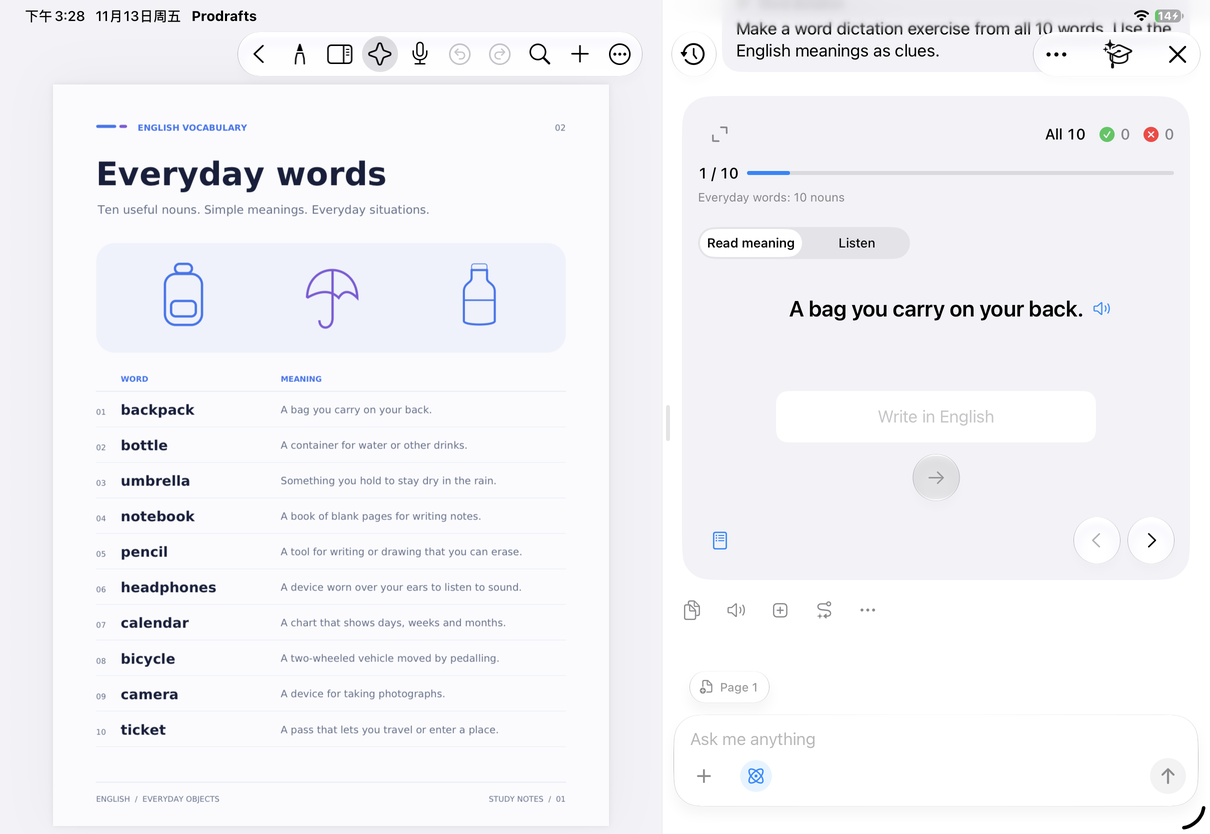
Generate a spelling exercise
- Paste a vocabulary list into AI chat, or reference notes containing vocabulary.
- Choose + → Learn → Word dictation.
- Tap Dictation language and choose the language to write. English is the first default; later, the app remembers your last choice. Automatic mode infers it from your request or material.
- Add a word count, definition language, or other instructions, then send.
Create English spelling practice from this list, covering the entries in their original order and using Chinese definitions as prompts.
You can also select French and ask to practice the page's music vocabulary. The menu supports English, Simplified and Traditional Chinese, Japanese, Korean, French, German, Spanish, and automatic selection. Definitions default to the app's interface language unless your request specifies otherwise.
Long lists depend on the selected model's capacity. Split them by chapter or topic if needed and check coverage afterward.
Use definitions or pronunciation
- Read meaning: Read the prompt and type the corresponding word.
- Listen: Listen to the word; use the speaker to replay it and the eye button to show or hide its definition.
Switching modes keeps the text you are typing. Each set remembers its mode. When opening from Learn, tap the input field before typing.
Submit and check
Tap the lower right arrow or press Return to submit. The card shows the correct spelling and feedback, then automatically advances. Manually browsing words or opening the word list cancels that automatic advance.
This website demo makes no AI requests and saves nothing to your notes. In the app, exercises are generated from material you provide.
Spelling checks ignore case, surrounding whitespace, full-width versus half-width characters, and equivalent Unicode forms, but preserve accent differences. Scores use the latest submitted spelling. Skip a word if needed and return to missed words at the end.
Use the word list
Tap the list icon at the card's lower left. Search by word number or currently visible source text and definitions, then tap a result to jump there. Use the list's eye icon to hide the original words for self-testing.
In review, choose All / Correct / Incorrect. The list and left/right navigation share the same filter. Each word shows the correct answer and your submitted answer separately.
Common questions
The definition is not the meaning I want to practice
Keep the precise meaning in your source list and request “Use only the corresponding definitions in this list.” Check the generated result against the source.
I only want to retry incorrect words
Filter incorrect words to review them first. Start over repeats the entire original set. To create a set containing only mistakes, provide those words and generate again.
Will switching to the result window lose my input?
Chat, result windows, and Learn details share progress and can preserve unsubmitted spelling across switches. See Manage exercises for storage and deletion rules.