
Generate multiple-choice questions from notes
After a lesson, use a few questions to check your understanding. Learn questions share progress across chat, result windows, and exercise details.
Master a problem with similar questions
Prepare material and generate
- Open the note's AI chat and reference the passage, image, or pages to practice.
- Choose + → Learn → Multiple choice.
- Select a question count or specify it and the scope in your request. Each set supports 1–25 questions. An explicit count in the request overrides the menu; Automatic lets AI decide from the material.
- Send and wait for the exercise card.
Create 5 multiple-choice questions from this page of biology notes. Focus on easily confused concepts and use only this page as the source.
If material is insufficient or the request exceeds supported limits, adjust it as prompted and send again. For vocabulary, specify using the list's original definitions. If every option must come from the list, provide enough distinct options.
Answer and check
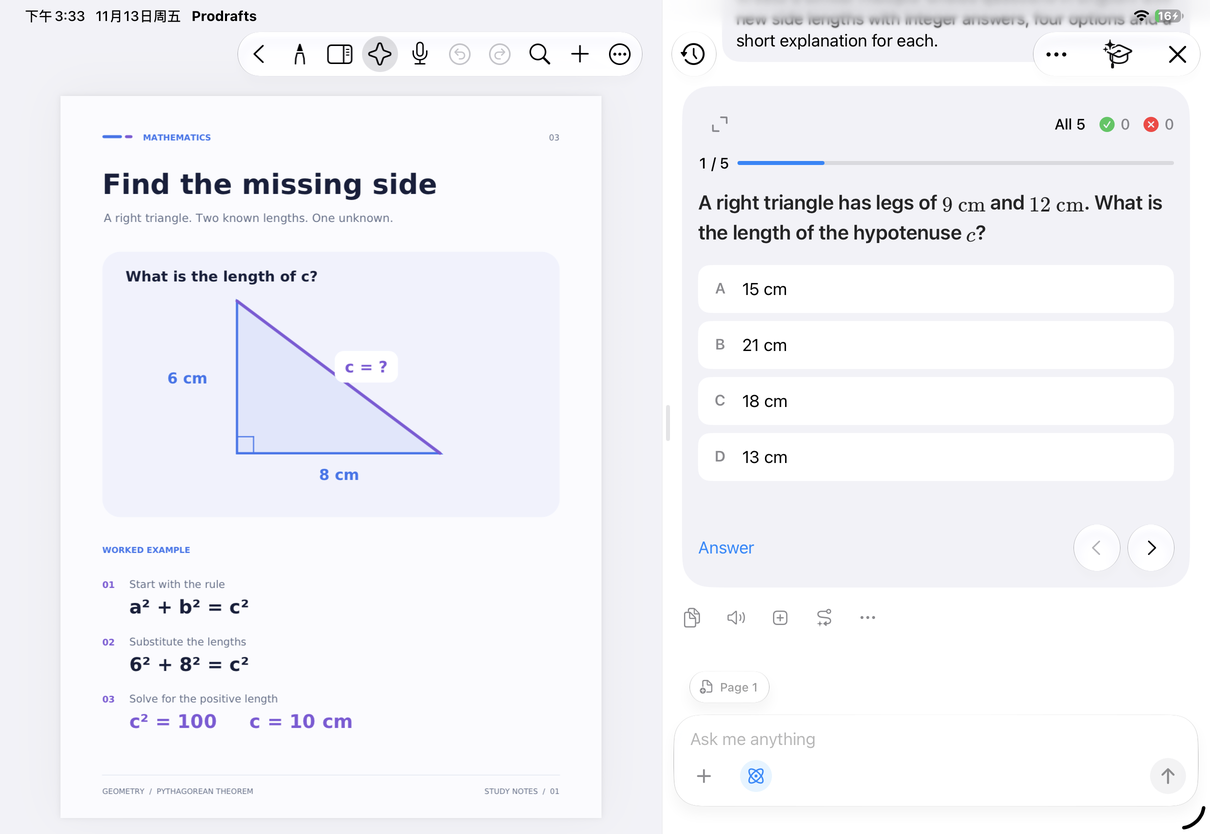
Tap an option to submit. The app marks it correct or incorrect and moves to the next unanswered question after about a second. You can also use the bottom arrows. After reaching the end, it returns to skipped questions; completing all questions shows your results.
You can open Answer even before submitting to see the correct option and short explanation. Viewing it does not count as answering or select an option. Open the answer panel before automatic navigation if you want to pause and read.
Which process do plants mainly use to convert light energy into chemical energy?
This website demo makes no AI requests and saves nothing to your notes. In the app, exercises are generated from material you provide.
Request a detailed explanation
Tap Explain in the answer panel for a further AI explanation of that question. If you answered, it also considers your choice. The explanation appears progressively and is saved with the question.
Refreshing an existing explanation makes a new request. The old one stays until new content arrives; retry on failure. Reading saved explanations uses no new AI resources, while generating or refreshing calls the service. Closing the explanation panel cancels an unfinished request.
View results and practice again
Results show accuracy, correct answers, and total questions. Choose Incorrect answers to review mistakes, or switch to all or correct questions. Original question numbers are retained.
Start over clears this attempt's answers and repeats the same questions. Saved explanations stay. Generate again in chat if you want a different set.
Common questions
Does reading the answer first affect my score?
Reading is not a submission. The result is recorded only when you choose an option.
The explanation contradicts the marked correct option
AI-generated content may be wrong. Check the source, ask for further explanation, or regenerate. A score reflects this question set's judgments; it does not verify their factual accuracy.
Can I continue after leaving?
Continue saved questions and progress from Learn in the current note or the original conversation. See Manage exercises.