Your material.
Your practice.
Choose a textbook page, a word list, or a few concepts and start recalling actively. Exercises join Learn in the current note, ready to continue next time.
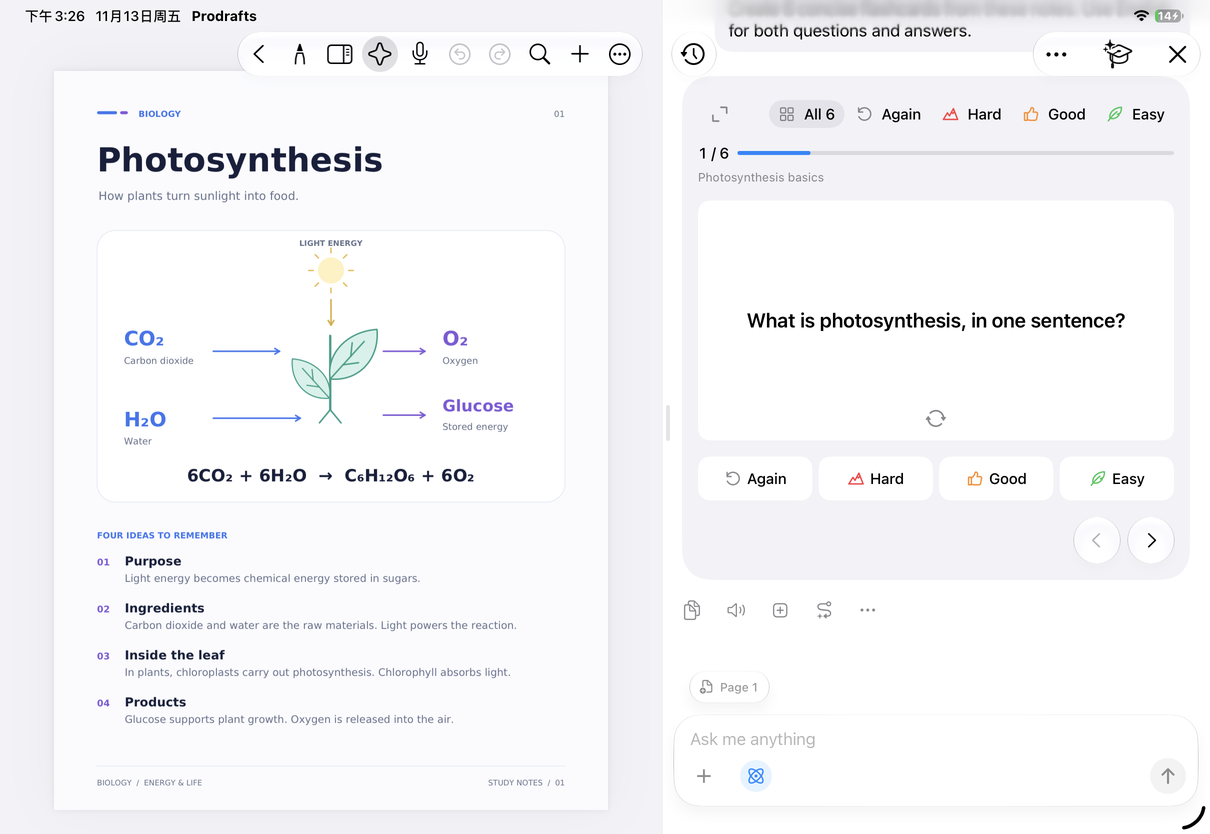
Turn key concepts into flashcards
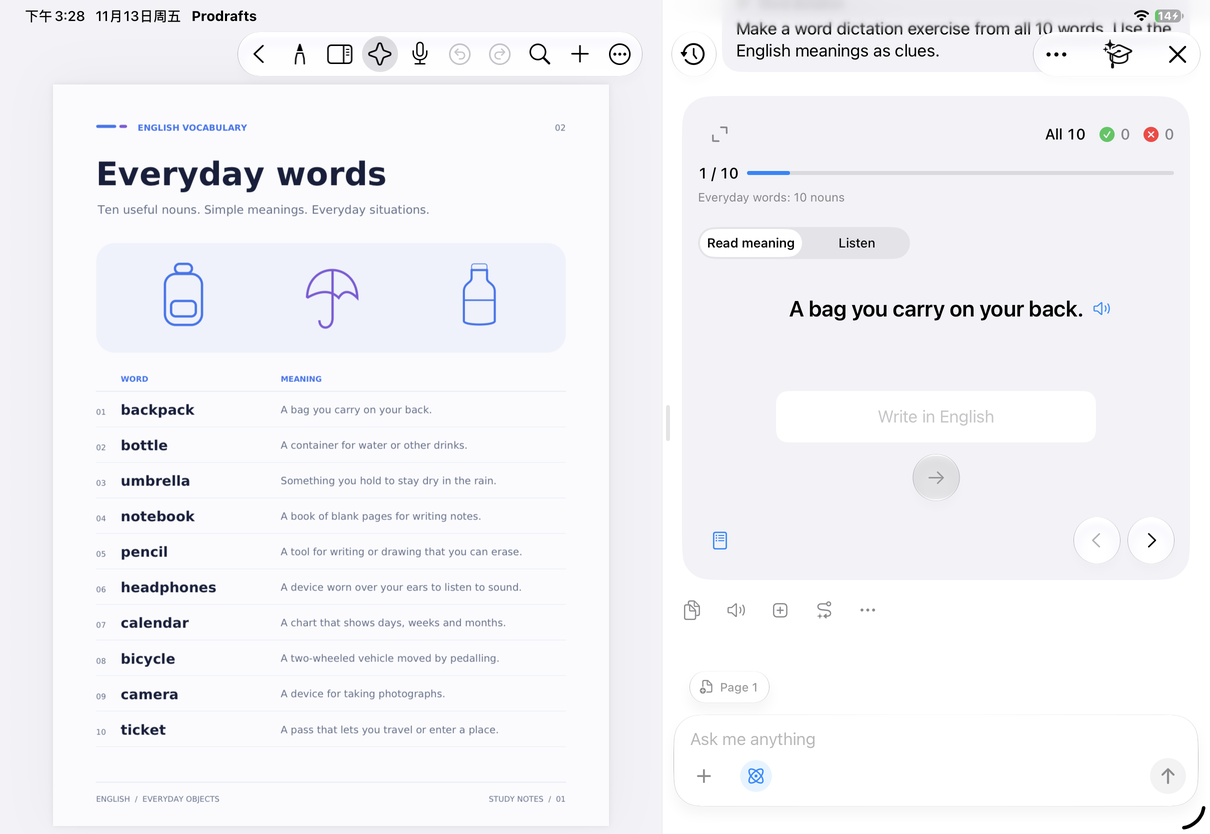
Turn a word list into dictation practice
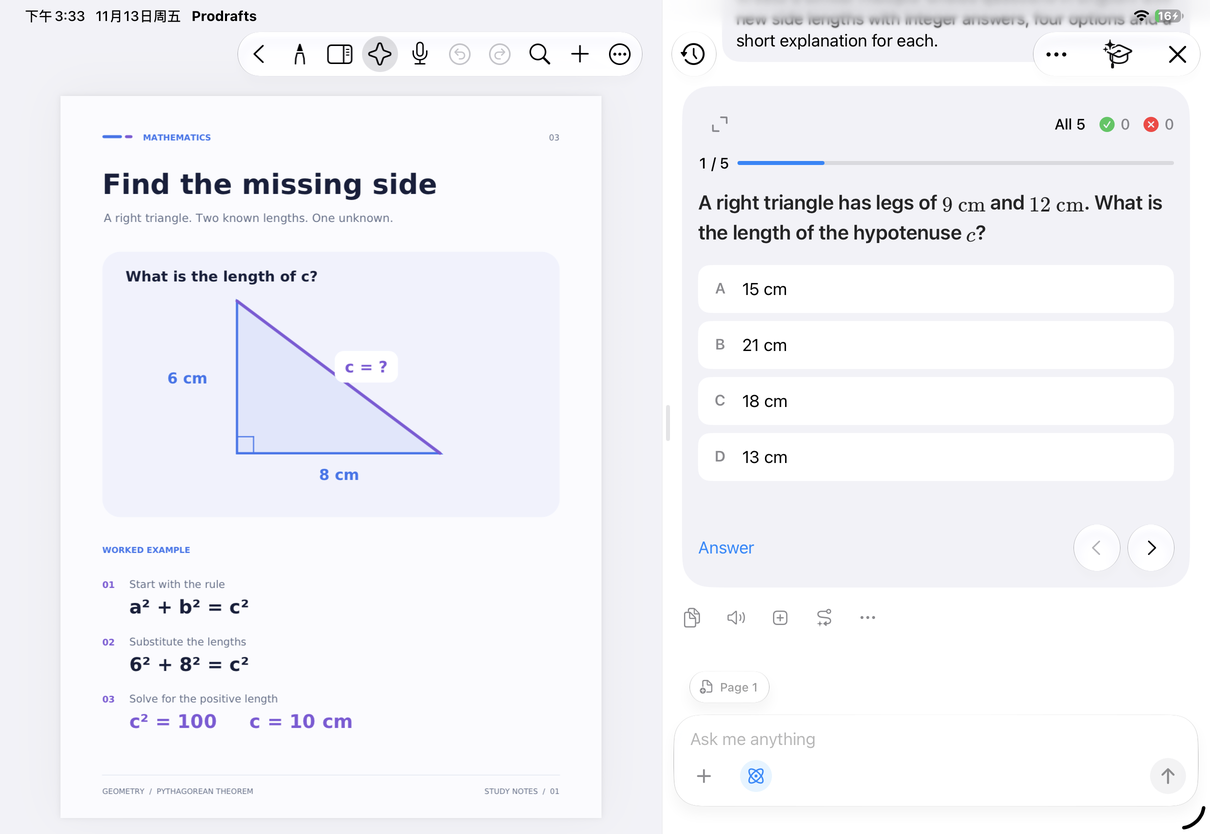
Master a problem with similar questions
Try three kinds of practice
Which process do plants mainly use to convert light energy into chemical energy?
This website demo makes no AI requests and saves nothing to your notes. In the app, exercises are generated from material you provide.
Choose how to practice
| What to practice | How it works | Guide |
|---|---|---|
| Understand concepts and distinguish related ideas | Choose answers, read explanations and scores, and review mistakes | Multiple choice |
| Write words from definitions or pronunciation | Type, check the spelling, and revisit mistakes | Spelling |
| Recall terms, definitions, or key points | Recall first, reveal the answer, then choose one of four ratings | Flashcards |
Create your first exercise
- Open AI in a note and add material, or type a vocabulary list or topic.
- Choose an exercise type under + → Learn by the input field.
- Specify a count, scope, or target language, then send.
- Practice directly in the generated chat card, or tap Open exercise for Learn details.
For example: “Create 5 multiple-choice questions from this page,” “I want spelling practice for this English word list,” or “Make flashcards from these concepts.” Selecting a type makes your intention explicit; without a selection, you can also describe it in natural language.
Printable questions and interactive Learn exercises work differently. To answer or flip cards in the app, choose the corresponding Learn type.
Where to find exercises
Tap the graduation-cap icon at the top of AI chat to open Learn. It gathers quizzes, spelling, and flashcards from all conversations in the current note. Wide windows show the list and details side by side; narrow windows navigate between levels.
Filter by type or switch between Not mastered / Mastered. Counts refer to sets: ten flashcards in one set count as one exercise.
Keep learning afterward
- Results and review: Identify what you know and what needs more practice.
- Manage exercises: Rename, mark mastery, remove, or add sets again.
Answering, browsing, flipping cards, and reading saved content happen locally. Generating exercises or requesting new explanations calls the selected AI service. Progress is currently local; note iCloud synchronization does not mean Learn progress has synchronized across devices.